Home > Training > Reviewer > Back-enter Activities for Faculty
Back Enter Activities for Faculty
This article explains how Reviewers with the Historical Data Manager role can back‑enter activities into a faculty member’s UC OATS workspace. Category I forms should be approved only when the activity was previously approved and is being added for historical recordkeeping.
To back-enter activities on behalf of a faculty member:
- Select the Faculty tab.
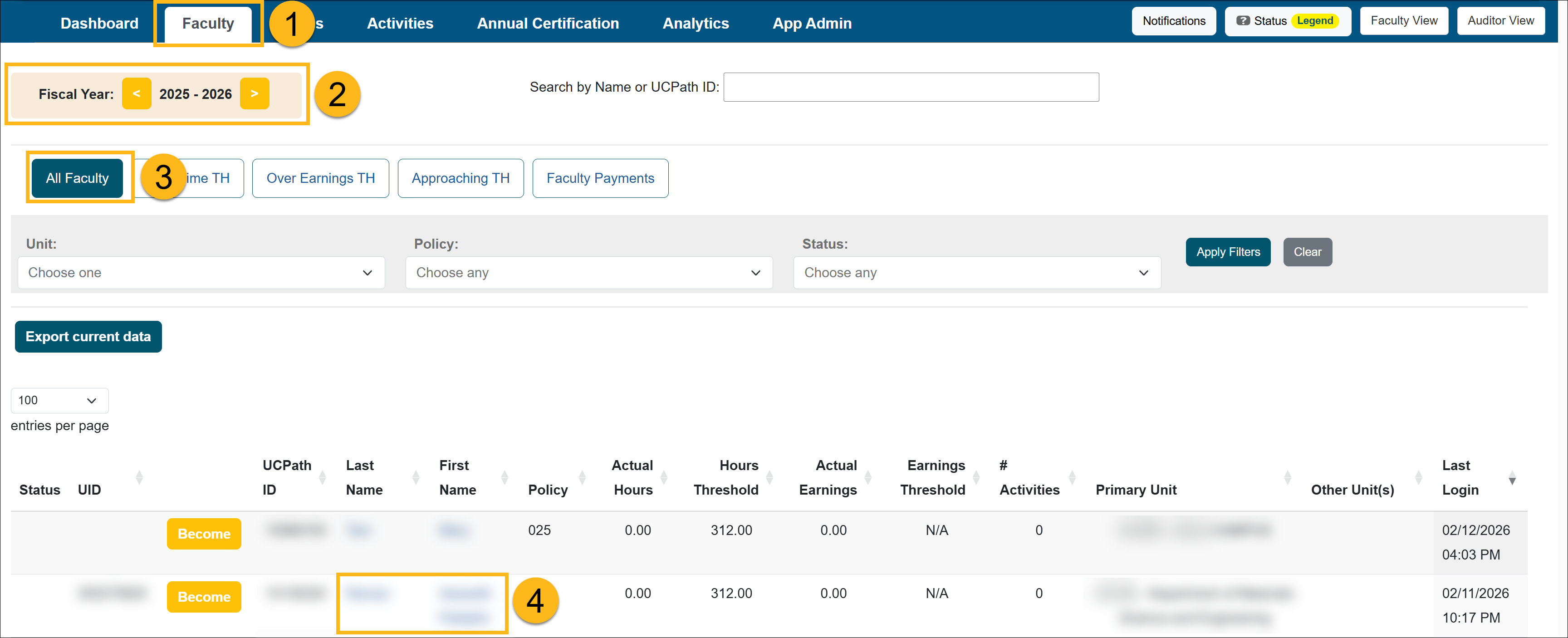
- Navigate to the appropriate fiscal year.
- Select the All Faculty button.
- Locate and click on the faculty member's name. You will be taken to the Faculty Details page.
- Select the Enter an Activity button.
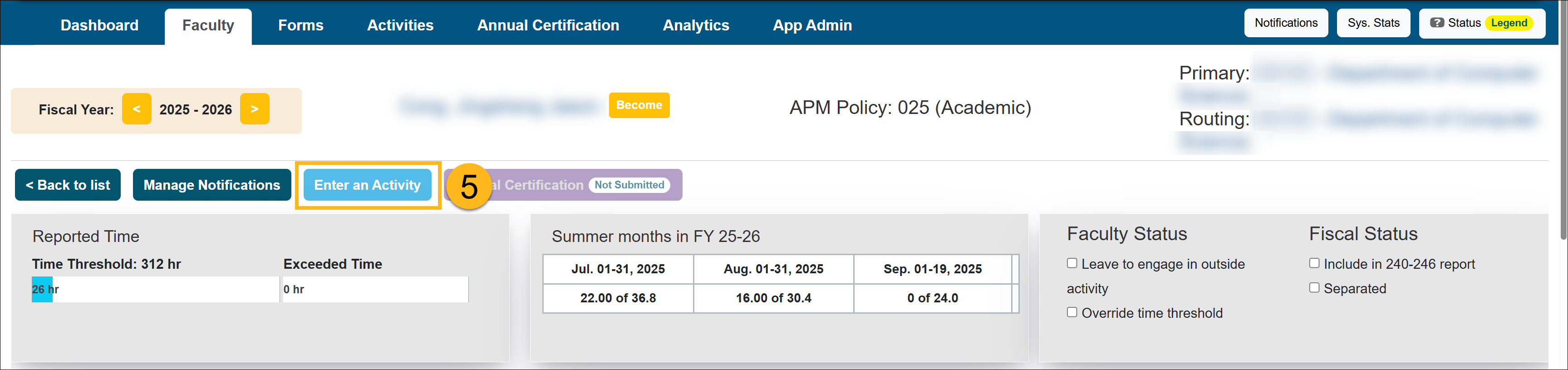
- Complete the Enter an Activity form. To learn more about filling out the form, visit the Entering a New Activity article.
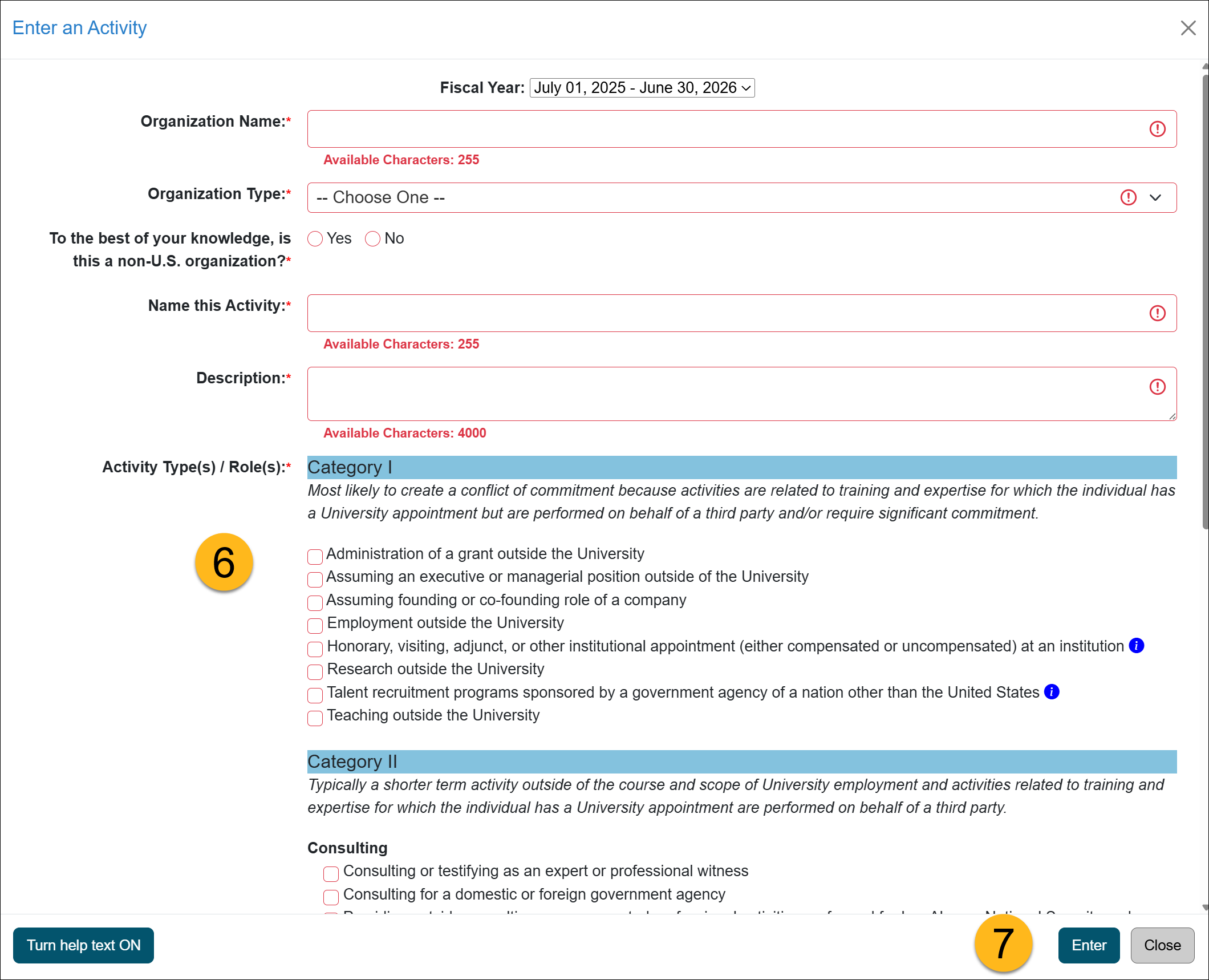
- Click Enter to submit the form.
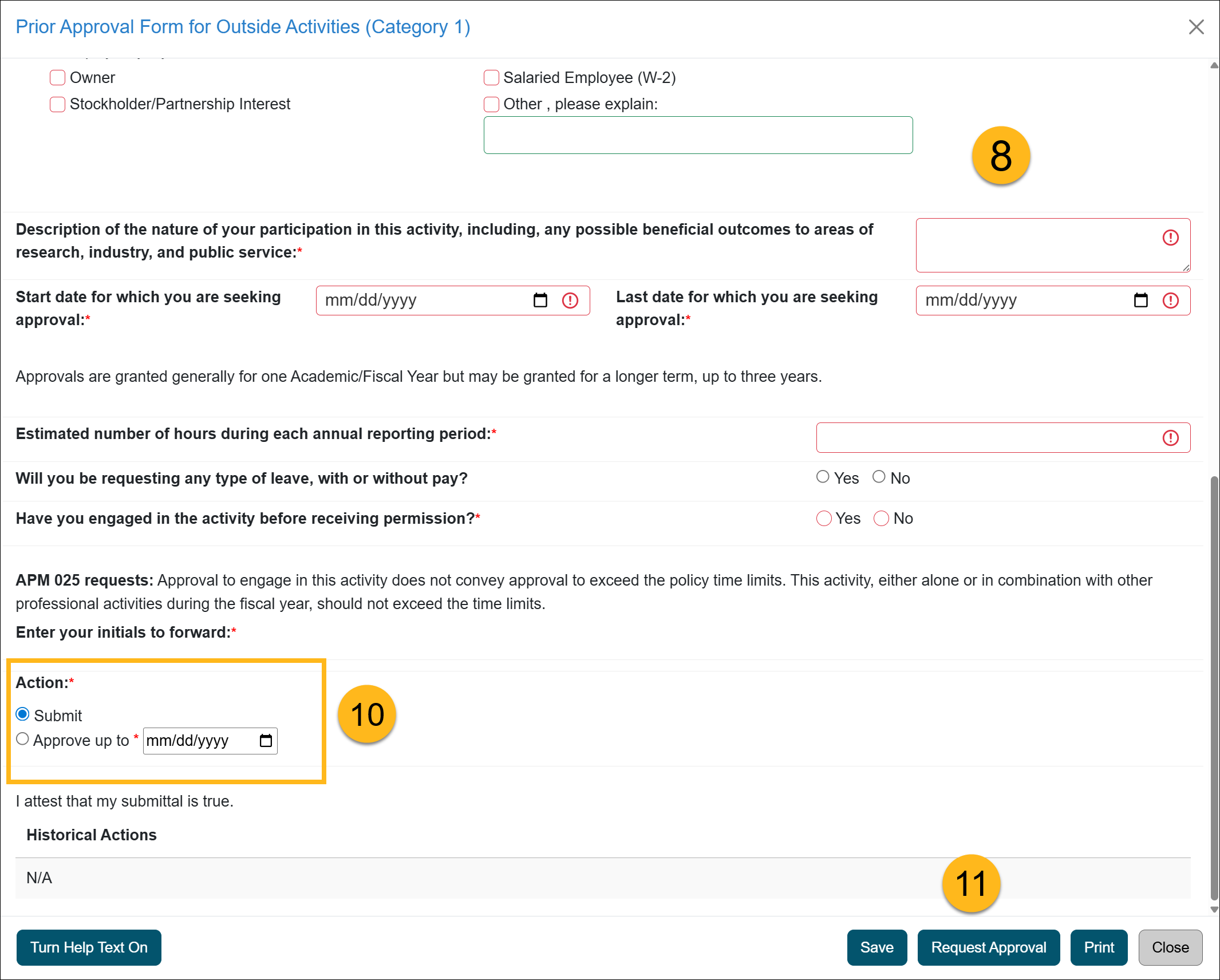
- If the activity is a Category I activity, fill out the form. To learn more about completing a Category I form, visit the Category I Form article.
- Click on the Notes tab at the top of the page and upload the original Category I approval form or proof of approval and any documentation submitted by the faculty member regarding that activity. Return to Form Details.
- At the bottom of the form under the Actions section. You will have the option to:
- Submit: Select this option to submit the form and allow it to go through the approval workflow.
- Approve: Select this option to approve the form and enter the last date of approval.
- Click the Request Approval button to submit the form.
- Click on the Back to faculty list button to return to the faculty list.
Related Articles
All Reviewers
Outside activity category types
Adding Notes and attachments
Category I Activities that trigger COI emails
Faculty's Threshold Exceeded
Report Faculty Payments
Evaluate Stock Payments
Back Enter Activities for Faculty
Vacate Prior Approval Forms
Cancel Exceed Threshold Form while TH is Exceeded
Last Modified:2026-02-12 15:45:33.035497-08