Home > Training > Faculty > Enter an Activity
Enter an Activity
When you plan to engage in an outside professional activity, you must enter the activity into UC OATS to ensure accurate tracking and compliance with University policy.
Some activities require prior approval before participation. For example, Category I activities and activities that involve students require prior approval. As soon as you know you will be engaging in an activity, you should enter it into UC OATS.
Note:
- Enter each outside professional activity only once. After an activity is entered into UC OATS, continue to use the same activity record to report and track your effort each time you participate. Do not create a new activity entry each time you perform the same activity.
- Deans & Faculty Admins: Deans and full-time faculty administrators are required to report effort for all Category 3 activities (compensated and uncompensated). Reported effort for Category 3 activities counts against your time threshold.
Tutorial Videos
Watch the tutorial video to learn how to enter an activity in UC OATS.
General Campus Faculty
Health Science Faculty
Entering an activity
To add an activity to your workspace:
- Confirm the fiscal year. Ensure you are in the fiscal year in which the activity is scheduled to begin. Use the fiscal year indicator to switch fiscal years if needed. Note: If you have not submitted your Annual Certification for the previous fiscal year, a pop-up will appear asking you to confirm the fiscal year before proceeding.

- Click the Enter an Activity button.
- Complete the Enter an Activity form. The required fields will be outlined in red until they are completed.
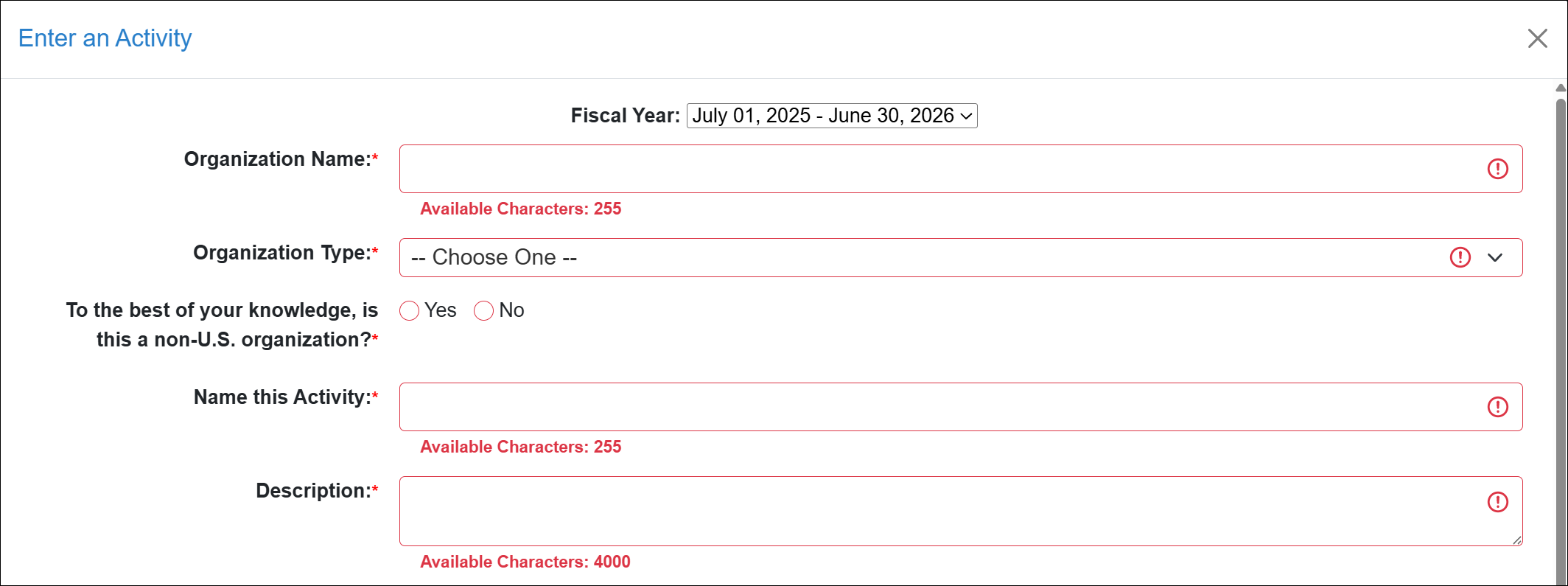 Provide the following information:
- Fiscal Year: Use the arrows to toggle between fiscal years if the activity should be entered in a different year.
- Organization Name: Enter the full name of the organization associated with the activity.
- Organization Type: Select if the organization is for-profit or non-profit.
- Non-U.S. organization: Select Yes if the organization is a non-US organization. Select No if the organization is based in the US.
- Name this Activity: Enter a clear and unique descriptive name to help distinguish this activity from others in your workspace.
- Description: Describe the activity and your role or involvement.
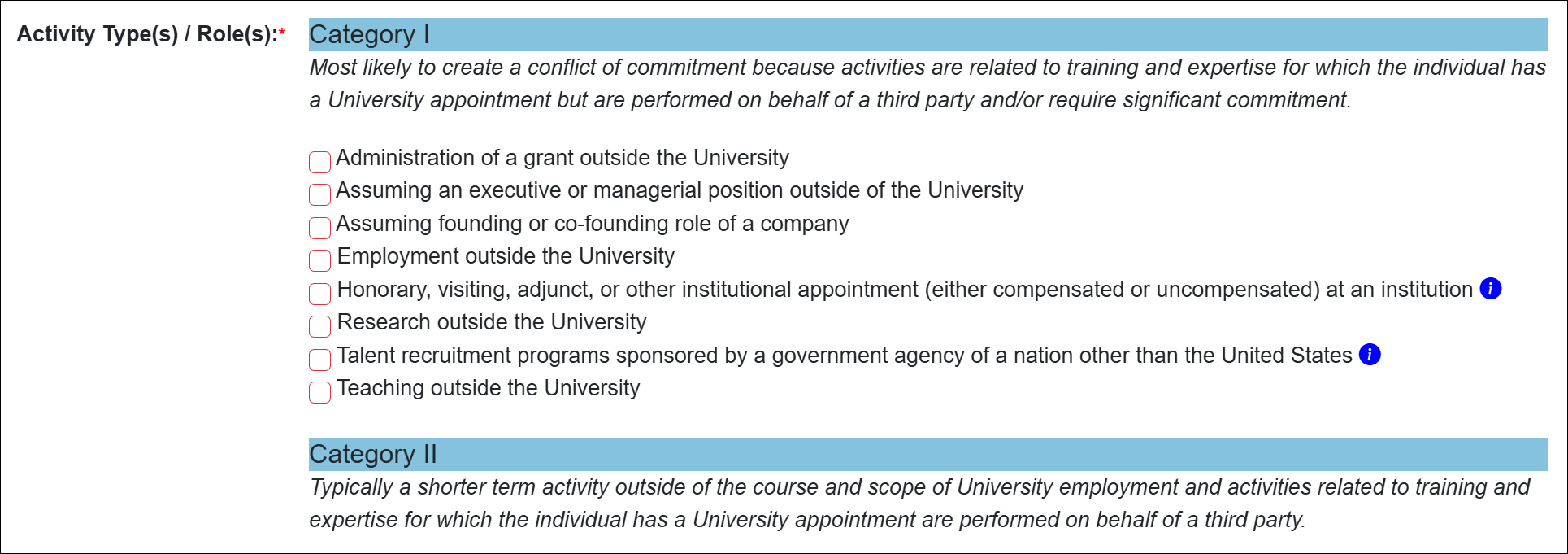
- Activity Type / Role: Select all activity types that best describe your role in the outside professional activity. Based on your selections, additional questions may appear. If you select any Category I activity types, you will be required to submit a Category I prior approval form after submitting this activity. [Learn more]
- Student Involvement: Indicate whether you plan to involve a student in the activity. If you choose yes, you will be required to submit a Student Involvement prior approval form after submitting this activity. [Learn more]

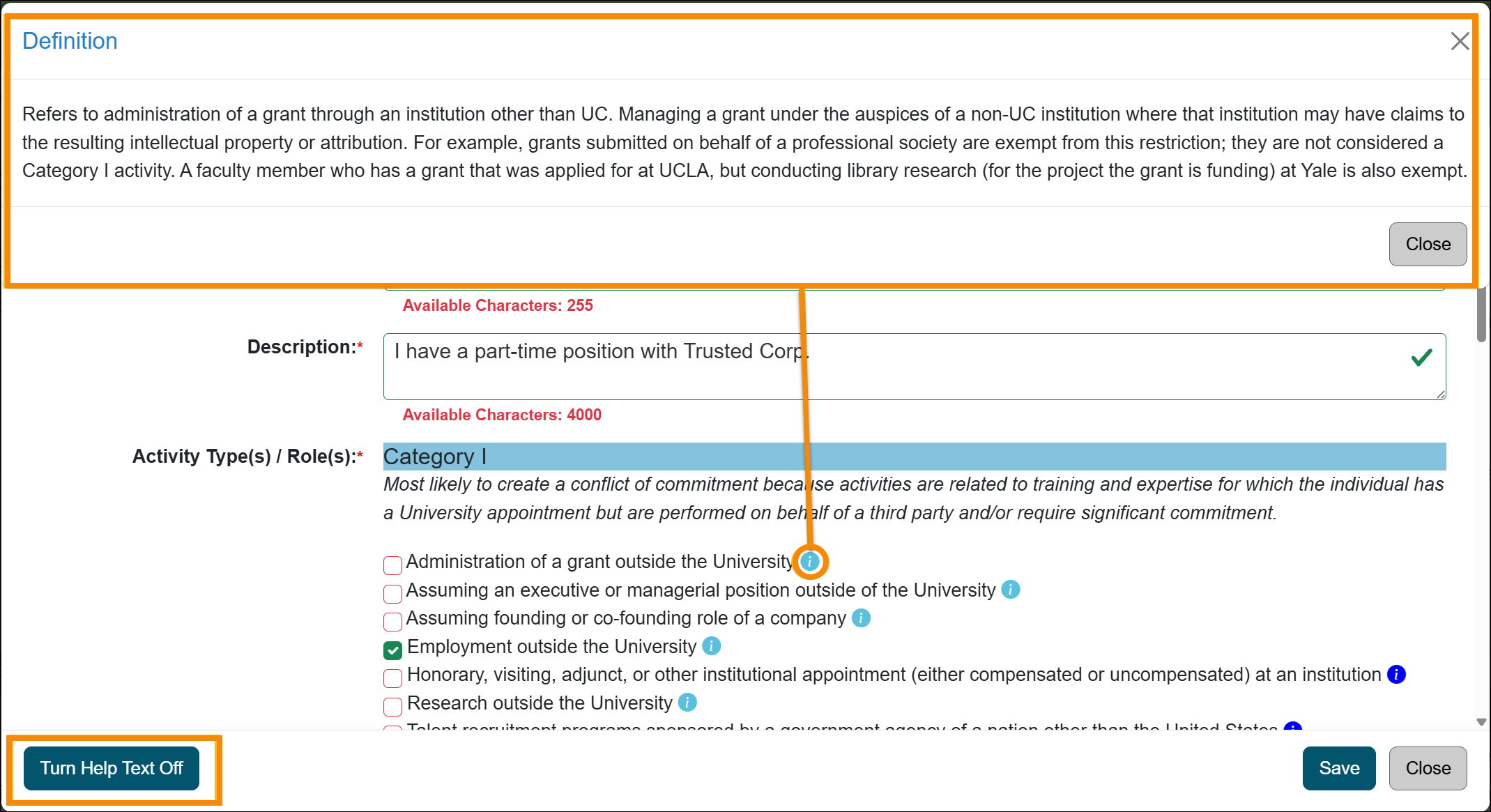
- Use Help Text (optional): Enable Help Text to view definitions and campus-specific guidance while completing the form. Once enabled, hover over the content to view available help text.
- Submit the activity: Click Enter to submit the form. If prior approval is required, UC OATS will automatically generate the appropriate forms for you to complete. Once submitted, the activity will appear in your UC OATS workspace.

Last Modified:2026-01-06 16:07:43.216152-08