Home > Training > Health Science Reviewer (APM 671) > Vacate Forms & Annual Certification
Vacate Forms & Annual Certification
This article is no longer current. Please visit the updated version: View Updated Article
This article explains how to use the Vacate Form feature in UC OATS. The Vacate Form is used to remove obsolete prior approval forms and Annual Certifications from reviewer or approver queues when a faculty member has separated from the University, and the form is no longer needed.
- Only Reviewers with the 'Historical Data Manager' role can use the Vacate Form feature.
- The Vacate Form option is only available on the Faculty Details page and is not accessible from your queue.
- When a form is vacated, it is removed from the Reviewer or Approver queues.
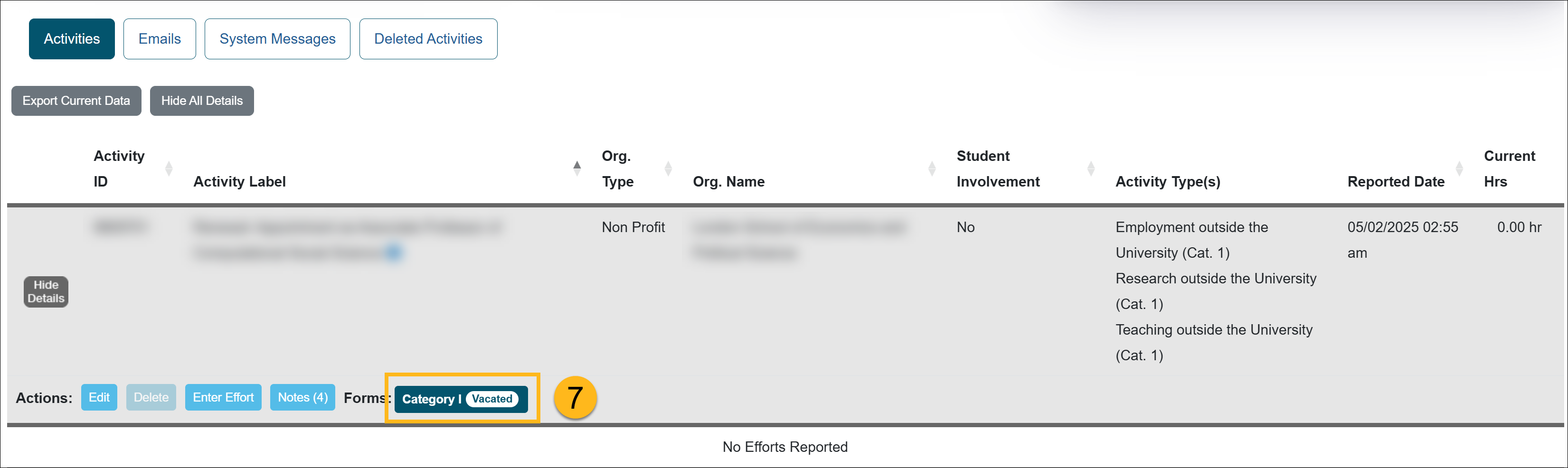
- The form and/or Annual Certification will be marked as vacated and will remain visible in the faculty member’s workspace for historical and audit purposes.
Purpose of the Vacate Form Feature
When a faculty member separates from the University, prior approval forms and Annual Certification may still be pending in Reviewer or Approver queues. Because the faculty member is no longer employed, these requests no longer require action.
Previously, such forms remained in queues indefinitely. The Vacate Form feature allows Reviewers who also hold the Historical Data Manager role to remove these forms from active queues.
Vacating a form does not delete it. The form or Annual Certification remains available in the faculty member’s workspace for historical reference and audit purposes.
How to Vacate a Form
To vacate a form after a faculty has been separated, do the following:
- Select the Faculty tab.
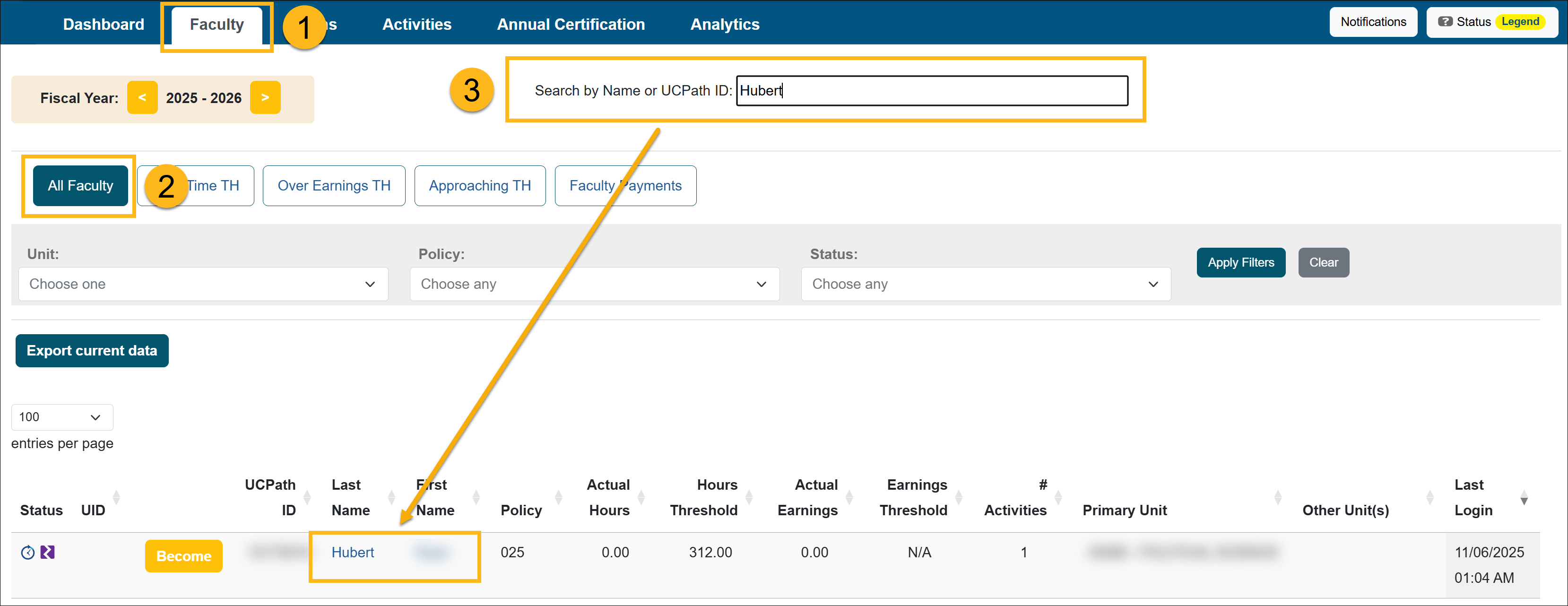
- Select the All Faculty button. The list displays all the faculty you have access to.
- Locate the separated faculty member and select their name to open the Faculty Details page.
-
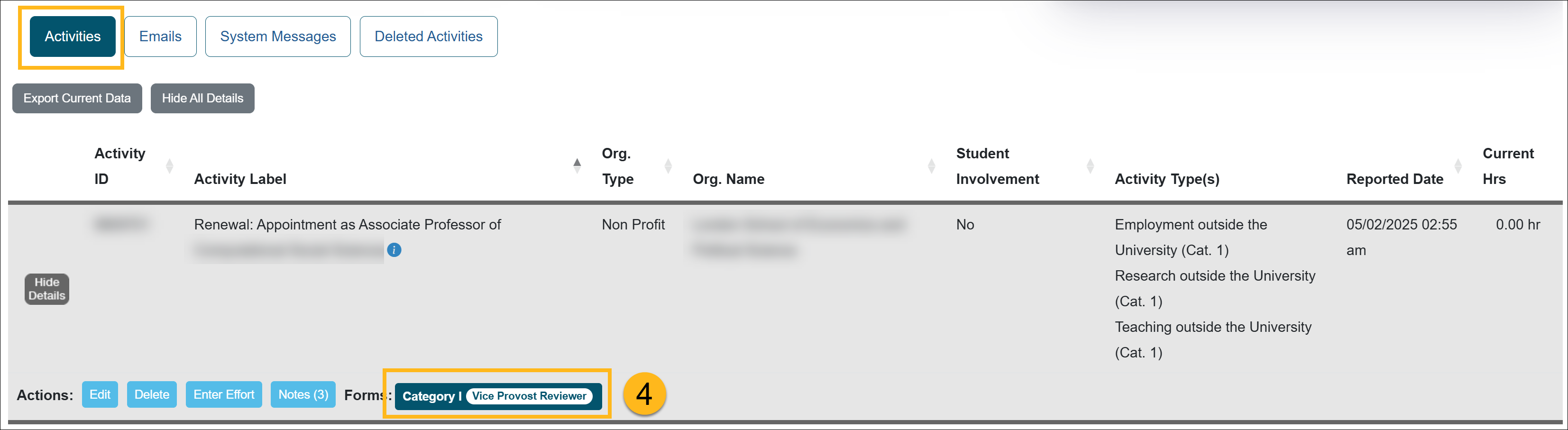
In the Activities section, locate and click on the prior approval form or Annual Certification you want to vacate. Use the Fiscal Year indicator to switch fiscal years if needed.
For Annual Certification:
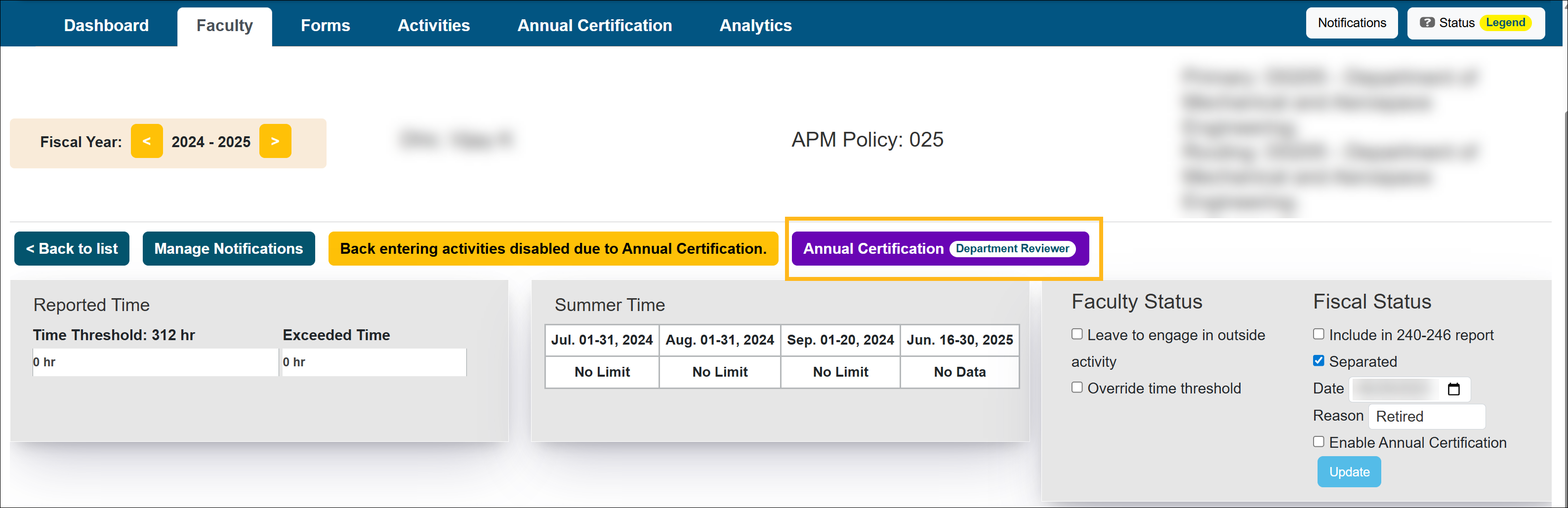
- Open the form and select the Vacate Form at the bottom of the page.
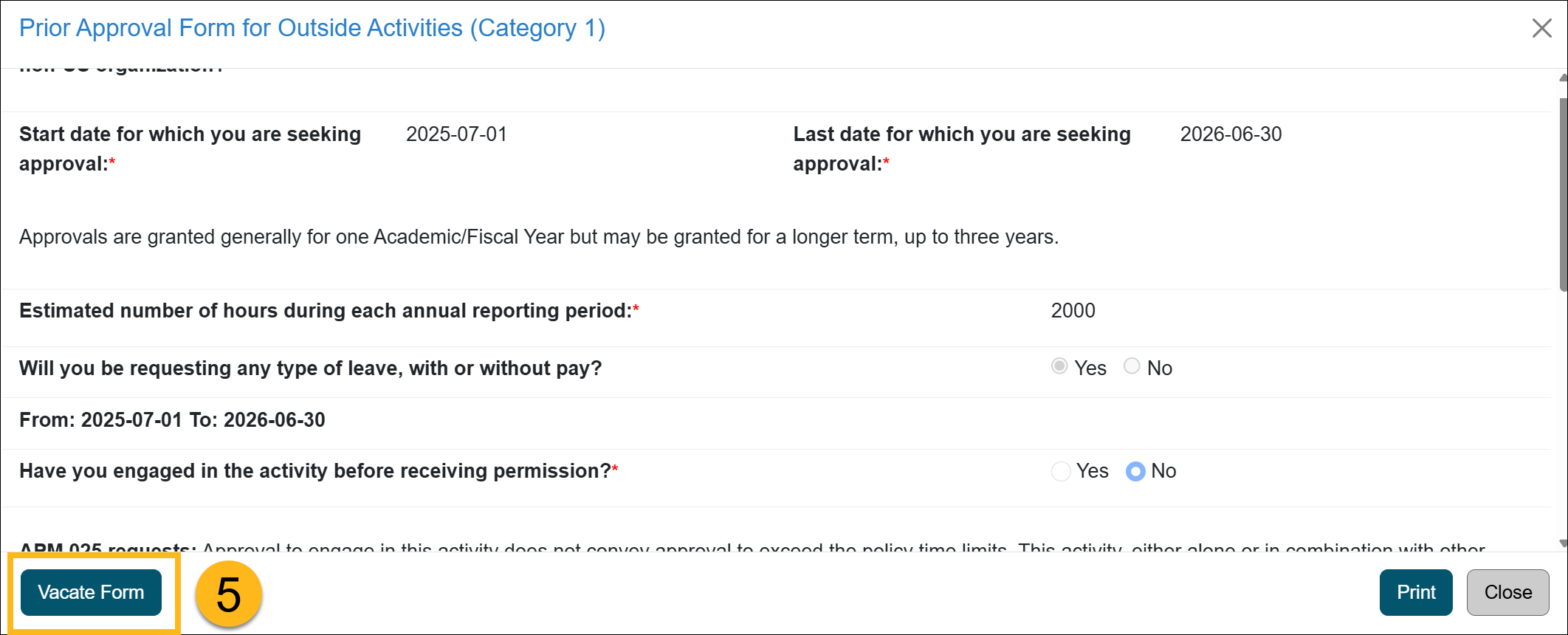
- Enter a Reason for vacating the form and then click Submit Vacate.
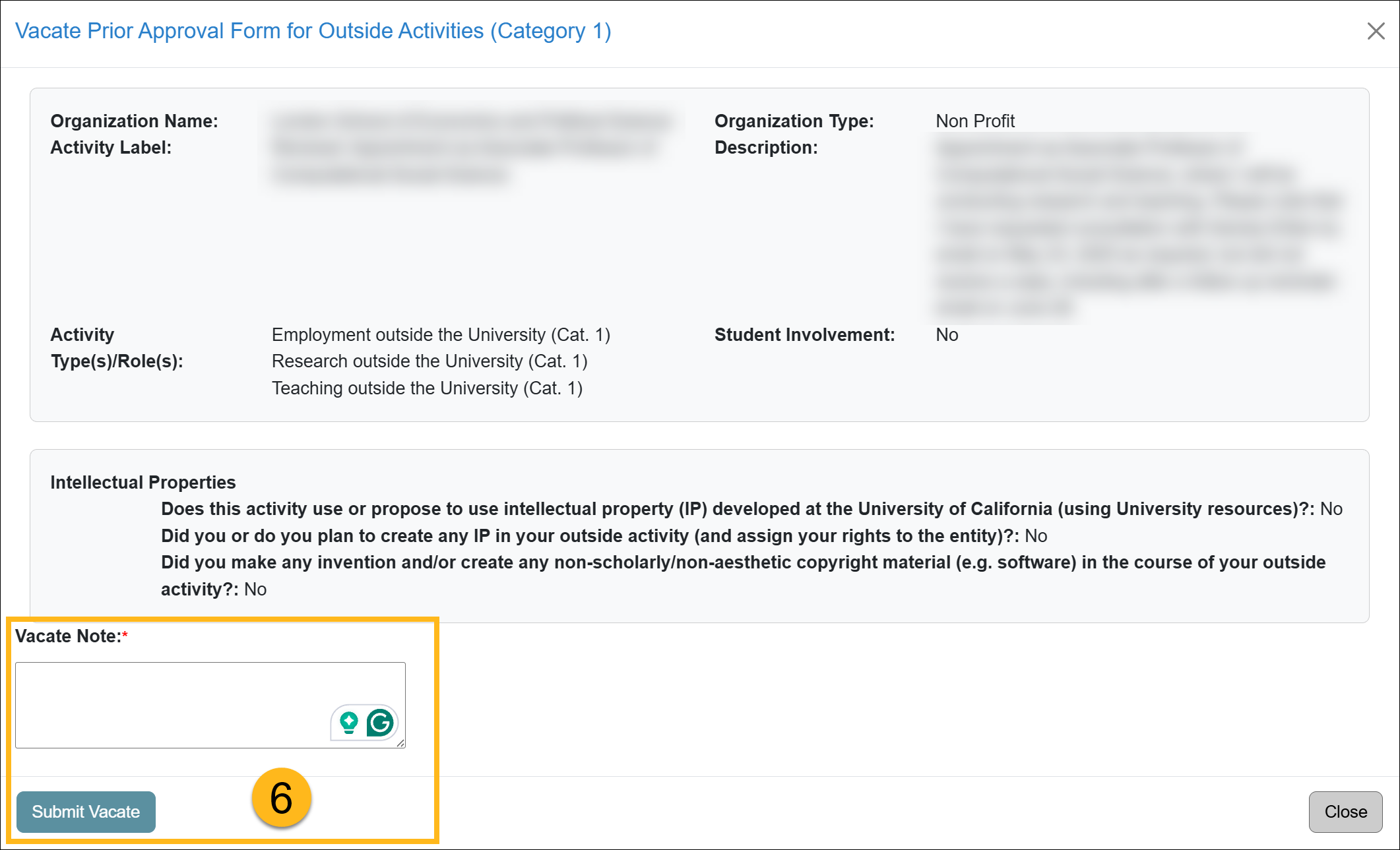
- Once submitted, the prior approval form is vacated. The form is removed from the approval workflow and marked as Vacated, but it is not deleted and remains visible in the faculty member’s workspace for historical and audit purposes.
Related Articles
Health Science Reviewer (APM 671)
Faculty & Fiscal Status Indicators
Overriding Fac. Time / Earning Th.
Leave to Engage in Outside Activity
Back Entering Activities for Faculty
Separating Faculty in UC OATS
Payments Due To Plan
Evaluating Stock Payments
Managing Fac. Email Notifications
Returning an Accepted AC Report
Vacate Form & Annual Certification
Campus Help Sites
UC Berkeley
UC Davis
UC Irvine
UC Los Angeles
UC Merced
UC Riverside
UC San Diego
UC San Francisco
UC Santa Barbara
UC Santa Cruz
UC OATS Portals
UC Berkeley
UC Davis
UC Irvine
UC Los Angeles
UC Merced
UC Riverside
UC San Diego
UC San Francisco
UC Santa Barbara
UC Santa Cruz
APM Policies
Academic Personnel & Programs
APM-025- General campus faculty
APM-671- Health sciences faculty
APM-240- Deans
APM-246- Faculty Administrators (100% time)
Last Modified: 2026-02-23 15:38:18.038445-08