Home > Training > Application Administrator > Faculty Data Retention
Faculty Data Retention
The Data Retention function in UC OATS helps administrators manage records for faculty who have been separated from the University for five years or longer, in accordance with UC retention policy (Records Retention Schedule - 0016C5* and 0016A2*). Administrators can review eligible faculty records, download a faculty member’s profile when records need to be retained, and delete the record from UC OATS. A Data Retention Report is also available to provide a history of completed data retention actions.
Note: A Data Retention review should be completed annually to ensure your campus is not retaining records beyond the appropriate timeframe.
Managing a faculty member's record
The following will walk you through the process of deleting a faculty member's record in UC OATS using the Data Retention function.
Important: Deleting a faculty profile is permanent and cannot be reversed. Download the faculty profile before deletion if the records need to be retained.
To delete the faculty member's record:
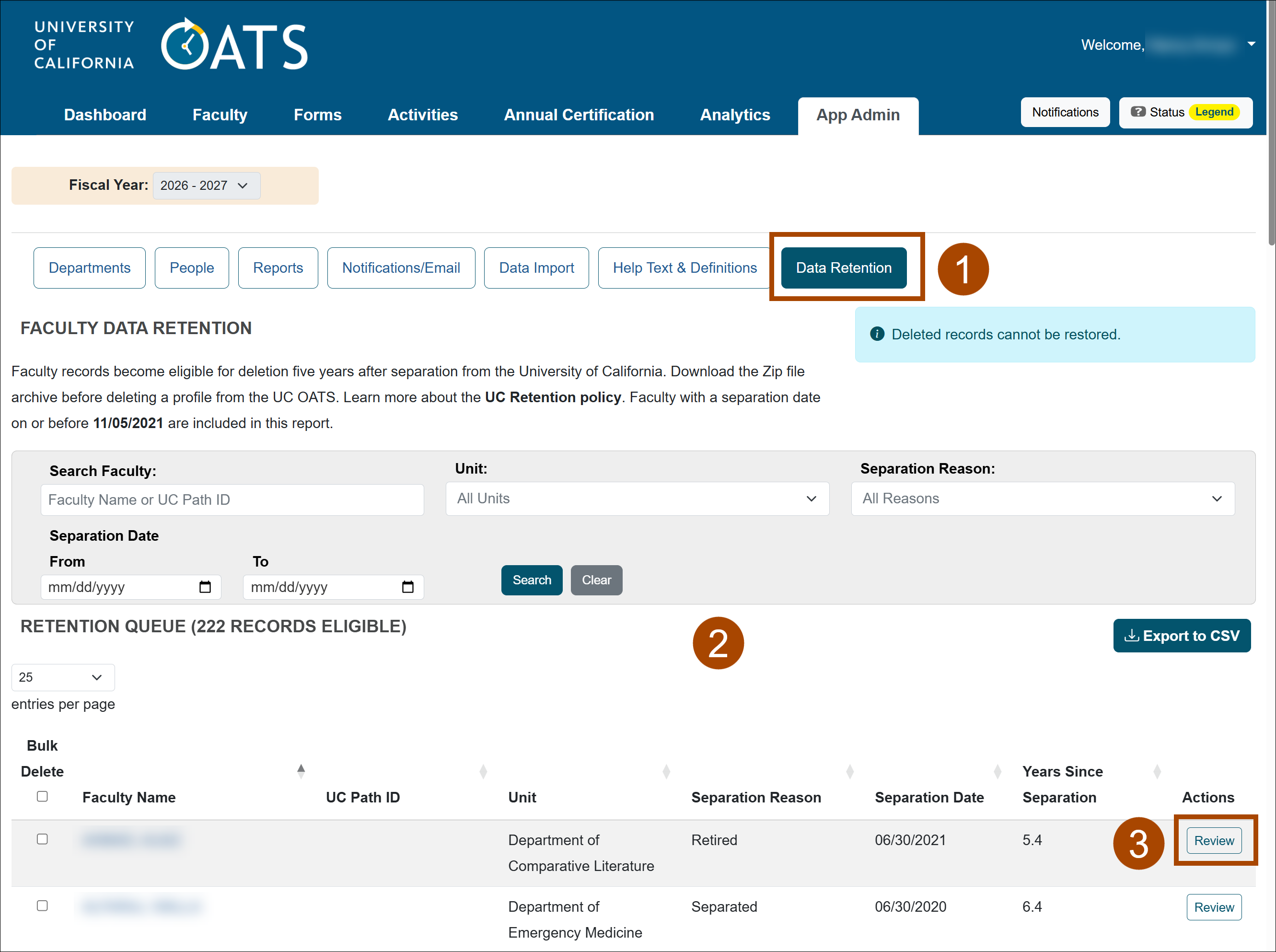
- Go to App Admin > Data Retention.
- The Data Retention page displays faculty records that are eligible for deletion. Use the search and filter options to locate specific faculty records.
- Select the Review button next to the record you would like to manage.
- Go to Step 1: Download Archive (Optional). If the faculty member's records need to be retained for legal, HR, or other business purposes, select Download Profile Archive and save the ZIP file to the appropriate location. Permanently delete the downloaded ZIP file from your computer after you've saved it to the appropriate location.
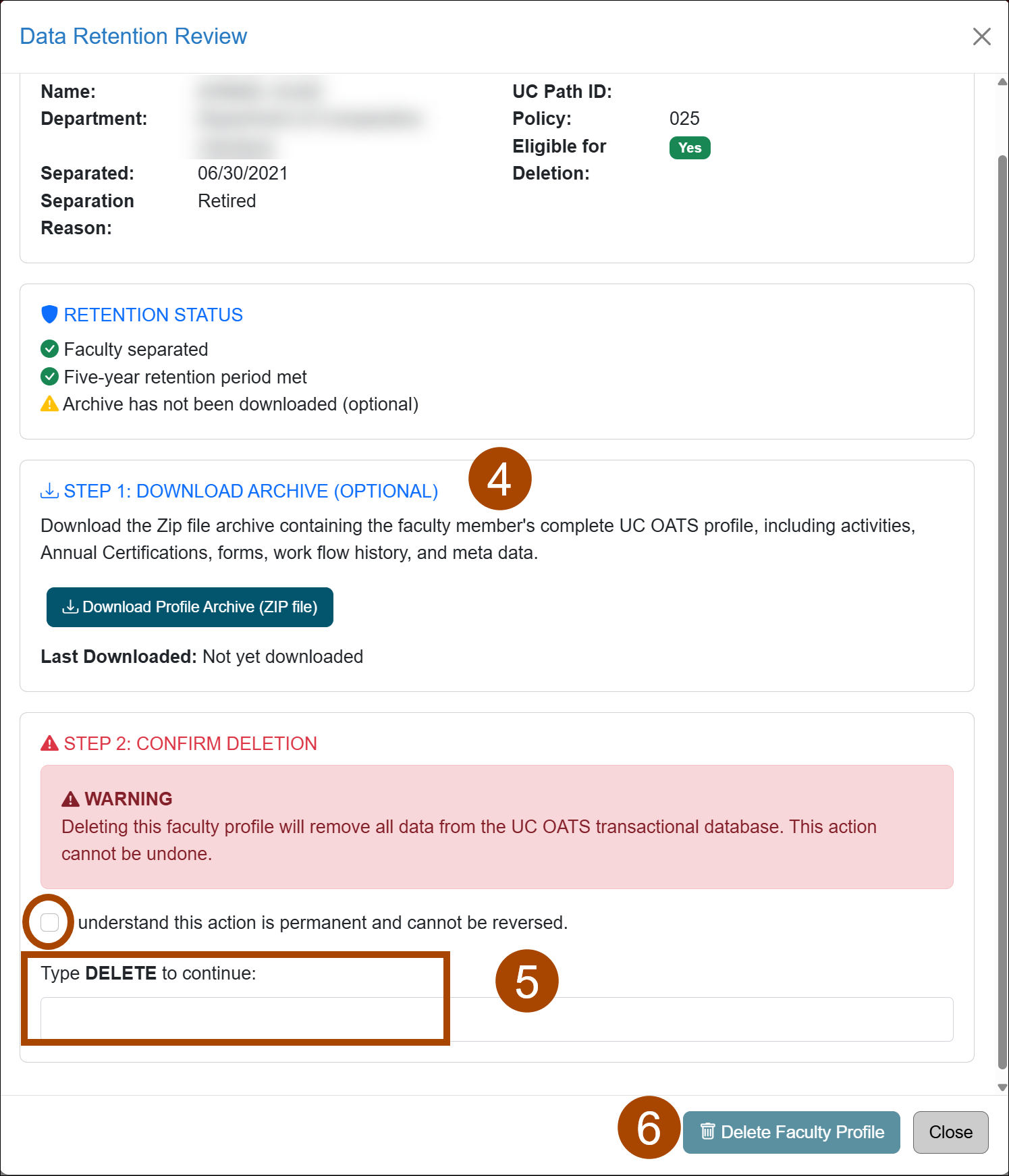
- Step 2: Confirm Deletion - Select the confirmation checkbox, and then type DELETE in the field.
- Select Delete Faculty Profile.
Data Retention Report
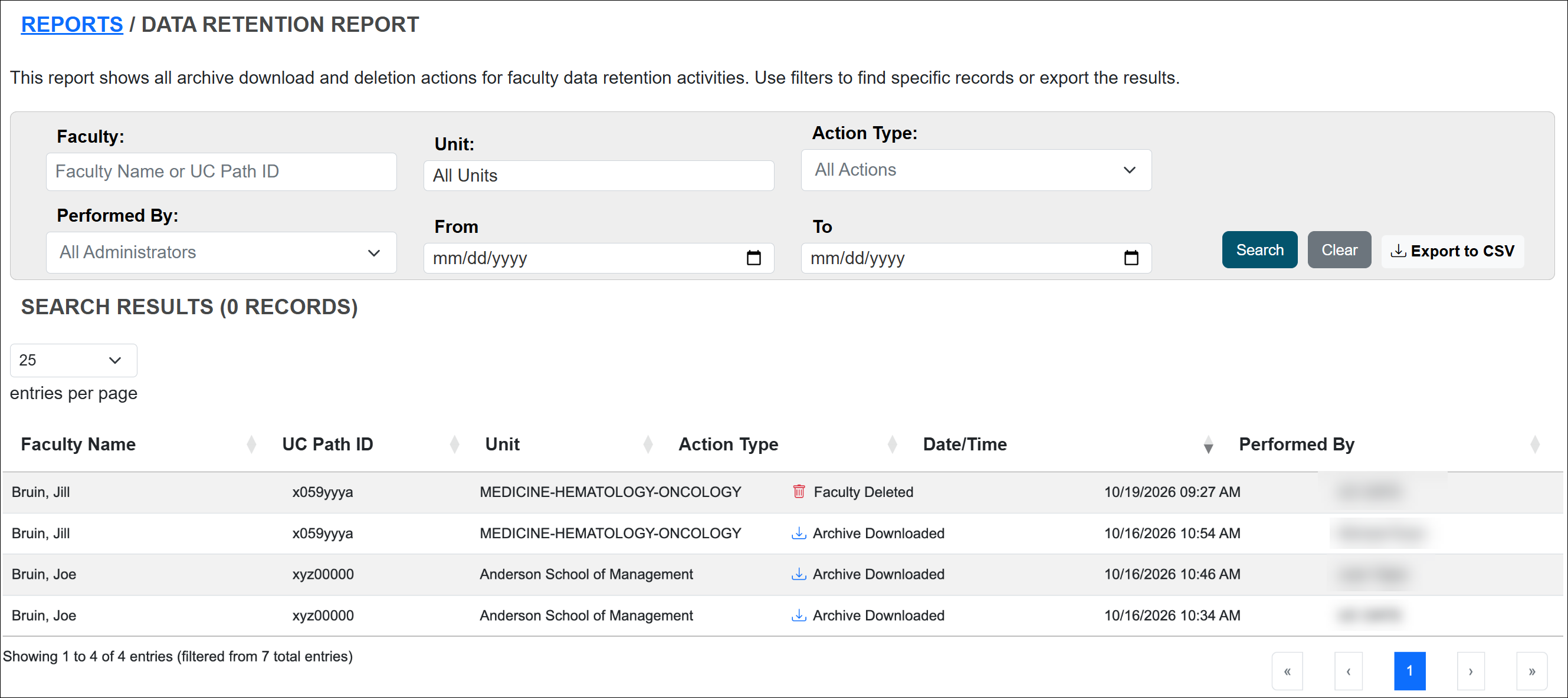
The Data Retention Report provides a history of completed Data Retention actions and can be used to review when an action occurred and who completed it.
To access the report:
- Go to App Admin > Reports > Data Retention Report.
- Use the available filters to locate specific retention actions.
Related Articles
Application Administrator
People Tab Overview
User Roles Overview
Add and Manage Faculty Appointments
Separate Faculty in UC OATS
Reinstate Faculty Appt & Forms
Add and Manage Staff
Faculty Data Retention
Last Modified:2026-11-05 15:45:22.051722-08