Home > Training > Application Administrator > Reinstate Faculty Appointment & Forms
Reinstate Faculty Appointment & Forms
This guide will show you how to reinstate a faculty member's appointment and any deleted activities. If you accidentally delete a faculty appointment, you can always reinstate it and any deleted activities and forms. When reinstated, prior approval forms will return to the queue they were in previously.
To reinstate a faculty's appointment:
- Select the Faculty tab.
- Select the fiscal year that corresponds to the faculty member’s separation date.
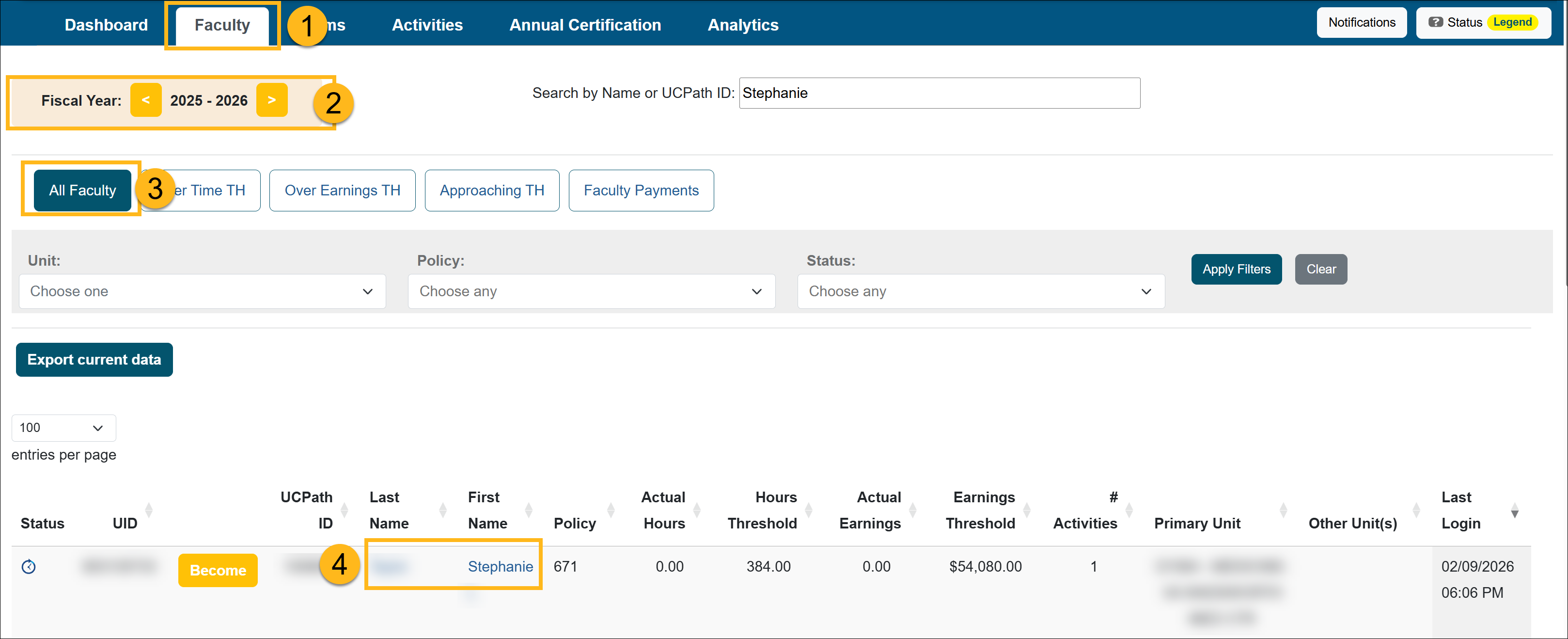
- Select All Faculty.
- Locate the faculty member who is separating from the University and select their name to open the Faculty Details page.
- Scroll to the fiscal year where you want to reinstate their appointment.
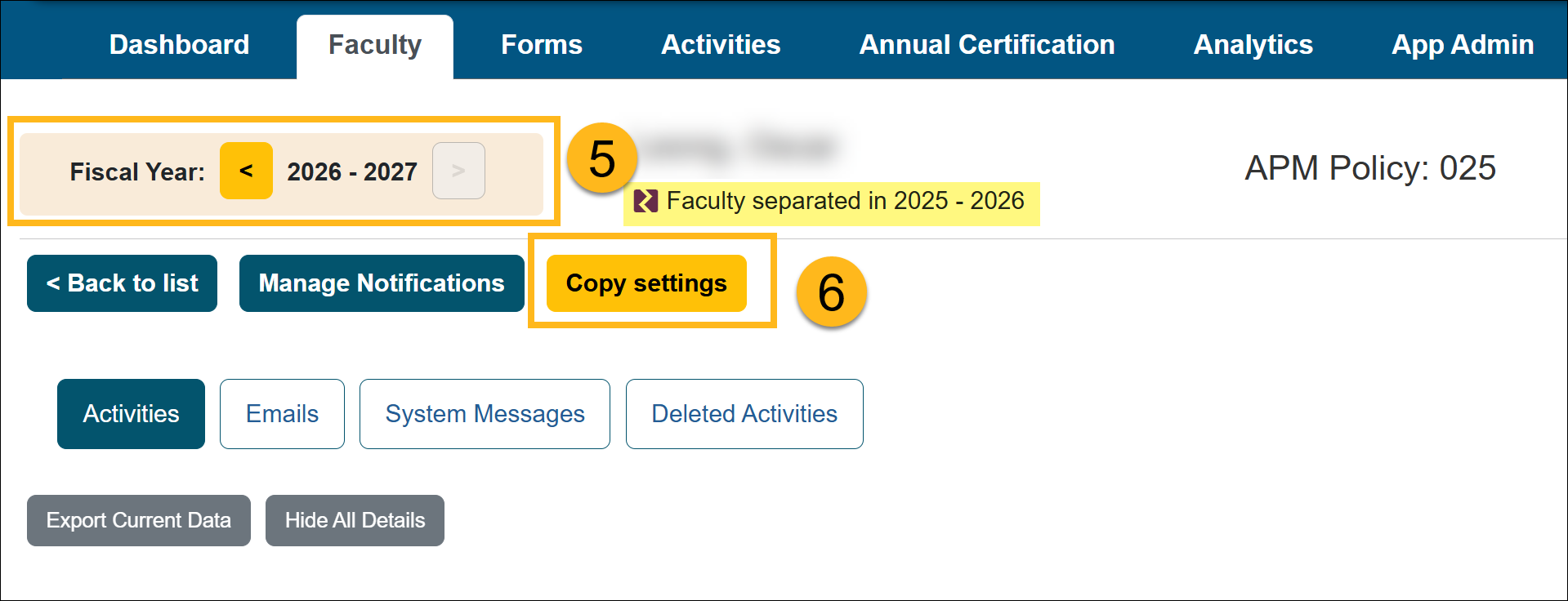
- Select the Copy settings option.
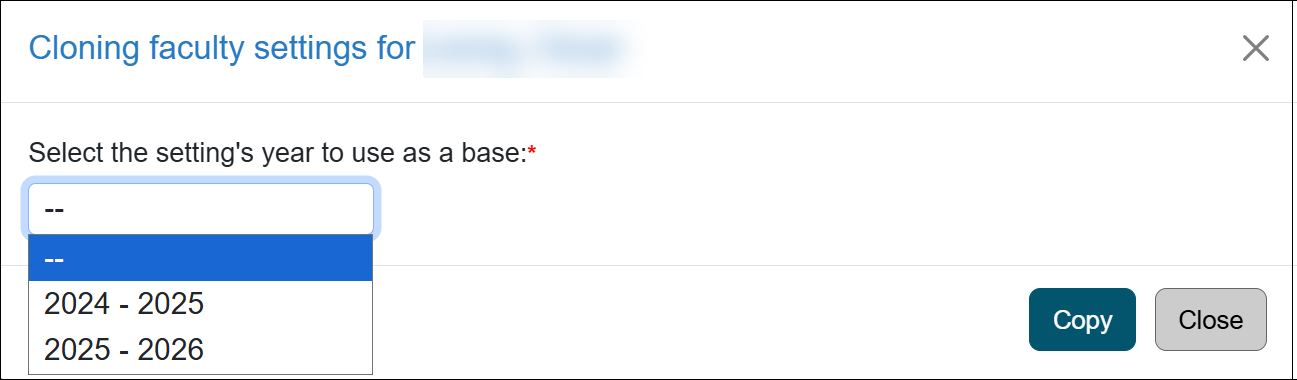
- Select which fiscal year settings you want to copy over. The appointment details from the selected fiscal year will copy over.
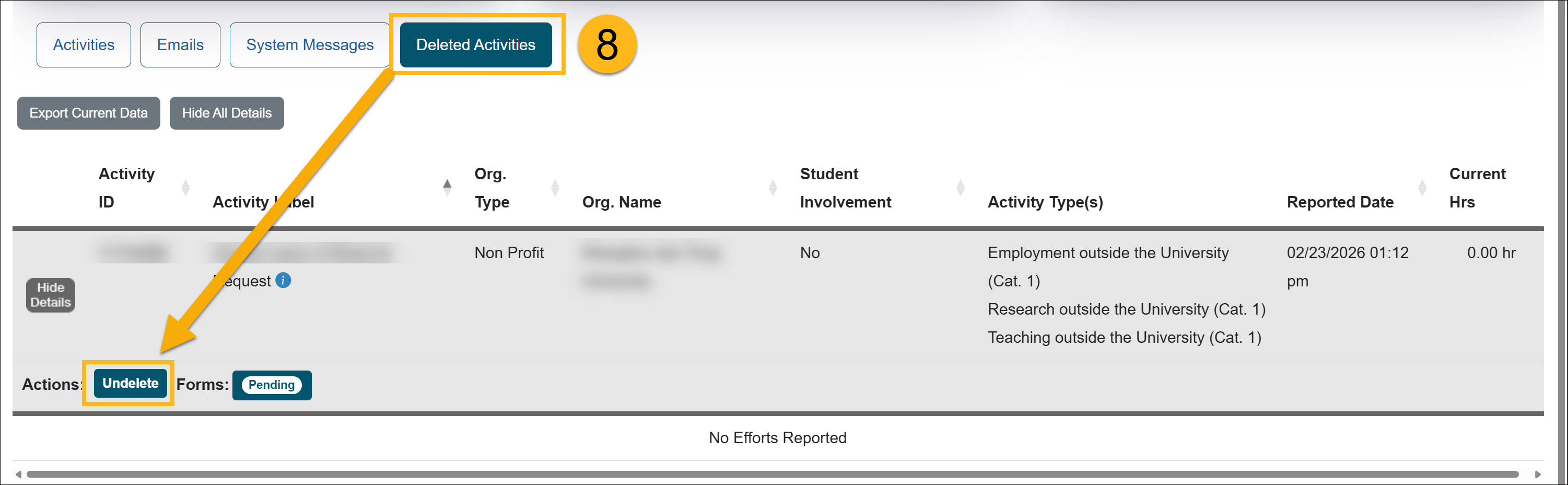
- Select the Deleted Activities button to view any deleted activities. You can select the Undelete button to reinstate the activity. Prior approval forms will return to the queues they were in previously.
Related Articles
Application Administrator
People Tab Overview
User Roles Overview
Add and Manage Faculty Appointments
Separate Faculty in UC OATS
Reinstate Faculty Appt & Forms
Add and Manage Staff
Last Modified:2026-04-07 17:03:53.998948-07