Home > Training > Application Administrator > Add and Manage Faculty Appointments
Add and Manage Faculty Appointments
This guide will walk you through how to add new faculty and manage faculty appointments.
Add Faculty Appointment
This section explains how to manually add a faculty appointment in UC OATS. For faculty with dual appointments, follow these steps for each department where an appointment is needed.
Please note:
- Only one appointment can be designated as the primary appointment.
- The total appointment percentage across all departments cannot exceed 1.0 (100%).
Add Faculty Appointment Details
To manually add a new faculty member in UC OATS:
- Navigate to the App Admin > Departments.
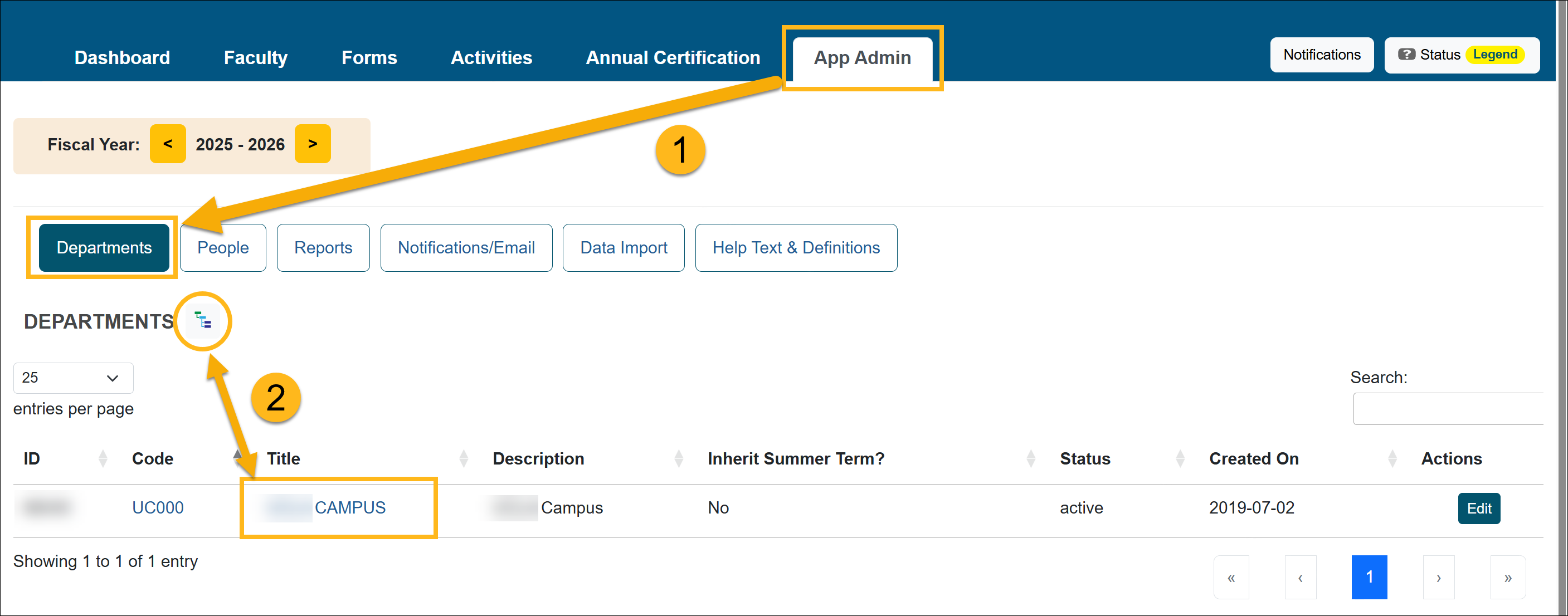
- Locate the department where the faculty should be added.
- Use the Department Hierarchy Tree Structure, or
- Select the Title links to drill down to the correct department
- Confirm you are in the correct fiscal year.
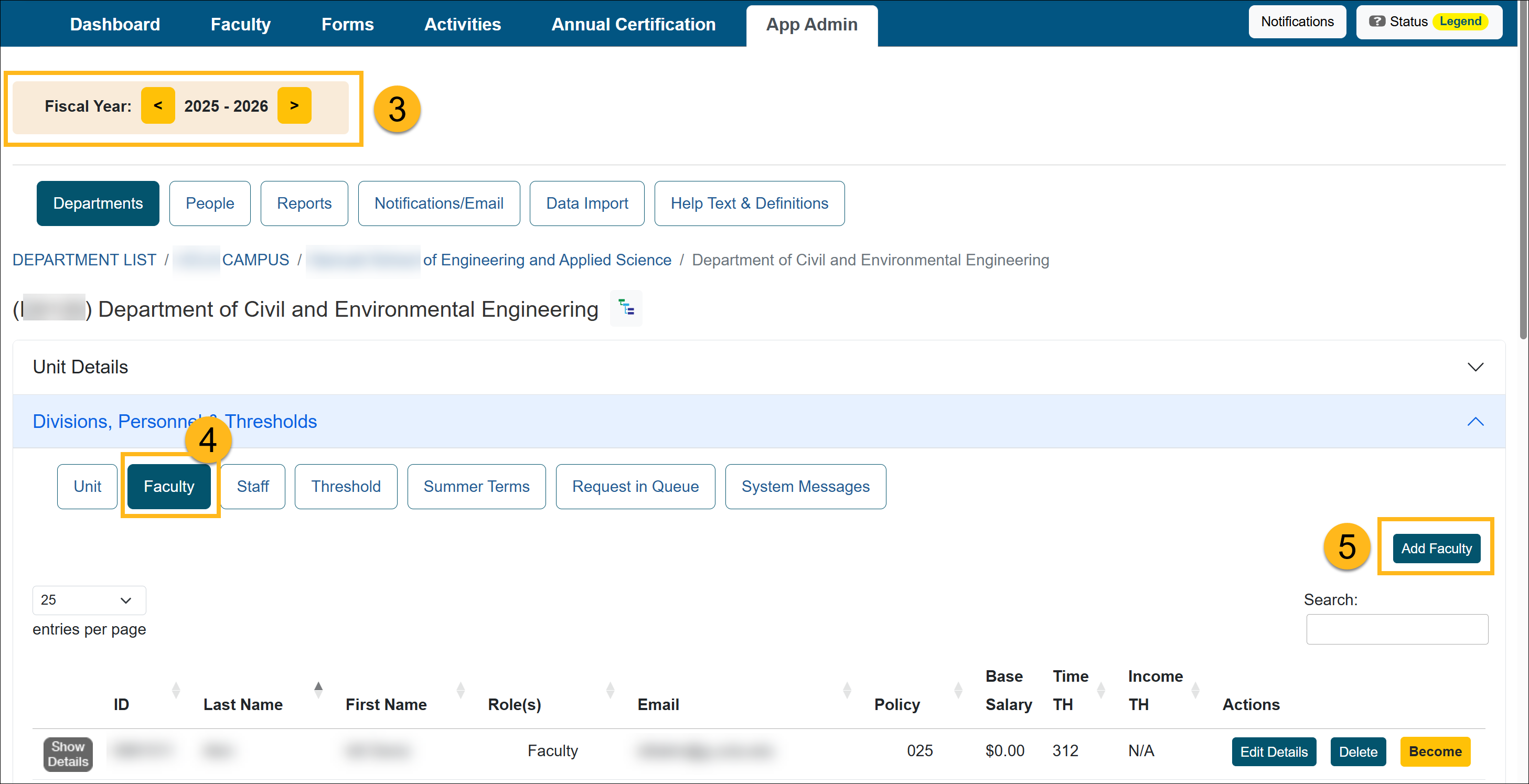
- Select Faculty.
- Click Add Faculty.
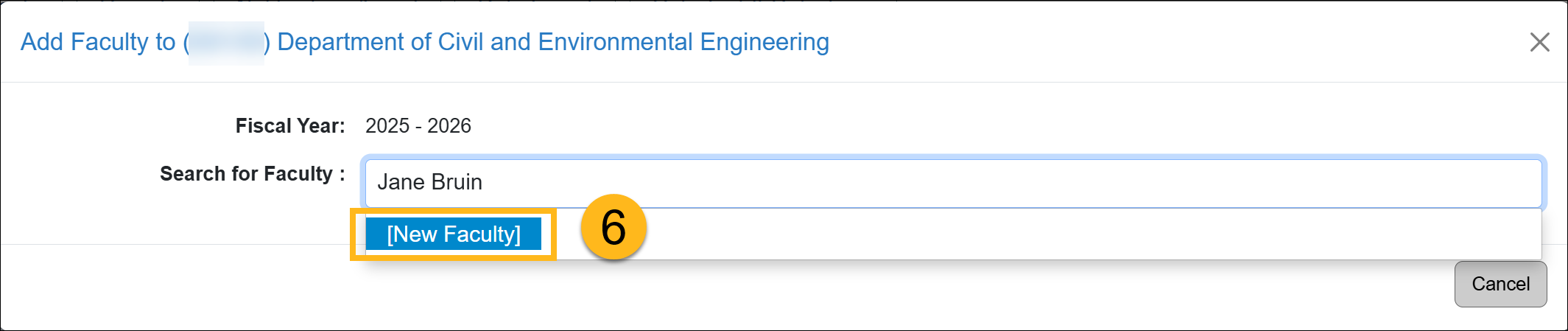
- Enter the faculty member’s name in the Search for Faculty field. If the faculty member has an existing appointment in the system, their name will appear; select their name. If not, select the New Faculty option.
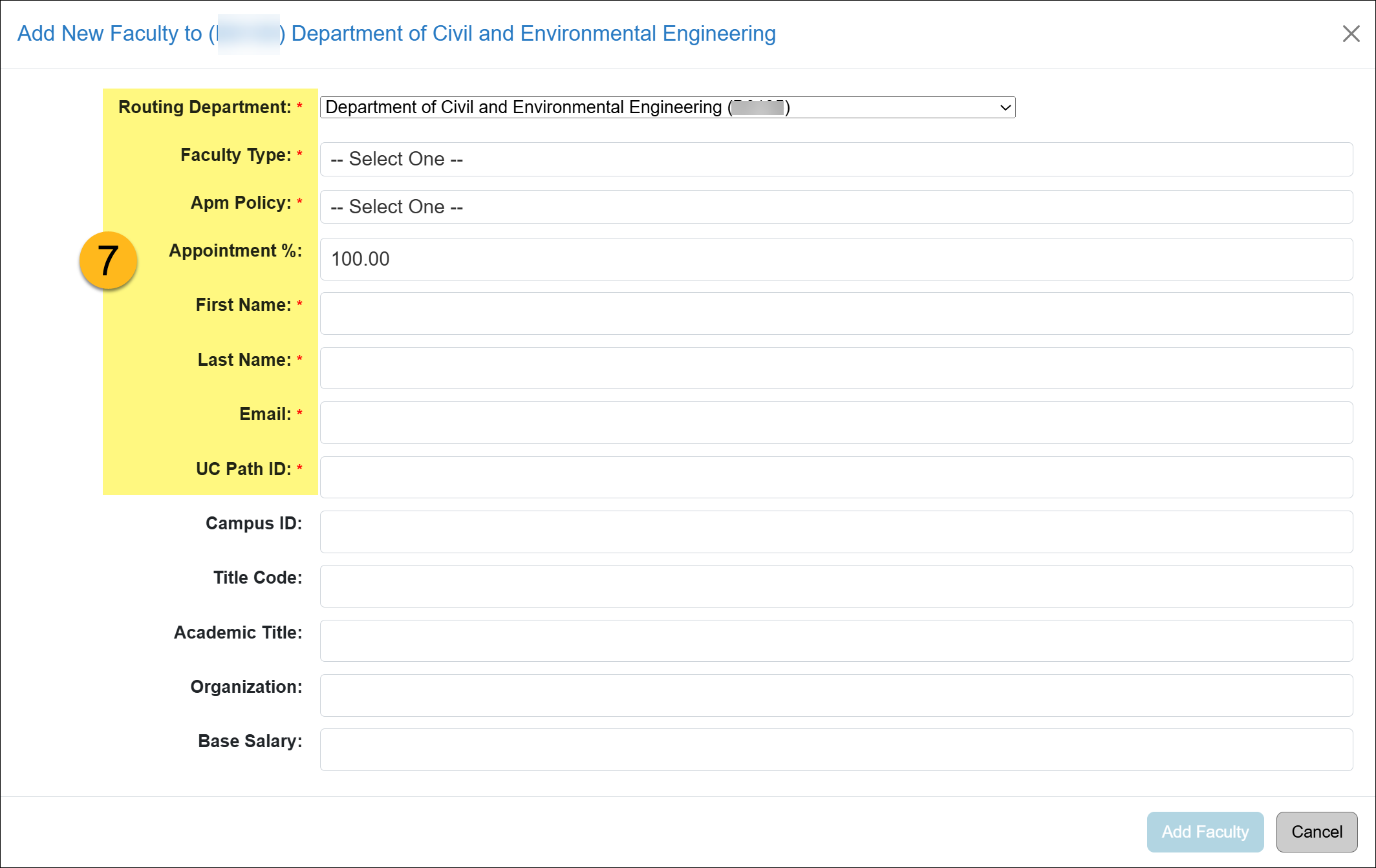
- Complete the New Faculty form and select Add Faculty. The faculty will be added to the department within that fiscal year.
Adding a Dual Appointment
When adding a secondary appointment, you can update the appointment percentages for both the original and new appointment. You will also have the option to designate the new appointment as the primary appointment.
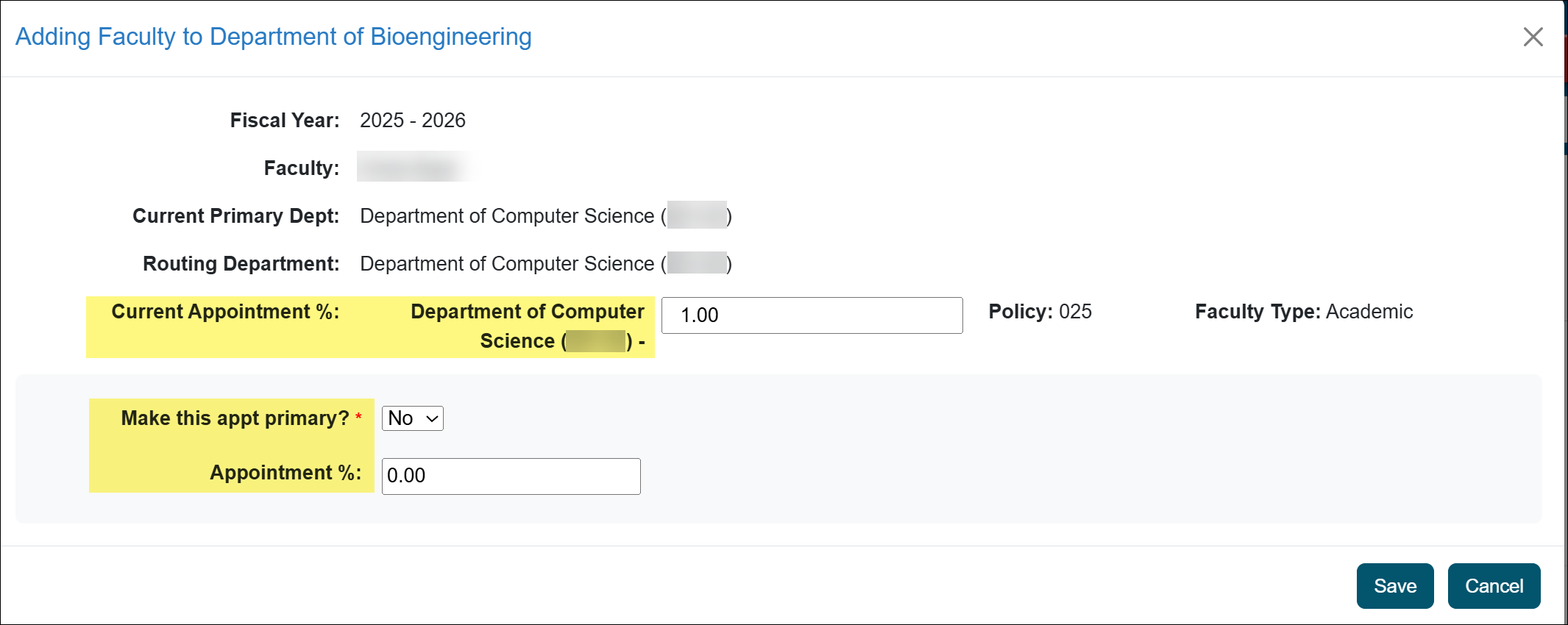
Add New Faculty Description
| Routing Department | This field determines the department responsible for the initial review and routing of forms within the approval workflow. | ||||||||||||||
| Faculty Type |
Select the term type: Academic or Fiscal. Faculty on an academic term will have access to the Summer Hours module. Faculty on a fiscal term are not required to report summer hours. |
||||||||||||||
| APM Policy |
The conflict-of-commitment policy governing this faculty member. Select an APM Policy type.
|
||||||||||||||
| Appointment % |
This field represents the percentage of a faculty member’s appointment within the department.
|
||||||||||||||
| First Name | Faculty member's first name | ||||||||||||||
| Last Name | Faculty member's last name | ||||||||||||||
| The faculty member’s official university email address, used for all automated communications from UC OATS. Only one email address may be assigned per faculty member. | |||||||||||||||
| UC Path ID | A unique identifier assigned to each faculty member that remains constant throughout their association with the University of California. This ID is used in UC OATS to identify the user and associate incoming data records. | ||||||||||||||
| Campus ID [deprecated] |
Leave blank. This field is deprecated. | ||||||||||||||
| Title Code [deprecated] |
Leave blank. This field is deprecated. | ||||||||||||||
| Academic Title | Optional field used for display purposes only. This field is not visible to faculty members within UC OATS. | ||||||||||||||
| Organization [deprecated] |
Leave blank. This field is deprecated. | ||||||||||||||
| Base Salary |
Base Salary (APM-671 Only): Required for faculty participating in a compensation plan governed by APM-671. Enter the base salary as a whole number (e.g., 100000). Commas will be removed and decimal values will be rounded to the nearest integer. This value is used to calculate the earnings threshold for outside activities. For APM-025 faculty, leave this field blank. |
Update Faculty Appointment, Routing, and Details
This section explains how to update a faculty member’s appointment, routing department, appointment percentage, and other related fields. It will also show you how to update the faculty member's name, email address, UC Path ID, and Base Salary (APM-671 faculty).
Update Faculty Settings (manage routing, appointment, policy type)
To make changes to the faculty's routing department or appointment, do the following:
- Navigate to the App Admin > Departments.
- Locate the department where the faculty should be added.
- Use the Department Hierarchy Tree Structure, or
- Select the Title links to drill down to the correct department
- Confirm you are in the correct fiscal year.
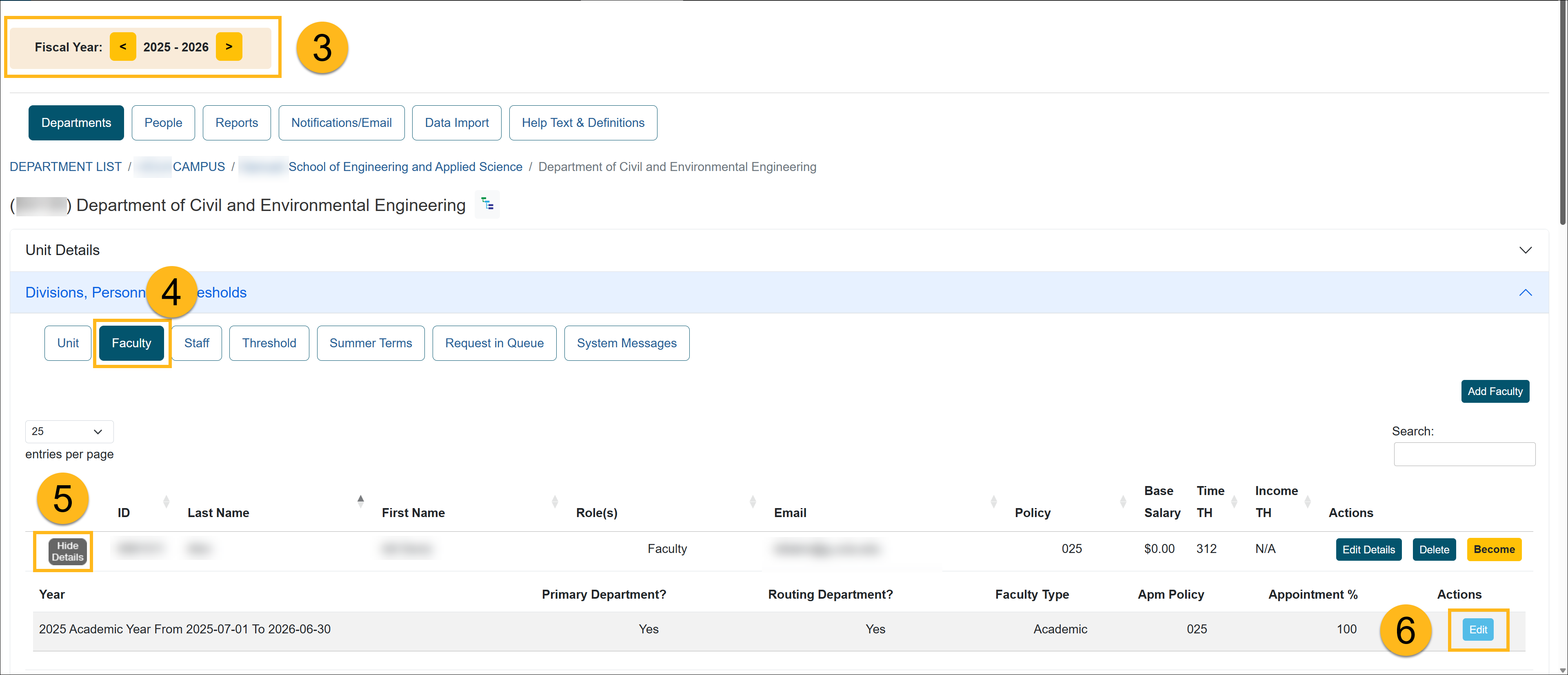
- Select Faculty.
- Locate the faculty member from the list and click Show Details/Hide Details.
- Select Edit in the appointment details section.
- In the Faculty Settings section, update the faculty's details.
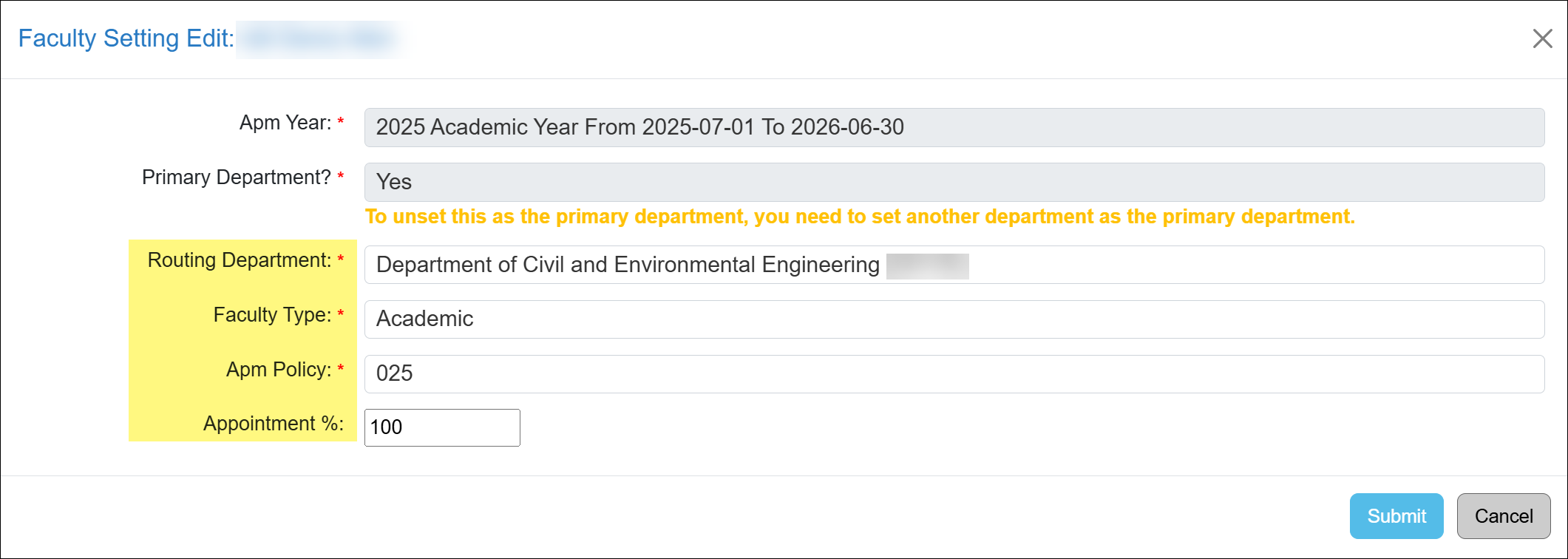
Faculty Settings Form
Primary Department For dual appointments: You can indicate which department is primary. Routing Department This field determines the department responsible for the initial review and routing of forms within the approval workflow. Faculty Type Select the term type: Academic or Fiscal.
Faculty on an academic term will have access to the Summer Hours module. Faculty on a fiscal term are not required to report summer hours.
APM Policy The conflict-of-commitment policy governing this faculty member. Select an APM Policy type.
Faculty Type APM Policy General Campus Faculty 025 Health Science Faculty 671 General Campus Dean APM 240.025 Health Science Dean 240 HSCP Context (671) General Campus Faculty Administrator 100% Time 246 in 025 Context Health Science Faculty Administrator 100% Time 246 in 671 Context Appointment % This field represents the percentage of a faculty member’s appointment within the department.
- Single Appointment: If a faculty member is assigned to a single department and works full-time, the value will be 1.0.
- Multiple Appointments: If a faculty member has appointments across multiple departments, each appointment will have a value greater than 0 and less than 1.0, and multiple records will exist for that faculty member.
- The total of all appointment percentages across departments must not exceed 1.0.
- Faculty members cannot have multiple appointments within the same department.
- Submit the changes. The changes only affect the selected fiscal year.
Update Faculty Details
To update the faculty details (name, email, campus ID, Base Salary), do the following:
- Navigate to the App Admin > Departments.
- Locate the department where the faculty should be added.
- Use the Department Hierarchy Tree Structure, or
- Select the Title links to drill down to the correct department
- Confirm you are in the correct fiscal year.
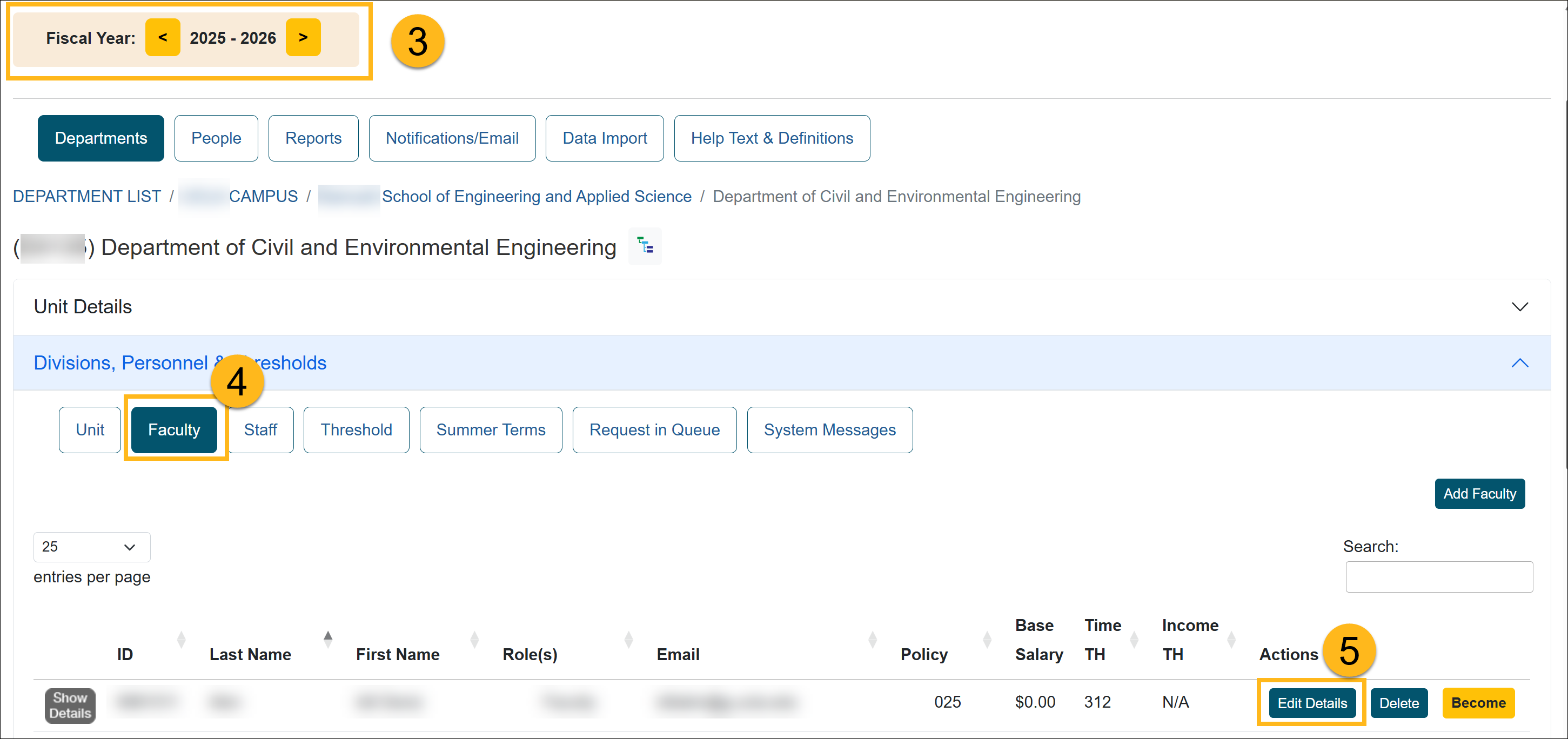
- Select Faculty.
- Locate the faculty member from the list and click Edit Details.
- Select Edit in the appointment details section.
- In the Faculty Settings section, you can change the faculty's.
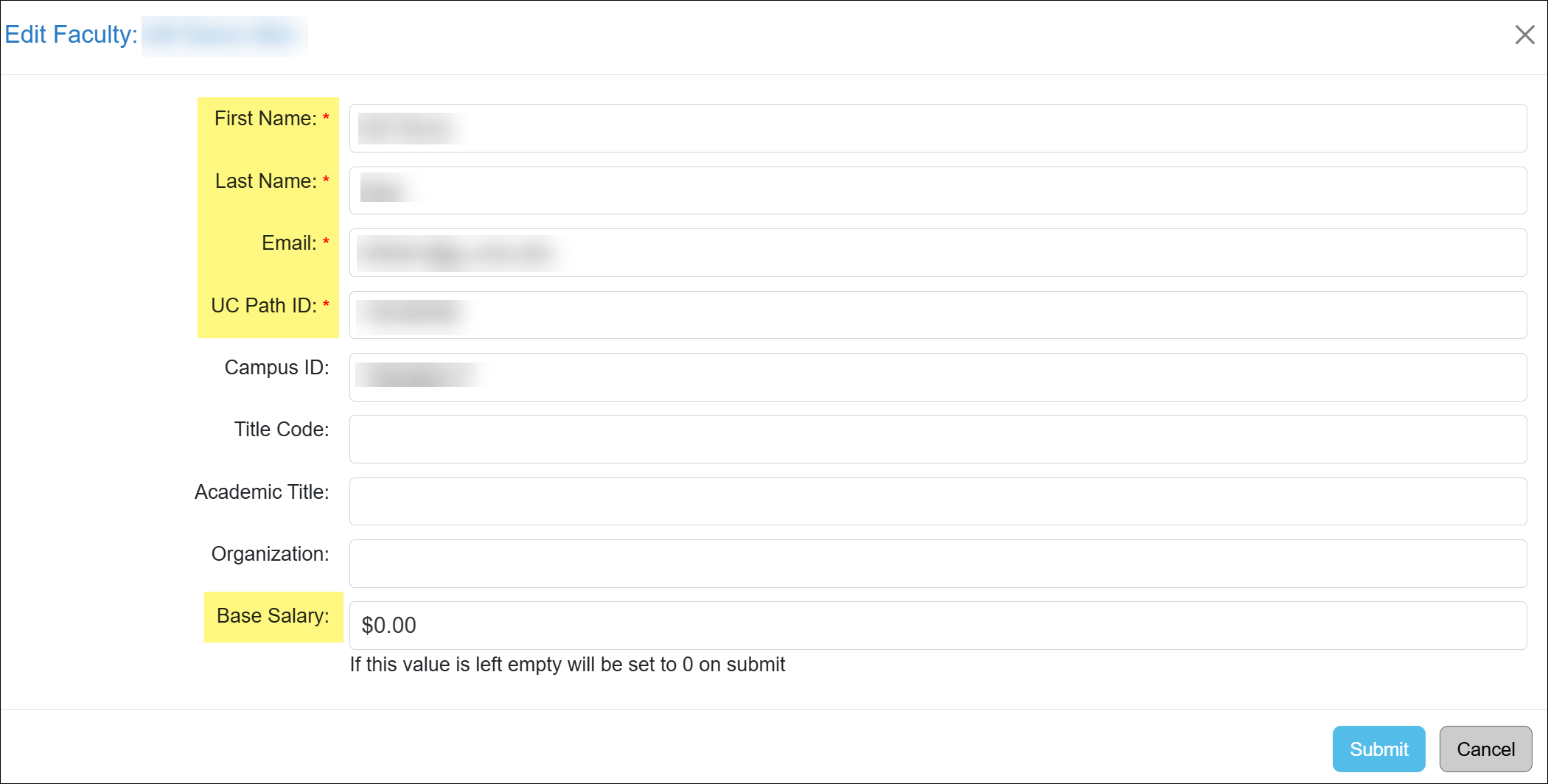
Faculty Form Description
First Name Faculty member's first name Last Name Faculty member's last name Email The faculty member’s official university email address used for all automated communications from UC OATS. Only one email address may be assigned per faculty member. UC Path ID A unique identifier assigned to each faculty member that remains constant throughout their association with the University of California. This ID is used in UC OATS to identify the user and associate incoming data records. Campus ID
[deprecated]Leave blank. This field is deprecated. Title Code
[deprecated]Leave blank. This field is deprecated. Academic Title Optional field used for display purposes only. This field is not visible to faculty members within UC OATS. Organization
[deprecated]Leave blank. This field is deprecated. Base Salary Base Salary (APM-671 Only): Required for faculty participating in a compensation plan governed by APM-671. Enter the base salary as a whole number (e.g., 100000). Commas will be removed, and decimal values will be rounded to the nearest integer.
This value is used to calculate the earnings threshold for outside activities. For APM-025 faculty, leave this field blank.
- Submit the changes. The changes only affect the selected fiscal year.
Delete to Move Faculty Appointment
This section explains when it is appropriate to delete a faculty member’s appointment from UC OATS and how to complete the deletion process.
You may delete a faculty member's appointment when you are moving them to a different department.
Delete to Move Faculty Appointment Details
Before you move a faculty member to a new department, please note the following:
- Prior approval forms: The routing of a prior approval form is determined at the time the form is submitted. If the faculty member’s department is changed while the form is in progress, it will continue routing through the original department’s approval workflow. If you want the forms to process through the new department, you will need to have the forms returned and resubmitted after you update the department.
- Fiscal years: Determine whether the faculty member has appointments in future fiscal years. If so, ensure the faculty member is moved to the new department for all applicable fiscal years.
- Dual Appointments: An appointment can only be deleted if it is not designated as the primary appointment. If it is the primary appointment, you must first assign a new primary appointment before proceeding.
Delete Faculty Appointment:
To delete and move a faculty member's appointment to a new department:
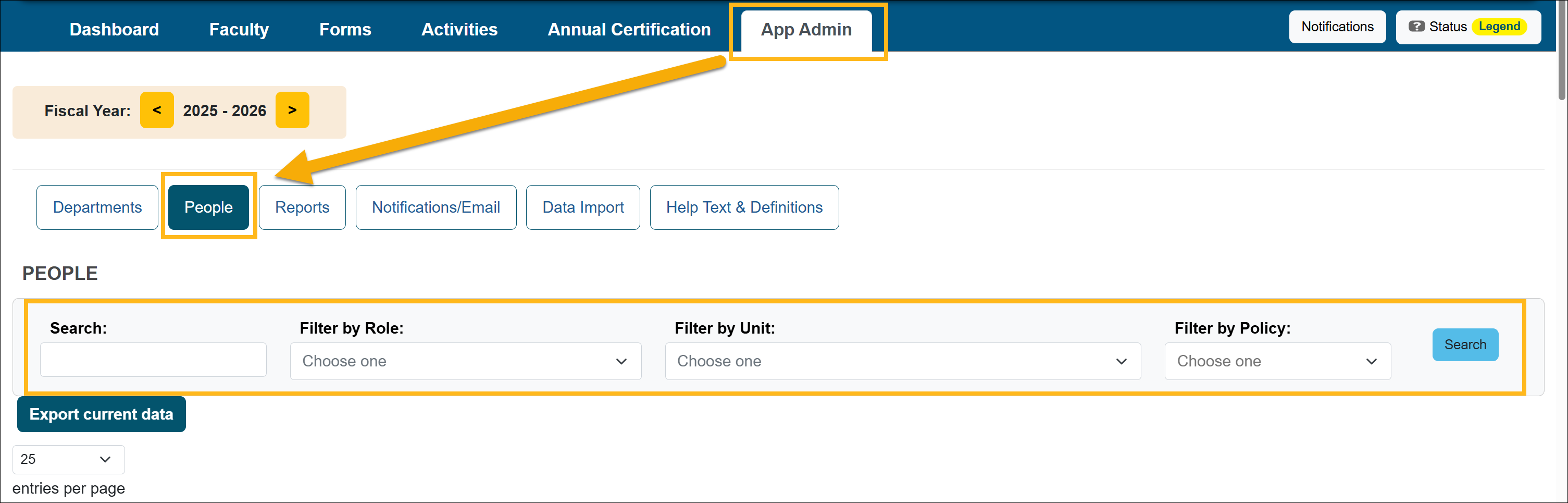
- Locate the faculty member’s appointment (App Admin > People). Use the available filters to find the faculty member.
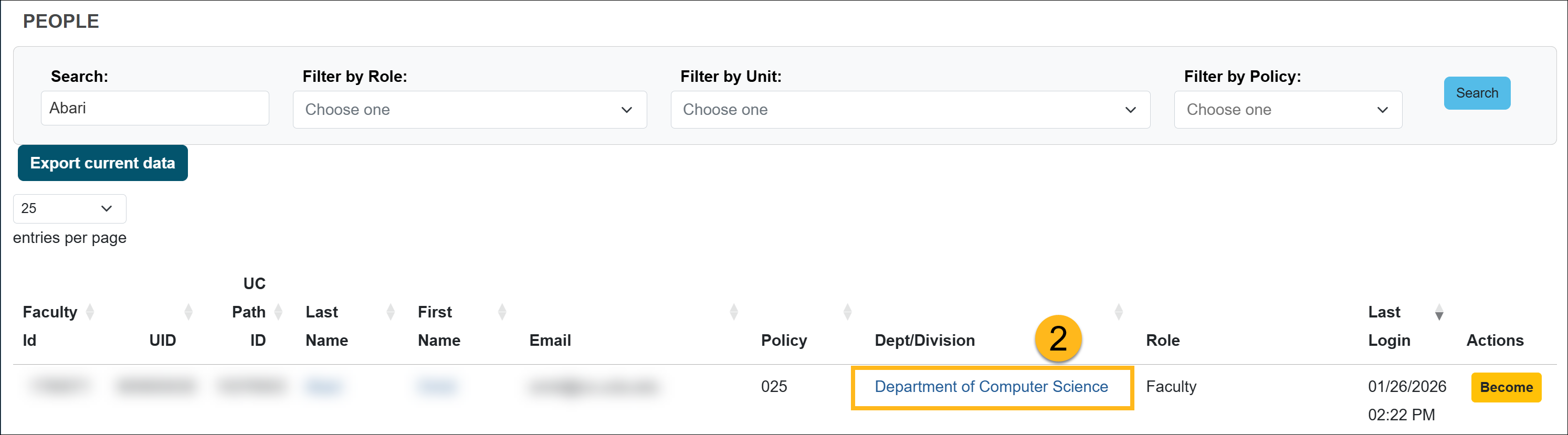
- Once you locate the faculty member, select the Dept/Division link.
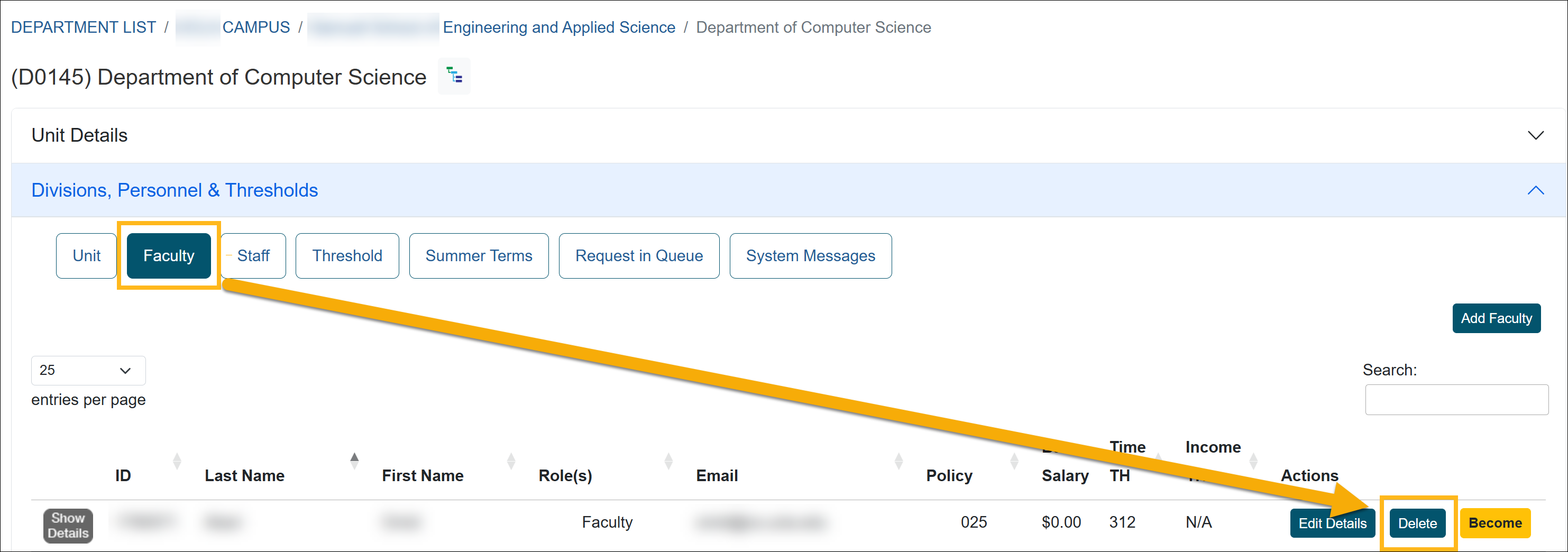
- Select the Faculty button, then click the Delete button next to their name.
- Confirm you want to delete the faculty member. Click Submit.

- Refer to the Add Faculty Appointment section to add the new appointment. Repeat this process for any applicable future fiscal years.
Related Articles
Application Administrator
People Tab Overview
User Roles Overview
Add and Manage Faculty Appointments
Separate Faculty in UC OATS
Reinstate Faculty Appt & Forms
Add and Manage Staff
Last Modified:2026-03-18 15:22:19.017572-07