Home > Training > Reviewer > Review Annual Certification
Review Annual Certification
This article will guide you on how to review the faculty's Annual Certification. By default, you will receive daily and/or weekly email notifications when new Annual Certifications or prior approval forms are added to your review queue, unless you have unsubscribed from these notifications.
Tutorial Video
Watch the video to learn how to review Annual Certifications.
Annual Certification on your Dashboard
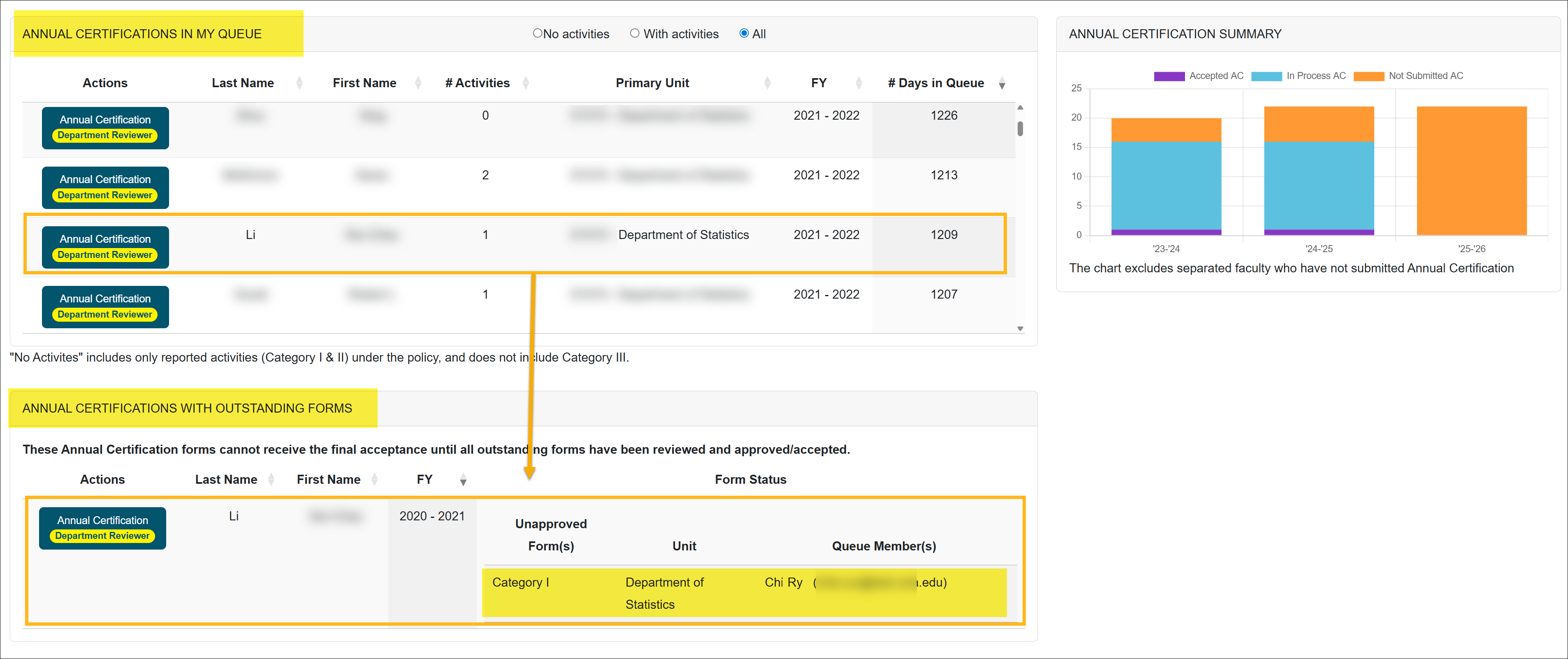
On the UC OATS Dashboard, there are two sections related to Annual Certifications:
Annual Certification Dashboard
- Annual Certifications in My Queue: This section lists certifications that are ready for your review
- Annual Certifications with Outstanding Forms: This displays certifications linked to prior approval forms that are still in progress and cannot yet be reviewed. If you have those forms in your queue, you should review them. The faculty's Annual Certification cannot be accepted by the Department Chair until all prior approval forms have received a final decision.
Review Annual Certification
To review Annual Certification:
- Navigate to the Dashboard and locate the Annual Certifications in My Queue section.
- Use the Annual Certification filters as needed to refine the list.
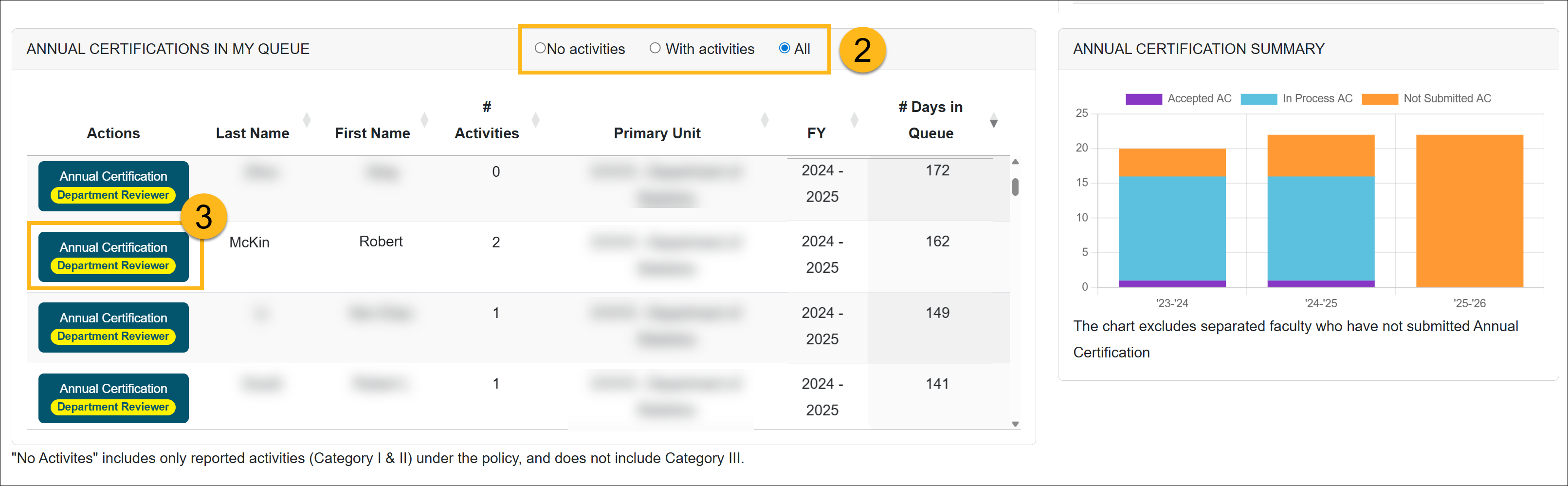
- Select an Annual Certification to open the form.
- Review the certification details and any supporting information in the Notes tab.
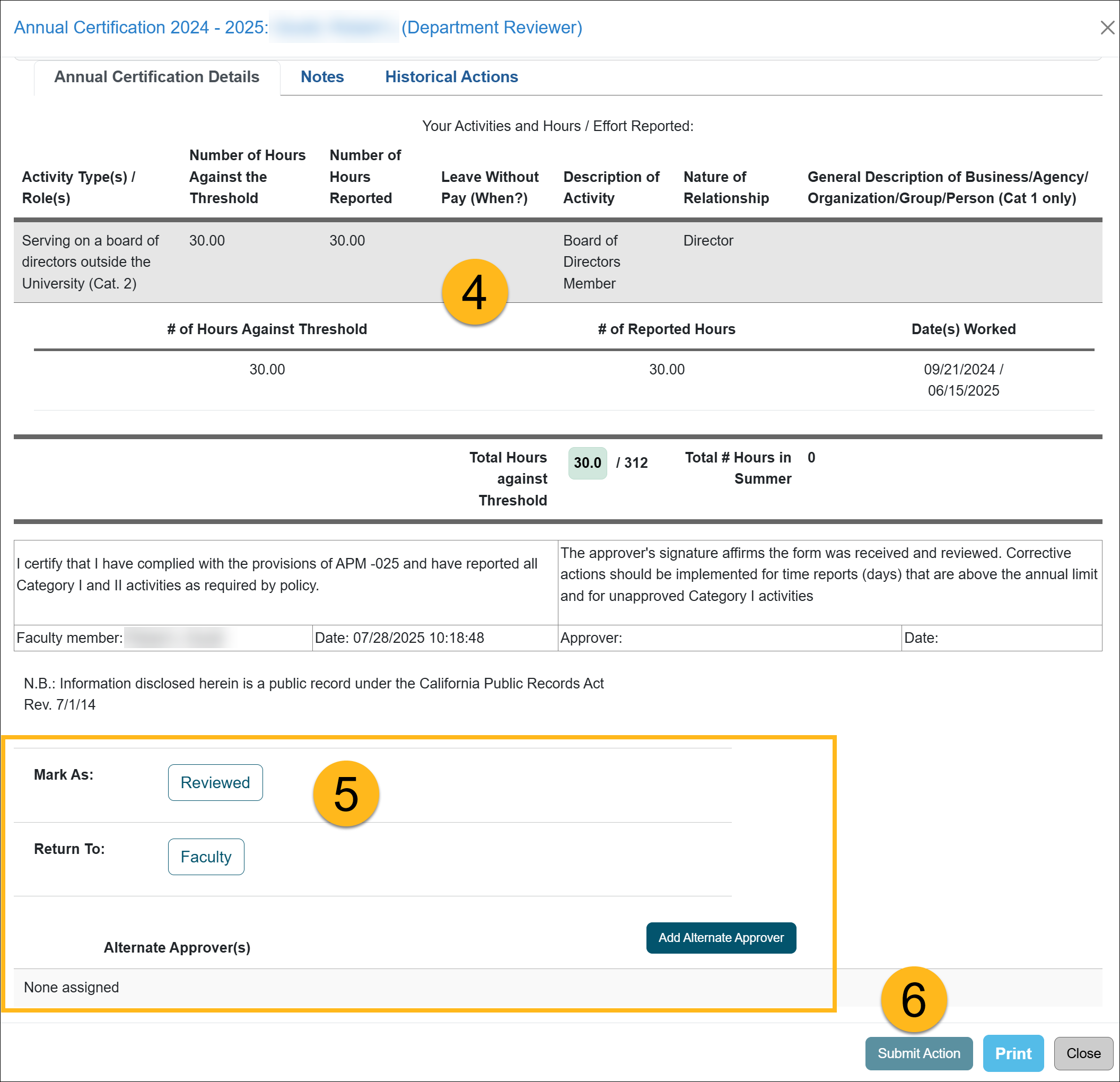
- Select the appropriate Action:
- Reviewed – Select this option if the certification is complete and ready to be sent to the approver (Department Chair, Dean, etc.).
- Return To Faculty – Select this option if additional information is required before the approver can make a decision. When selected, a Note field appears. Enter a detailed explanation of what information is needed and what action the faculty member should take. Once the faculty member updates and resubmits the certification, it will re‑enter the approval workflow.
- Add Alternate Approver – Use this option if there is a conflict of interest between the faculty member and the approver (for example, a familial relationship) or if the Approver is not available. Select Add Alternate Approver and choose an individual from the drop‑down list. If no alternate approver is available, contact your supervisor. Your supervisor may work with your campus UC OATS administrator to add an alternate approver.
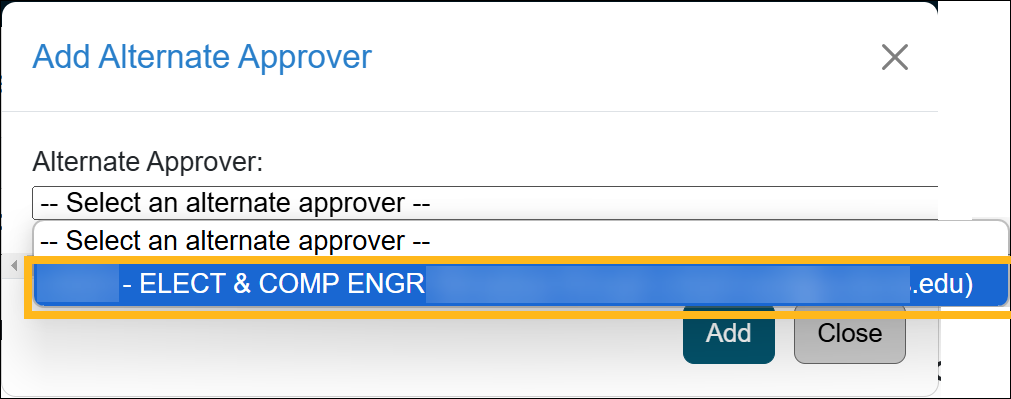
- Click the Submit Action. The Annual Certification will move to the next queue in the workflow.
Last Modified:2026-02-18 12:03:59.199423-08