Home > Training > Reviewer > Return an Accepted Annual Certification
Return an Accepted Annual Certification
This article will show you how to return an accepted Annual Certification.
Note: Only Reviewers with the 'Historical Data Manager' role can return an accepted Annual Certification.
To return an accepted Annual Certification:
-
Select the Annual Certification tab.
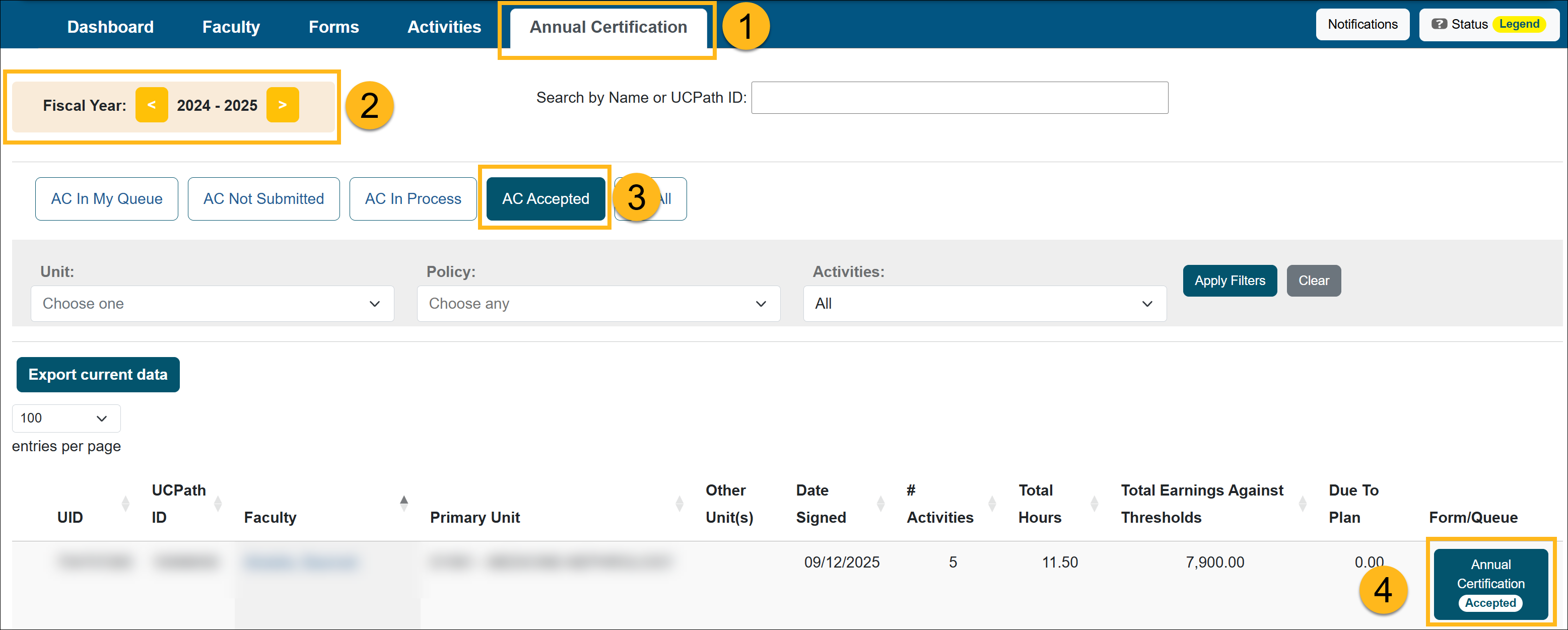
- Confirm that you are viewing the correct fiscal year.
- Select the AC Accepted button.
- Locate and select the faculty member’s Annual Certification.
- On the Annual Certification Details page, scroll to the bottom of the page to Return To: Faculty and enter a note with the reason for the return.
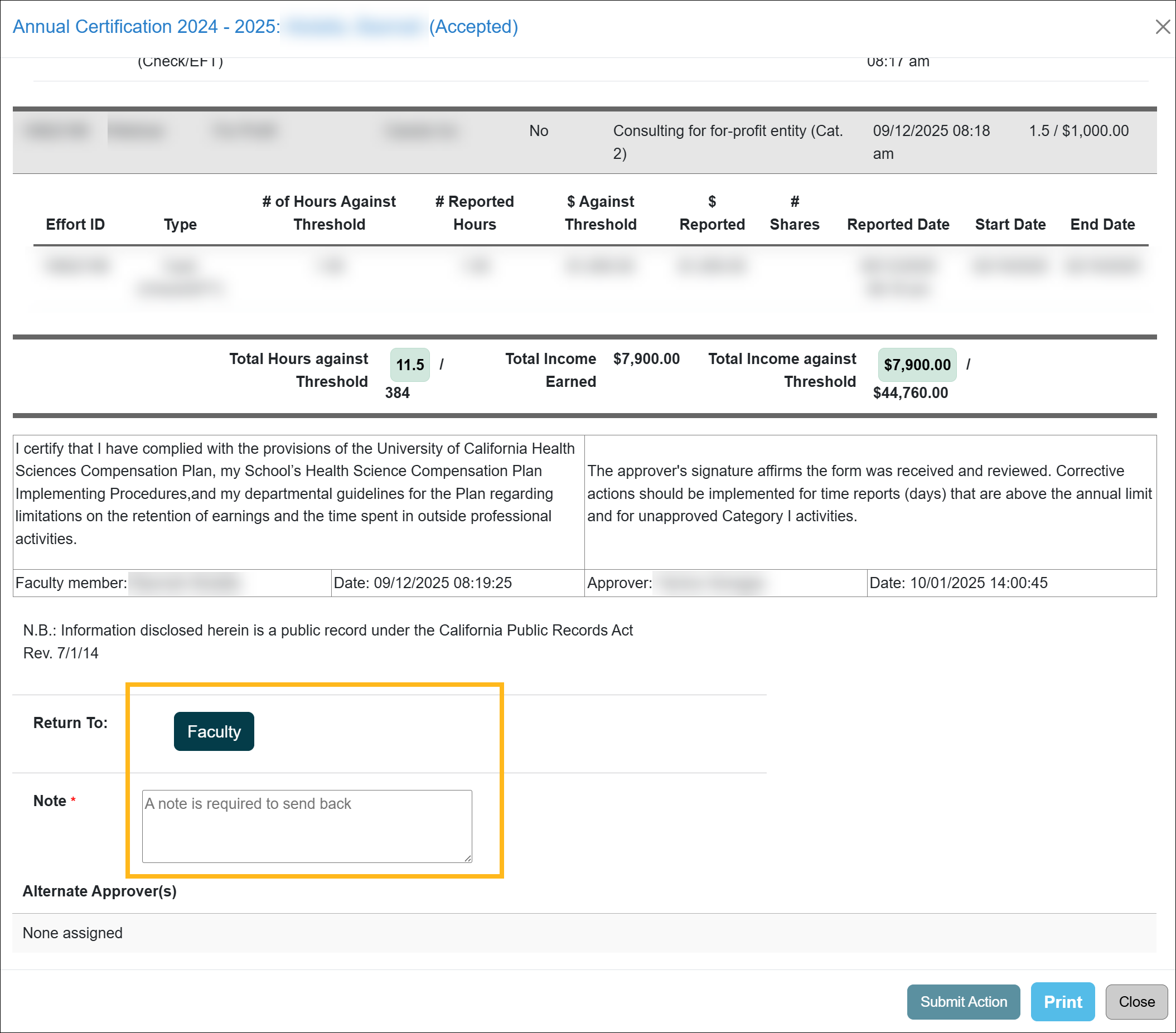
- Select Submit Action. The Annual Certification report has been returned and an email notification has been sent to the faculty member. Once the faculty member updates the Annual Certification report, they may resubmit it.
Related Articles
All Reviewers
Review Annual Certification
Review Annual Certification in Bulk
Annual Certification Reports
Return Form & Annual Certification Together
AC with Outstanding Forms
Return Accepted Annual Certification
AC Not Submitted Watchlist
Last Modified:2026-02-19 09:47:35.364545-08