Home > Training > Reviewer > Category I Watchlist
Category I Watchlist
This article explains the purpose of the Category I Watchlist and how to add individuals to the watchlist.
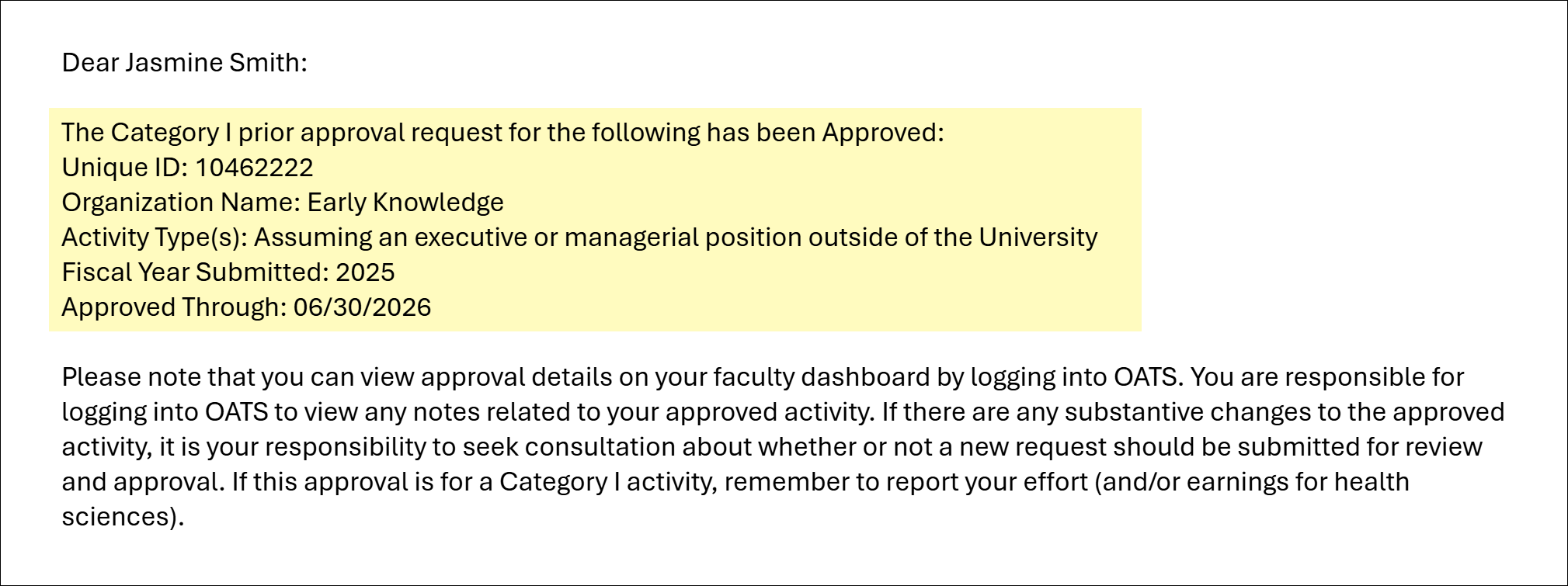
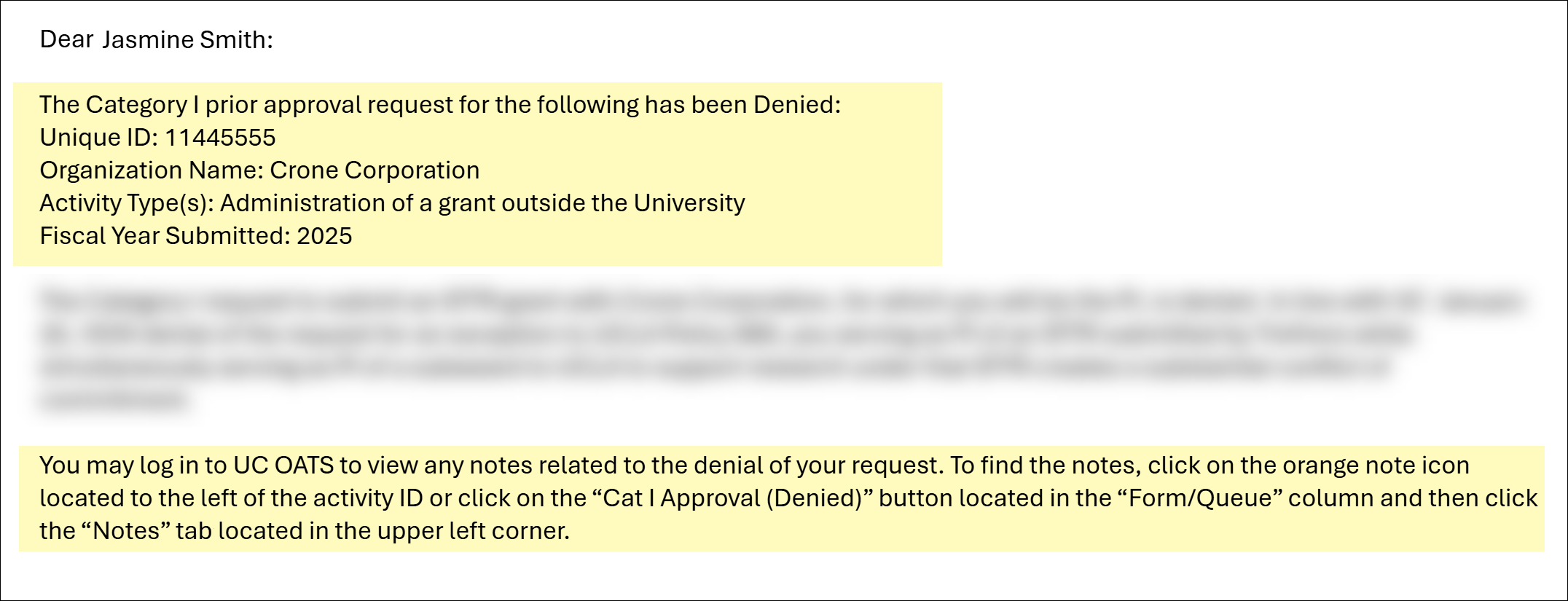
The Category I Watchlist allows Reviewers and Approvers to designate individuals to receive a carbon copy (CC) of the final decision email sent to faculty when a Category I form is approved/accepted or denied. Once the form reaches a final decision, all individuals listed on the Category I Watchlist will automatically receive a copy of the notification email.
Note: The Watchlist option is visible only to staff assigned the Category I Watchlist role. Contact your campus App Admin to request this role.
e.g., Approval Email
e.g., Denied Email
Add to Category I Watchlist
To add someone to a Category I Watchlist:
- Navigate to the Dashboard and locate the Forms in My Queue section. The prior approval forms are organized with the oldest forms displayed at the top, ensuring the most time-sensitive items are prioritized.

- Select the Category I form you want to review.
- Scroll to the bottom of the form and select the Watch List Email(s) button.
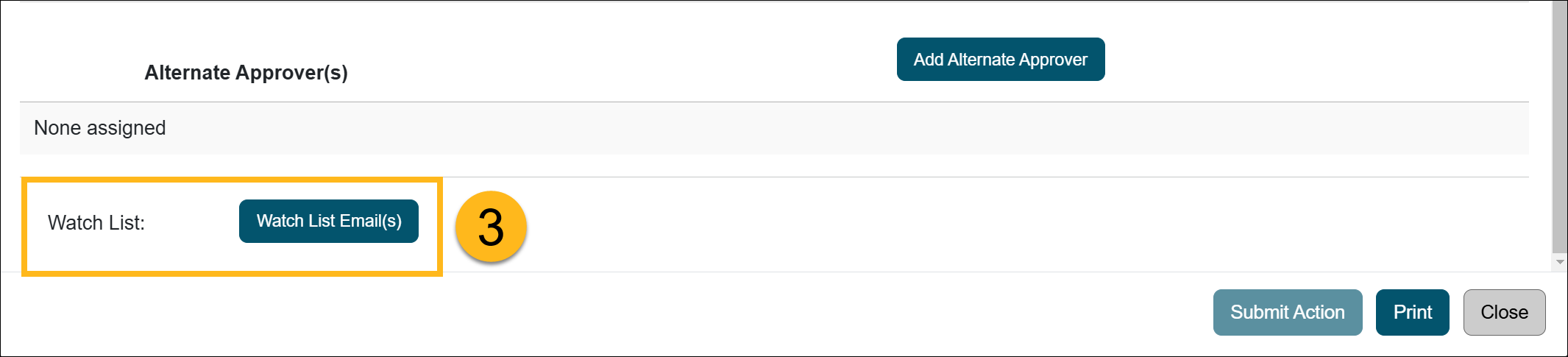
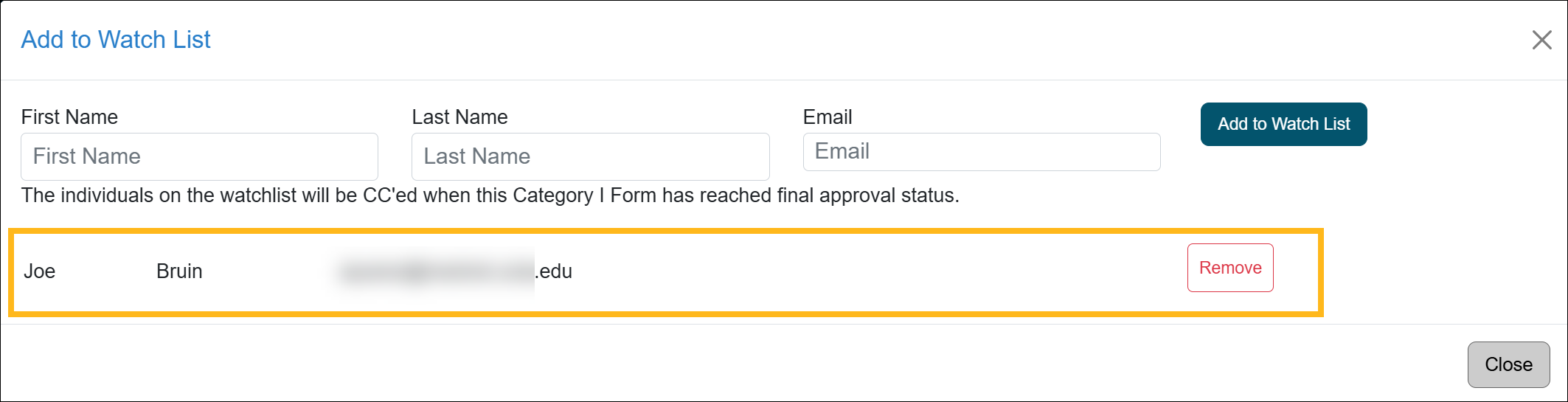
- Enter the individual's name and email address into the form and click the "Add to Watch List" button. The individual does not need to have a UC OATS account to be added to the WatchList. Click close once complete.
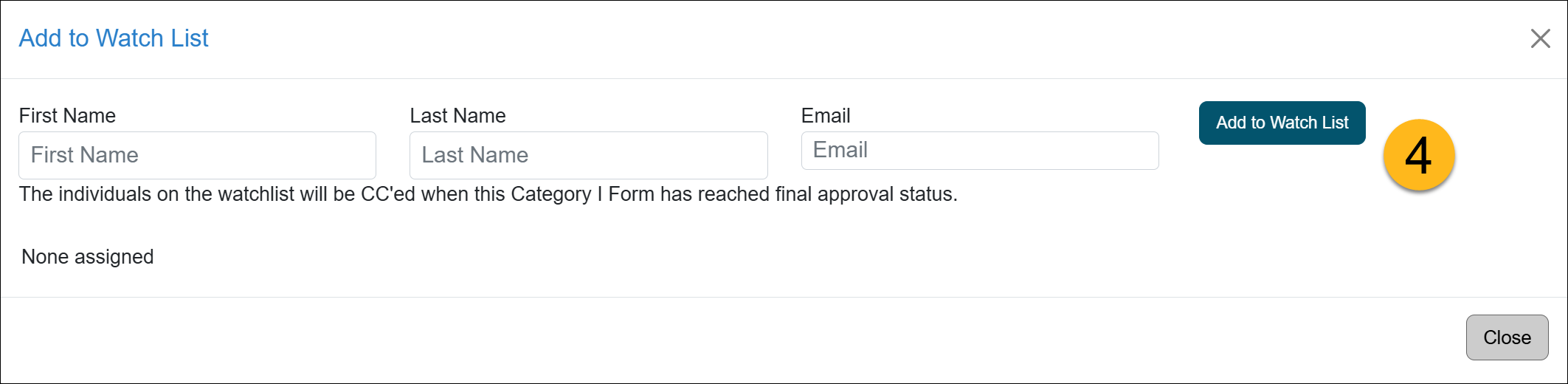
- Continue reviewing the Category I form. Once the form is approved, the individuals on the Customer Watchlist will receive an email.
Last Modified:2026-02-25 13:07:01.159875-08