Home > Training > Faculty > Form returned to you
What to do when a form is returned to you
This article explains how to find the reason a prior approval form was returned to you. When a form is returned, you will receive an email notification with the return reason. You can also view the return reason—and the name of the person who returned the form—in both the activity notes and the Historical Actions section of the prior approval form. This article shows you how to locate this information in both areas of your workspace.
- You'll receive a weekly email reminder if you have any forms that need to be submitted.
Email Notification
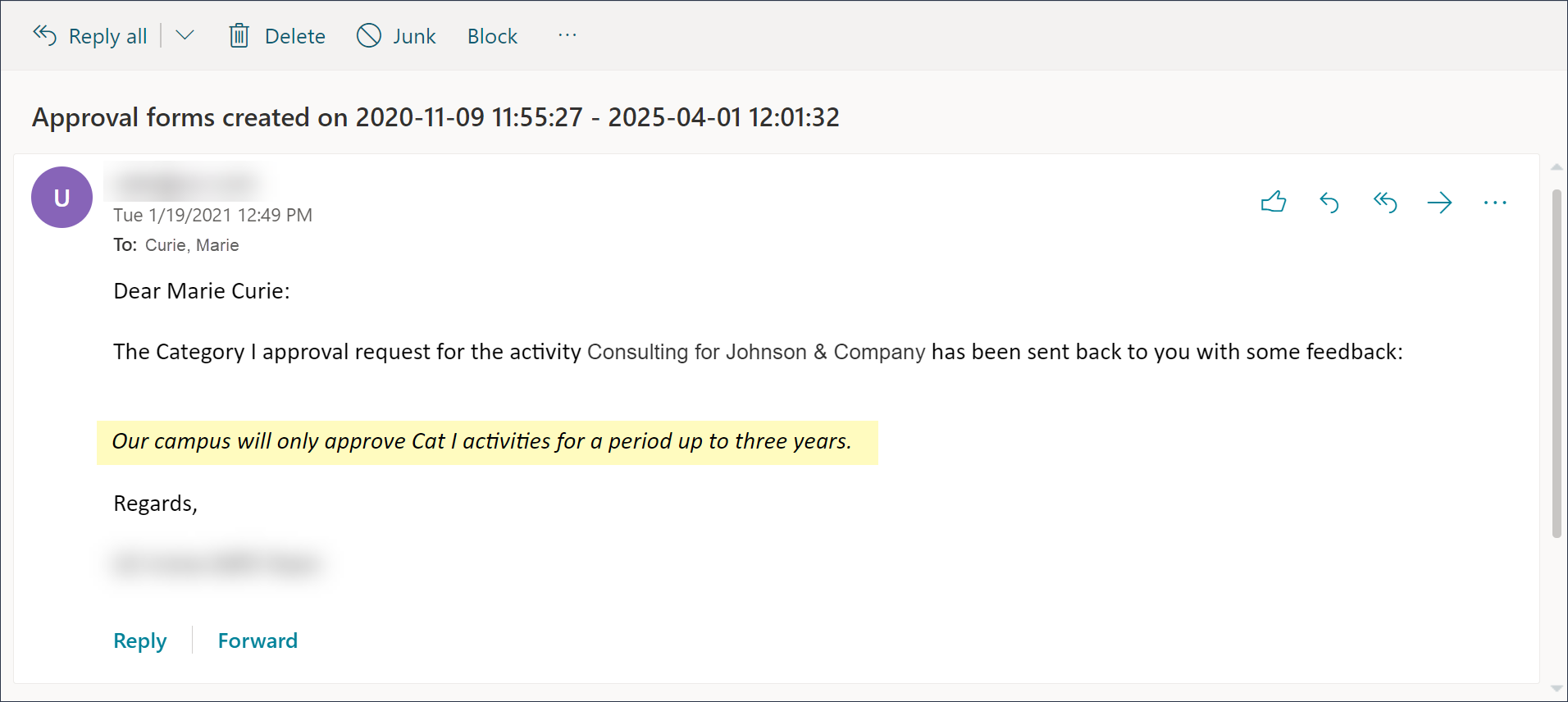
An email notification will be sent when the form is returned.
To view both the return reason and who returned the form, check either the activity notes or the Historical Actions section of the returned prior approval form.
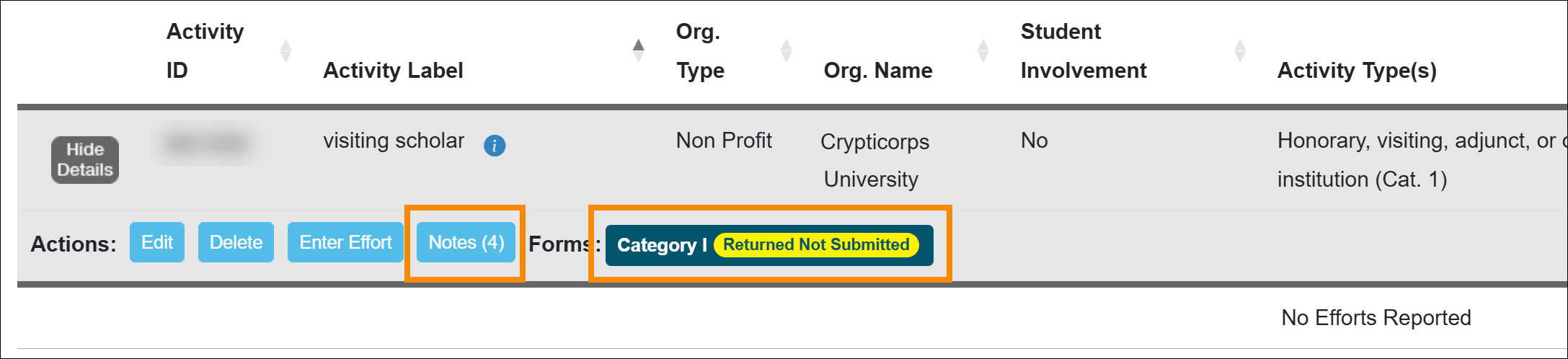
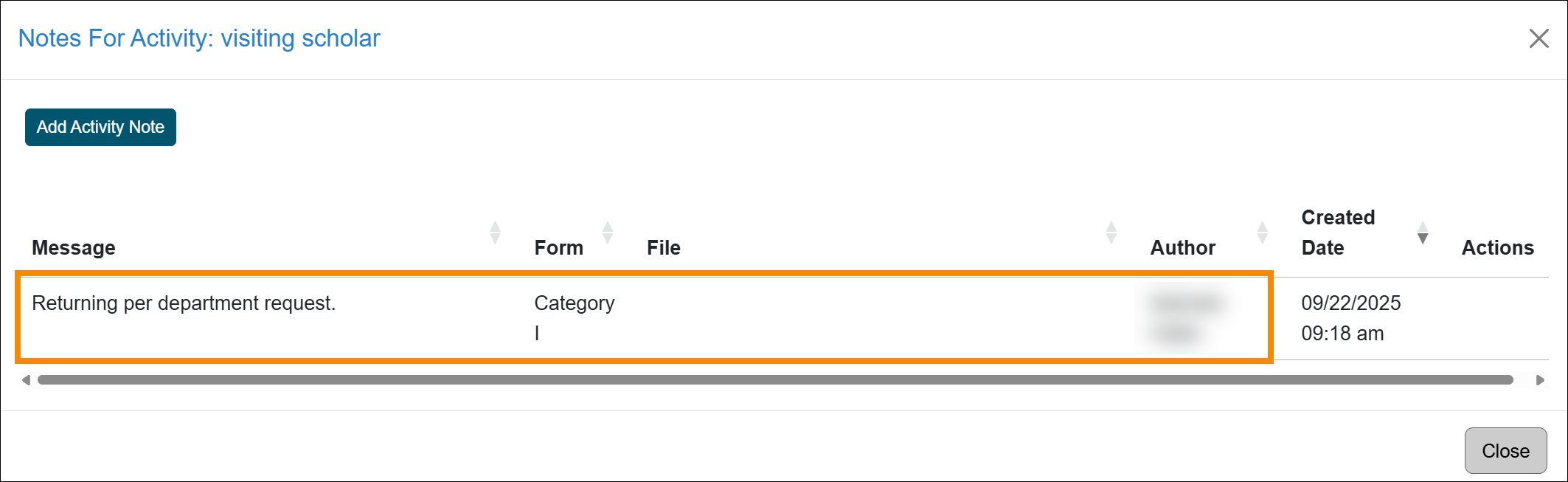
Activity Notes
The activity notes display all notes related to the activity, including notes associated with returned prior approval forms.
Prior Approval Form - Historical Actions
To view the Historical Actions for a prior approval form,
- Open the form.
- Scroll to the bottom of the form. Returned forms will display a Send Back To Faculty status, along with the return note and the name of the person who returned the form.
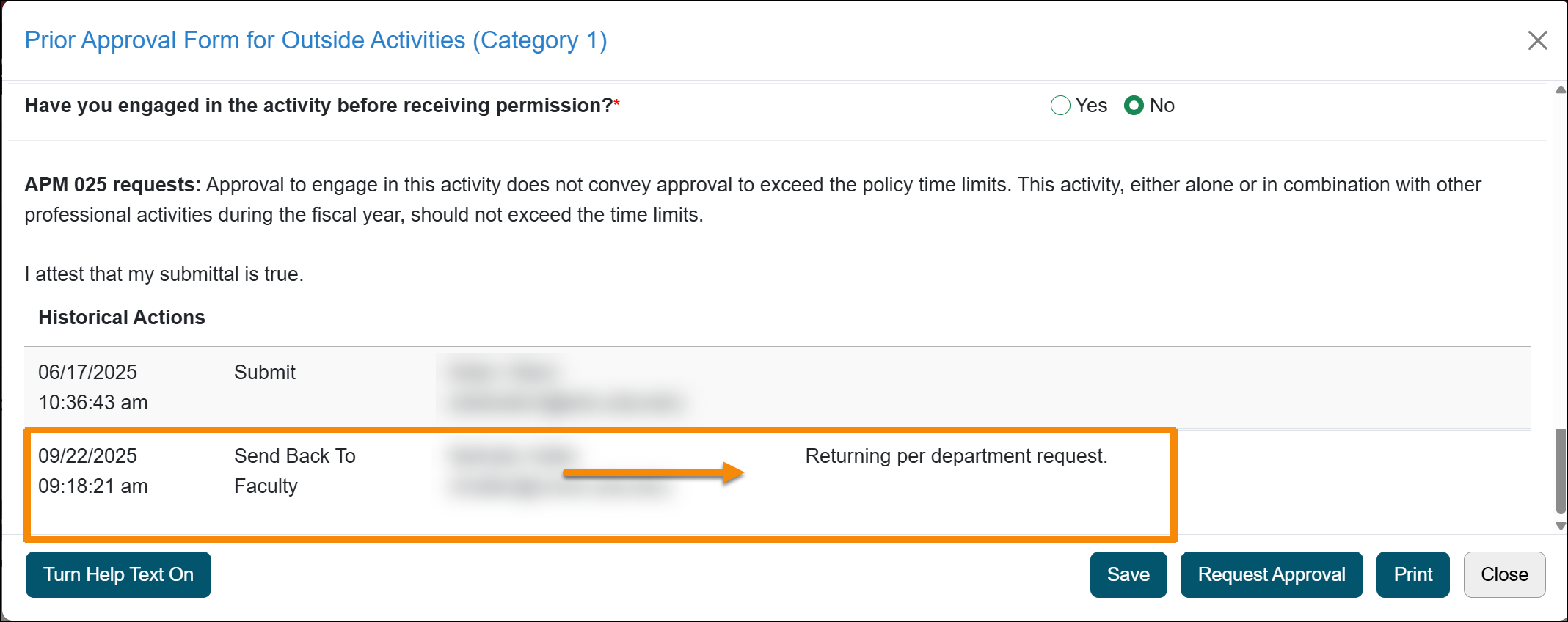
- After making the requested updates, select Request Approval to resubmit the form. The form will then re-enter the approval workflow for review.
Related Articles
All FacultyRecall Category I Form
Renew Category I Form
Update Student Involvement Form
Cancel Exceed Threshold Form
Form Returned to You
Weekly Email Reminders
Last Modified:2026-01-13 09:43:31.473723-08