Home > Training > Approver > Review Retain Earnings Form
Review Retain Earnings Form
Under the University of California’s APM-671 policy, faculty may request approval to exceed their allowable time and/or earnings threshold by submitting an Exceed Threshold form.
Once the Exceed Threshold request is approved, the faculty member may then submit a separate request to retain earnings that exceed their earnings threshold, as permitted under policy and campus procedures.
-
Not all campuses permit faculty to retain earnings that exceed their threshold.
-
The Retain Earnings option is available only on approved Exceed Threshold forms at campuses where this process is permitted. If your campus does not support retain earnings requests, the Retain Earnings form will not appear in the system.
Faculty Retain Earnings Process
Faculty at participating campuses can request to retain earnings that exceed their established earnings threshold. The Retain Earnings option will appear at the bottom of an approved Exceed Threshold form if your campus permits this process.
Approve/Acknowledge Retain Earnings Form
To review the form:
- Go to the Dashboard and view the "Forms in my Queue" section. The prior approval forms that have been waiting the longest will be at the top.
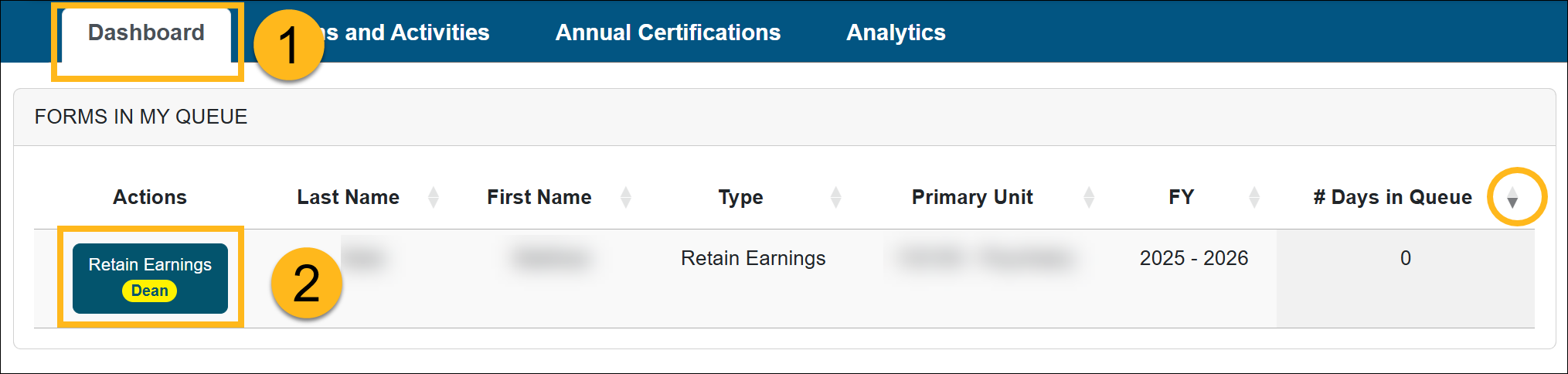
- Click on the Retain Earnings form you wish to review.
- Review the form.
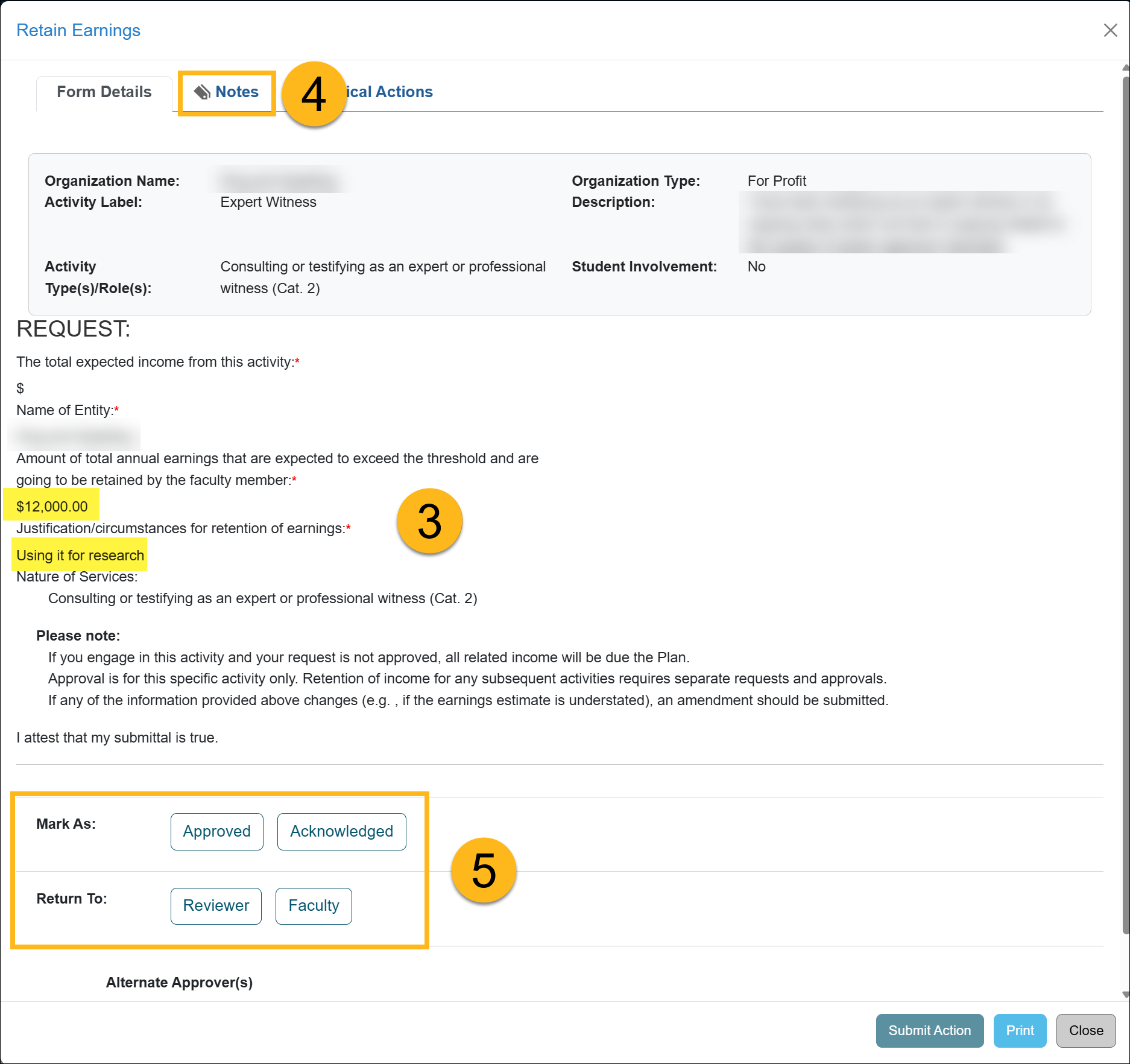
- Check the Notes field for additional information and attachments.
- Scroll to the bottom of the form to see available actions:
Approver Options:
- Mark As: Approved - Approves the form, unless an additional level of review is required at your campus.
- Mark As Acknowledged - Approves the form, unless an additional level of review is required at your campus.
- Denied: Denies the form.
- Return To: Reviewer - Returns the form to the Reviewer. Enter a clear explanation of what corrections or clarifications are needed in the Comments field.
- Return To: Faculty - Returns the form to the faculty member for additional information. Enter a clear explanation of what corrections or clarifications are needed in the Comments field.
- Click Submit Action to move the form to the next level of review and approval.
Last Modified:2026-02-26 14:46:44.696329-08