Home > Training > Faculty > Update Activity and Category type
Update Activity and Category Type
This article explains how to edit an activity after it has been added to your UC OATS workspace, including updates to activity details and category type.
When you cannot edit an activity
You cannot edit an activity if either of the following applies:
- The activity has an approved Category I prior approval form.
- Your Annual Certification for the fiscal year that includes this activity has already been submitted.
If either condition applies, the activity details are locked.
What to know before editing an activity
Before making changes, review the following important considerations:
- Category I form process: If a Category I form is currently in the approval workflow, editing the activity will return the form to you. You will need to review, update if needed, and resubmit the form for approval.
- Activity changed from Category I: If you change an activity from Category I to Category II or III, the associated Category I form will be deleted.
- Activity changed to Category I: If you change an activity from Category II or III to Category I, a new Category I form will be generated and must be submitted for approval.
- Reported earnings/time: If the activity already has reported effort or earnings and the category type changes, applicable time and/or earnings thresholds will be recalculated according to policy.
- Exceed Threshold form: If the activity has an Exceed Threshold (Exceed TH) form and you change the activity to a category where effort or earnings no longer count toward thresholds, the Exceed TH form will be deleted.
Update activity
To update an activity:
- Locate the activity you want to update and select the Edit button.

- Select I want to edit the details of this activity, then click Next.
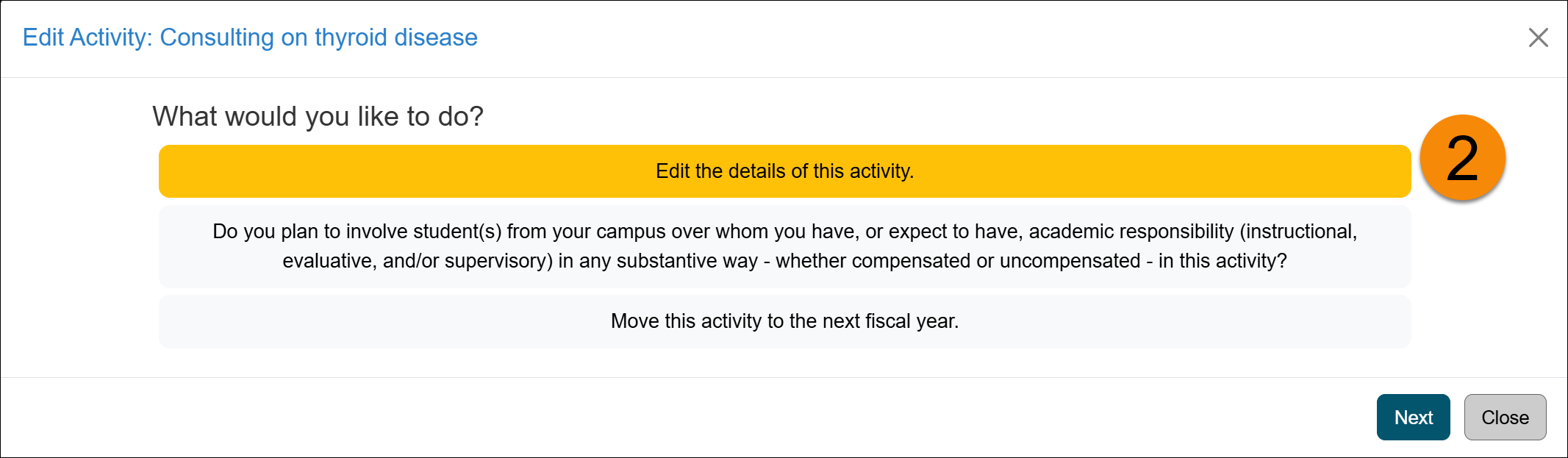
- The Enter an Activity form will open. Make the necessary changes to the activity. Select Save to continue.
-
An Activity Change Alert will appear, listing the changes that will occur if you proceed. Review the information, then select Continue to move forward. Selecting Cancel will discard any changes made to the activity.
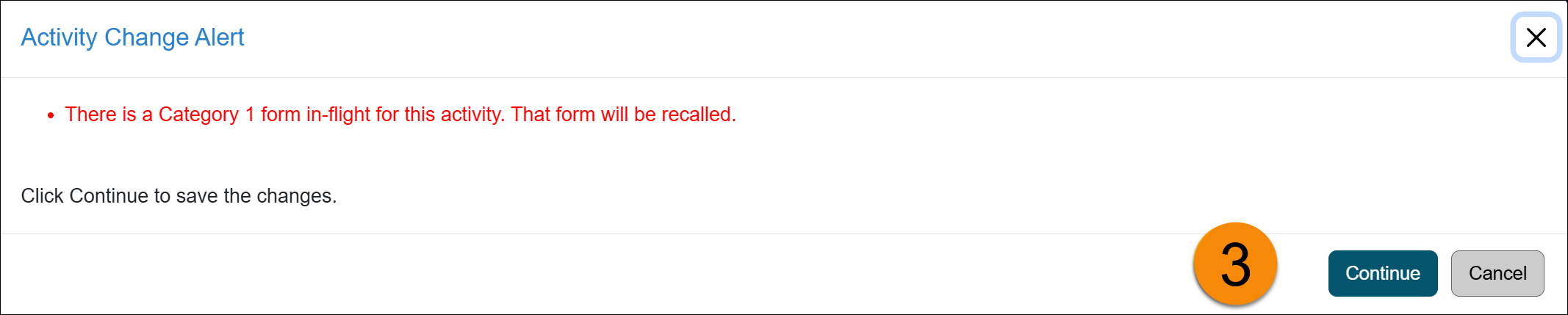
-
If applicable, update the Category I prior approval form, and then select 'Request Approval' to complete the changes.
Note: If a Student Involvement form is associated with the activity, it will also appear. You may close the form if no updates are needed.
Related Articles
All Faculty
Update Activity/Category type
Move Activity to Next Fiscal Year
Delete an Activity
Copy Activity
Last Modified:2026-01-13 12:36:41.51994-08