Home > Training > Application Administrator > Staff Data Import
Staff Data Import
The Staff Data Import feature enables you to import staff or delete staff using a data upload. You have the option of managing staff members manually in UC OATS or by using this data import method.
Data Preparation
This section walks you through preparing the staff data file for import and explains the required information for each field.
Data Preparation Details
To prepare the staff data file:
- Navigate to App Admin > Data Import.
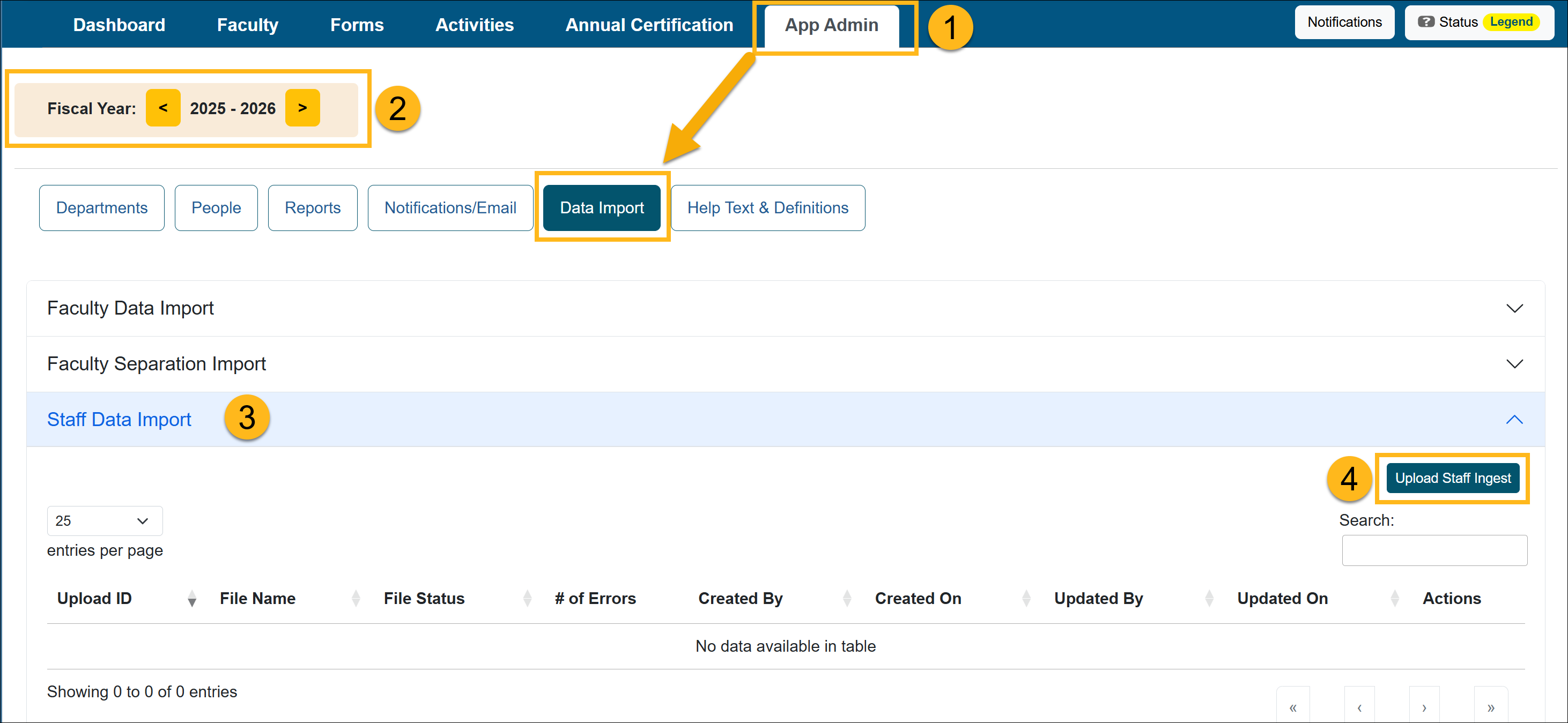
- Select the fiscal year the file should apply to.
- Open the Staff Data Import section.
- Select the Upload Staff Ingest button.
- Download the Sample (TSV) File and rename it.

- Open the file in Excel.

- View the Staff Data Element Descriptions below and update the data file. Click Save, instead of Save As. That will keep the file a (TSV) file.
Note:
- The staff data import sheet is a flat file.
- Staff data uploads do NOT wipe existing data—they only add/update records
- Only one row of data should apply to a single staff member.
- All columns must be included in the file, and all must have data.
Staff Data Elements Description
Use the description below to help you fill out the staff data file, unless it's not required.
| Data Element Name | Description | Max size | Required (Y/N) | Accepted Format | Example | Note |
|
dept_code |
A unique ID number that does not change over the lifetime of an organizational unit. This ID will serve as a unique identifier in UC OATS to identify the organizational unit and associate incoming data. |
30 characters | Y |
Alphanumeric |
1400, must be unique within a campus. |
This field will be used to map staff members to the appropriate department, division, school, or organized research unit (ORU). |
|
UCpath_ |
UCPATH employee ID |
500 characters | Y | Numeric | 12345678 | |
|
emp_lname |
Last name of staff member |
50 characters | Y |
Text; spaces, hyphens, and apostrophes accepted |
Brown; |
|
|
emp_fname |
First name of staff member |
50 characters | Y |
Text; spaces, hyphens, and apostrophes accepted |
Mary; |
|
|
emp_mname |
Middle name of staff member |
50 character | N |
Text; spaces, hyphens, and apostrophes accepted |
John; |
|
|
emp_email |
University email address used by the user. Email addresses are used for automated emails from UC OATS. This is limited to one email address per user. |
100 characters | Y |
Email address |
user@ |
Limited to one email per staff member |
|
add_roles |
Roles to be assigned to this staff |
4000 |
Y = either add_roles or remove_roles |
Comma-separated values (valid roles are alternate approver, approver, auditor, faculty status change, historical data manager, reviewer, stock evaluator) |
alternate approver, historical data manager |
Alternate approvers role will automatically assign the approver role. Historical data manager role will automatically assign the reviewer role. |
| remove_roles | Roles to be removed from this staff | 4000 characters |
Y = either add_roles or remove_roles | Comma-separated values (valid roles are alternate approver, approver, auditor, faculty status change, historical data manager, reviewer, stock evaluator) | approver, stock evaluator | Alternate approvers role will automatically assign the approver role. Historical data manager role will automatically assign the reviewer role. |
Staff Data Import
This section will show you how to import the Staff Data (TSV) file.
Staff Data Import Details
Once the tab-delimited staff data file is prepared, complete the following steps:
- Navigate to App Admin > Data Import.
- Confirm you are in the correct fiscal year.
- Open the Staff Data Import section.
- Click Upload Staff Ingest.
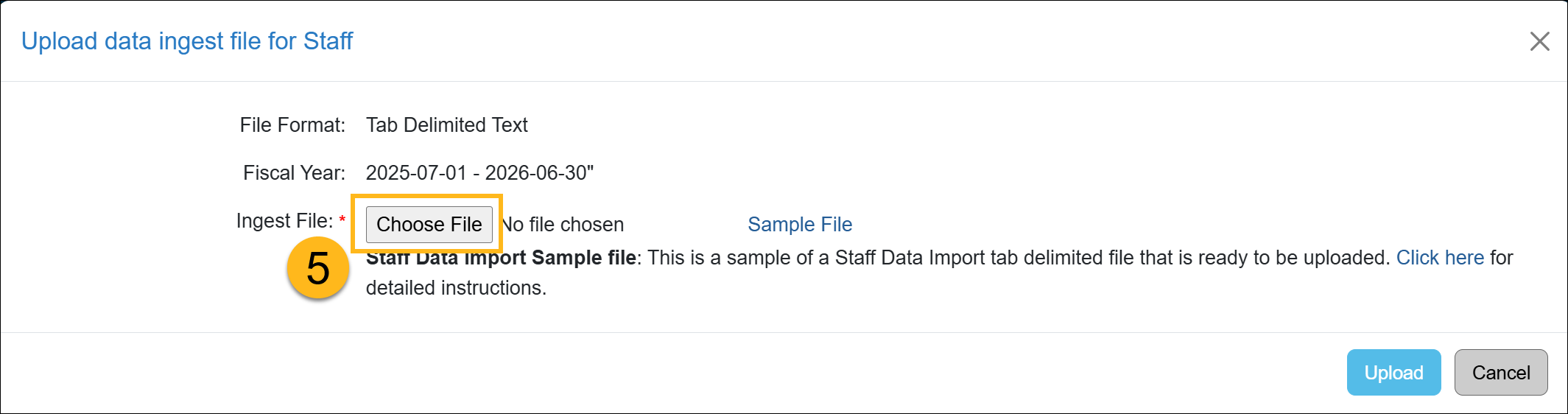
- Select Choose File, locate your data file, and click Upload. After uploading, the file status will display Processing Scheduled. Processing may take a few minutes.
- Once processing is complete, one of the following statuses will appear:
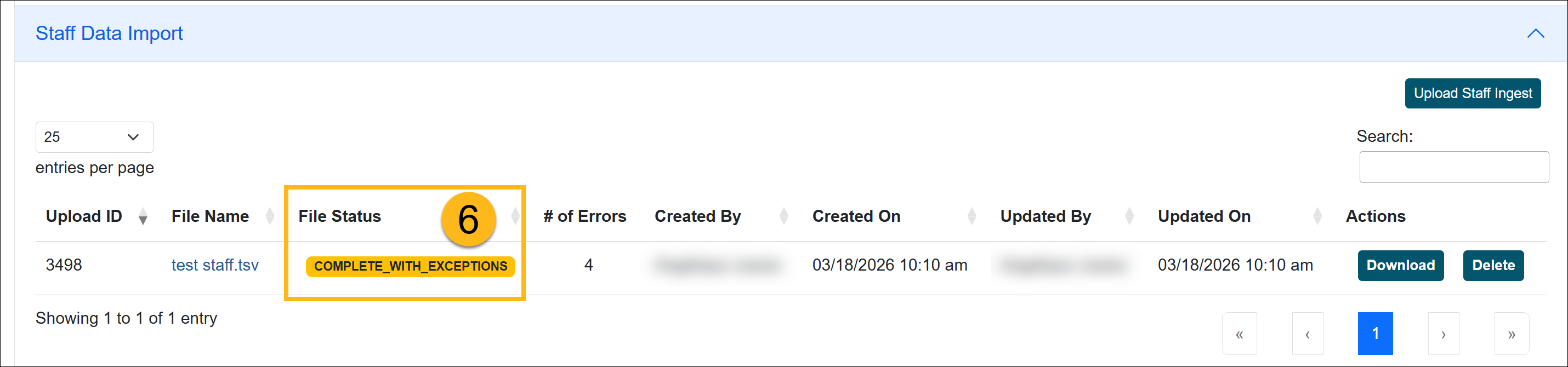
- Valid and processed / Complete Successful: The file was successfully uploaded, and there are no errors. The changes will be reflected in UC OATS.
- Complete with Exceptions: The system was unable to process some of the records. The number of errors will be listed.
- Invalid: There is an issue with the file.
- The file is not in Tab-delimited format
- There is no data in the file
- File columns have been removed
Complete with Exceptions Error
When the faculty separation data upload has a Complete with Exceptions status, it means some of the records were successfully uploaded, but other records had errors. This section will show you how to locate the issues and resolve them.
Fix Exception Errors
To resolve data import errors:
- Select the File Name to view the records.
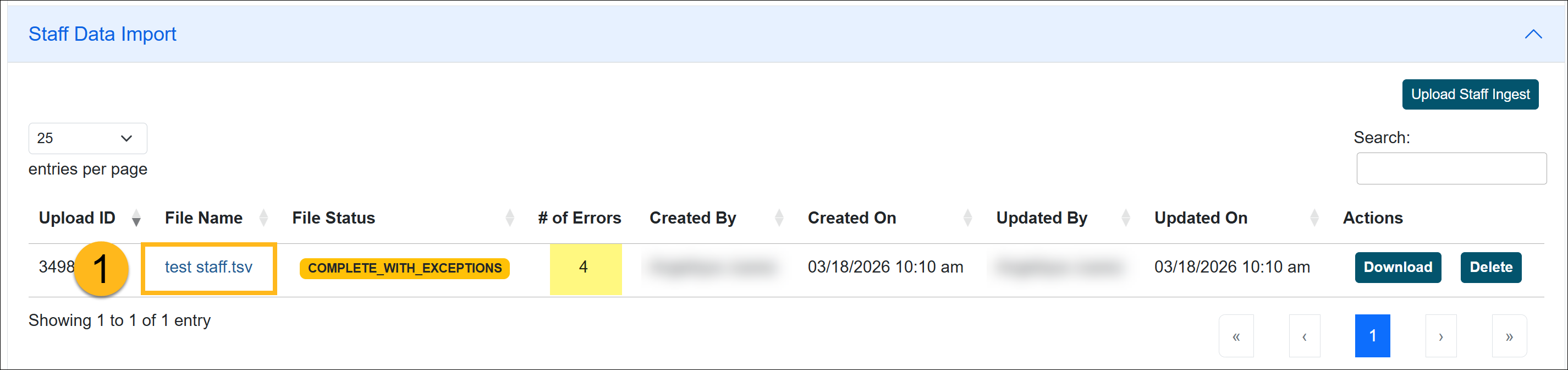
- Click on the Error Log button to view the issues.

- The records will be listed along with the issues that need your attention.
- Click the Download button next to the Number of Errors. Use that file to make the adjustments.
- Once the errors are fixed, upload the file again. Continue this process until the status is Complete Successful.
Related Articles
Application Administrator
Data Import Overview
Faculty Data Import
Faculty Separation Data Import
Staff Data Import
Last Modified:2026-03-17 15:11:10.013753-07