Home > Training > Application Administrator > Faculty Data Import
Faculty Data Import
The Faculty Data Import feature enables you to create and update faculty records and appointments in UC OATS by uploading a faculty data file. The information provided for faculty will drive the following system functionality: 1) general identifying information, 2) policies applied, 3) routing and approval workflow, and 4) threshold calculated (both effort and earnings). The faculty data can be updated as often as needed using the UC OATS data import feature or by editing the faculty member's individual record.
- The faculty data file you upload must include all faculty appointments. Faculty data uploads overwrite all existing faculty data, including any manual changes made to a faculty member's individual record in UC OATS.
- For APM-671 faculty, all appointment and salary data must be included in each upload. Partial updates will overwrite existing data.
- Faculty members are not permitted to hold two appointments within the same department. For example, if a faculty member also serves as a dean for the department, update their faculty type to reflect a dean appointment (e.g., 240 in 025 Context or 240 HSCP Context 671).
Faculty Data Preparation
This section walks you through preparing the faculty data file for import and explains the required information for each field. Campuses typically use UCPath or other HR systems to gather data and upload it regularly into UC OATS to maintain accurate and current data in the system.
Faculty Data Preparation Details
Please be aware of the following when preparing faculty data files.
- The faculty data file is a multi-record dataset, meaning a single faculty member may be represented by multiple rows (e.g., for multiple appointments). All records for a faculty member are linked using the UCPath Employee ID, which uniquely identifies each individual.
- All columns must be included in the file. While some fields may allow empty values (if designated as “Required = N”), the column itself must remain in the dataset.
- Uploads must include the complete faculty record, including all appointments and salary data. Incomplete uploads will overwrite existing data and may result in missing or inaccurate information (for example, a joint appointment appearing as partial).
Download the Faculty Data Sample File
To prepare the faculty data file, first download the faculty data sample (TSV) file:
- Navigate to App Admin > Data Import.
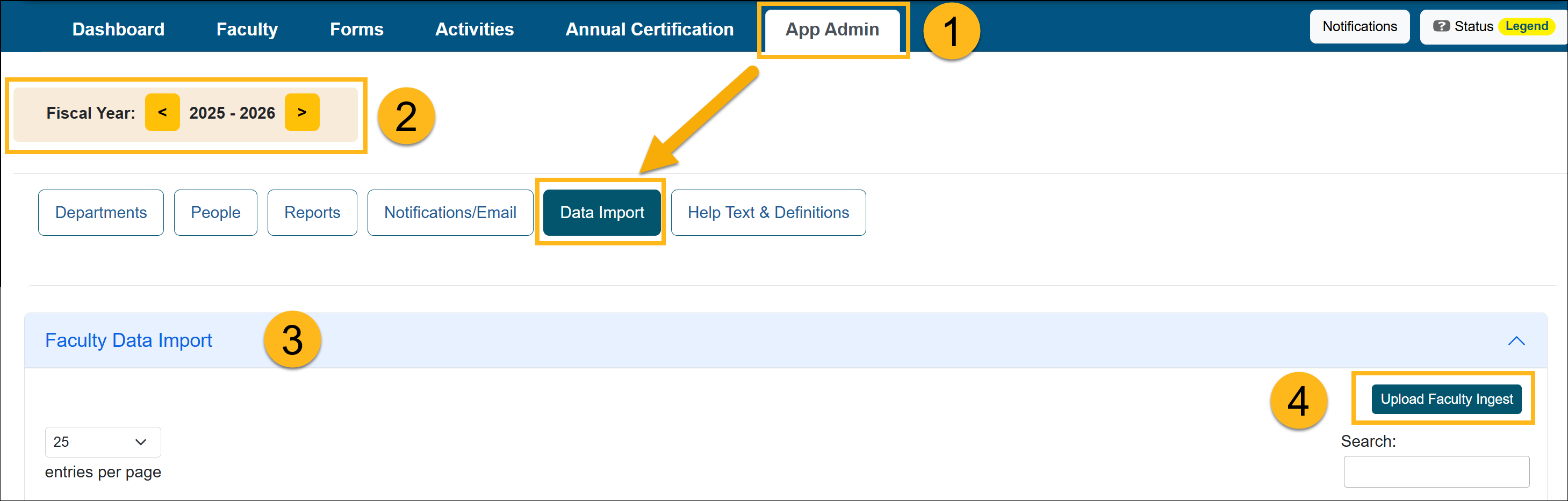
- Select which fiscal year this file should affect.
- Open the Faculty Data Import section.
- Select the Upload Faculty Ingest button.
- Download the Sample (TSV) File and rename it.
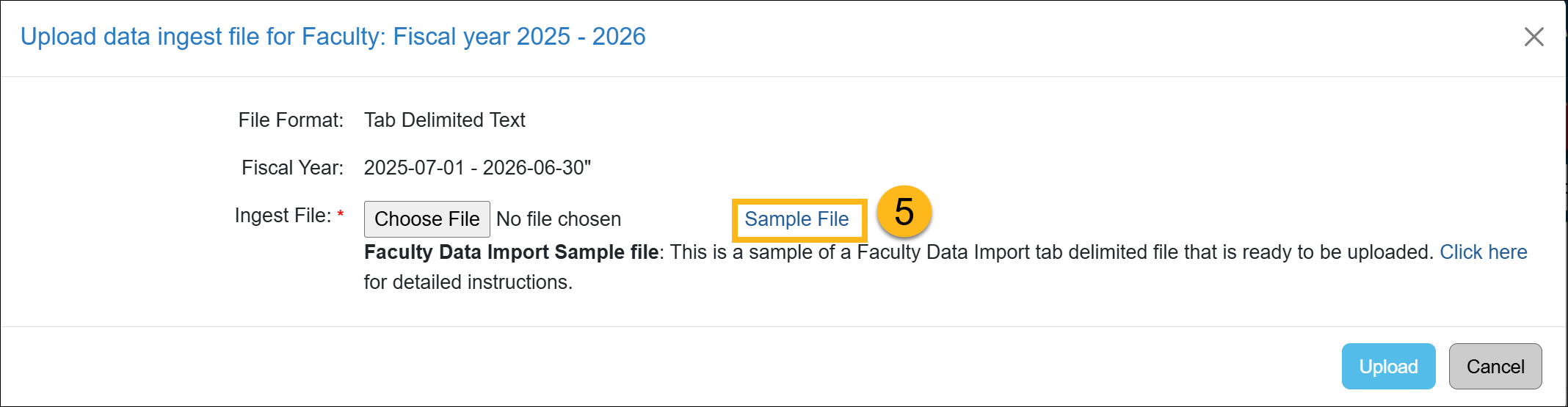
- Open the file in Excel.

- View the Faculty Data Element Descriptions below and update the data file. After making updates in Excel, click Save (not Save As) to ensure the file remains in TSV format.
Faculty Data Elements Description
Use the descriptions below to complete the faculty data file. Use the scroll bar at the bottom of the table to view all content or tab on your keyboard.
| Data Element Name | Description | Max size | Required (Y/N) | Accepted Format | Example | Note |
|
emp_lname |
Last name of faculty member. |
50 characters |
Y |
Text; spaces, hyphens, and apostrophes accepted |
Brown |
|
|
emp_fname |
First name of faculty member. |
50 characters |
Y |
Text; spaces, hyphens, and apostrophes accepted |
Mary |
|
| emp_mname | Middle name of faculty member | 50 characters |
N |
Text; spaces, hyphens, and apostrophes accepted | John John Joseph John-Joseph |
|
|
emp_email |
University email address used by the faculty. Faculty emails are used for automated emails from UC OATS. This is limited to one email address per faculty member. |
100 characters |
Y |
Email address | user@ campus.edu |
Limited to one email per faculty |
|
dept_code |
The department code for the department with which the faculty is associated. This field dictates the thresholds for which a faculty is subject. For the 671 faculty, this department code should be the department associated with the faculty’s comp plan. When no division is provided, the department code will dictate the routing and approval of forms. |
30 character |
Y |
Alphanumeric |
1400 |
If a person has multiple department associations, a new record must be present for each department for that faculty. |
|
primary_ |
If a faculty member has multiple departmental appointments, this parameter will indicate which department is the faculty member’s primary appointment, where 1 = Yes and 0 = No. Faculty with a singular departmental appointment should be set to 1. Faculty must have only one primary department appointment. This field will determine the routing and approval workflow for the faculty. |
1 digit |
Y |
Integer value, 1 = yes and 0 = no |
1 A faculty has a joint appointment with the Department of Biology, Chemistry, and Physics. If the primary appointment is Biology, then the line corresponding to department code of Biology will be 1 while the rest of the departments will be 0. |
This field dictates the workflow and thus where final approval for certain forms will occur at the department level. |
|
percent_ |
This is the percent appointment of this faculty member to the departmental unit referenced by dept_code in this record. If a faculty is only associated with one unit (department) and is working full-time then this value will be 100. If a faculty has multiple department/unit appointments, then this parameter will have a value greater than 0 and less than 100, and there will be multiple records in this data set for the same faculty member. However, the sum of percent appointments among department codes for the same faculty cannot be greater than 100. | 3 digits |
Y |
Integer value greater than zero but less or equal to 100 |
1 If a faculty appointment to dept_code 1 is 75% and to dept_code 2 is 25%, then dept_code 1 has the value 75 and dept_code 2 has the value 25. However, the system will normalize these values by dividing by 100. Thus dept_code 1 will become 0.75 and dept_code 2 will become 0.25 |
The percent appointments do not have to equal 100 if faculty is part-time, or there are additional title codes that are not subject to policy. |
|
academic_term |
This is an indicator to track terms for faculty. APM 671: F = fiscal, APM 025: A = academic, F = fiscal. Only the summer indicator will affect system functionality. |
1 character |
Y |
A = academic F = fiscal Case insensitive |
A or a F or f |
Required: a null value will result in record not being processed. |
|
CC_policy |
The conflict of commitment policy governing this faculty member. Acceptable formats: 025 671 240.5 (Dean, General Campus) 240.1 (Dean, Health Sciences) 246.5 (Faculty Admin, General Campus) 246.1 (Faculty Admin, Health Sciences) Other data formats will not be accepted. |
5 characters |
Y |
One of: 025 671 240.5 240.1 246.5 246.1 |
For a faculty administrator under the Health Sciences comp plan, value should be 246.1 |
In general, campuses can generate the information for this field based on title code. This data can be manipulated directly through the UC OATS administrative console if needed. In rare instances, a campus might wish to include certain title codes under a CC policy. |
|
level_1_review |
The unit (department, division, etc.) code with which a faculty is associated. This field dictates the routing and approval workflow for the initial review stage for each form. |
30 characters |
N |
Alphanumeric |
1400 The level 1 review code could be a division within the department with which the faculty is associated. This field is used to dictate the routing and approval workflow for this faculty relative to their division. This field does not affect the thresholds for faculty. If no data source exists for divisions, campus will have to provide a distinguishing ID number for each division. |
The level 1 review code could also be the department code if review should begin at the department level. In this case, the value would be identical to dept_code or NULL. |
|
base_salary |
For faculty participating in a compensation plan governed by APM 671, a base salary must be provided in the format 100000. Commas will be removed and decimals will be rounded up to an integer. The earnings threshold for outside activity is scaled from this value. For 025 faculty, leave this value as empty. |
15 decimal digits |
N |
Do include “$” in value. Integer value will be rounded up to an integer. |
100000 82599 |
The system is currently using Scale 0 to calculate earning thresholds. Base salary parameters should be updated on an annual basis to account for salary changes. Data feeds may be updated concurrent with fiscal year start (or retroactively applied). |
|
UCpath_ |
UCPATH employee ID when available. This will replace the employee_id field when possible. |
500 characters |
Y |
Numeric | 12345678 | |
| dos_code | Faculty member's Distribution of Salary (DOS) Code. |
|
Import Faculty Data
This section will show you how to import the Faculty Data file.
Import Faculty Data Details
Once the Faculty Data (TSV) file is ready to upload, do the following:
- Navigate to App Admin > Data Import.
- Confirm you are in the correct fiscal year.
- Open the Faculty Data Import section.
- Click on the Upload Faculty Ingest button.
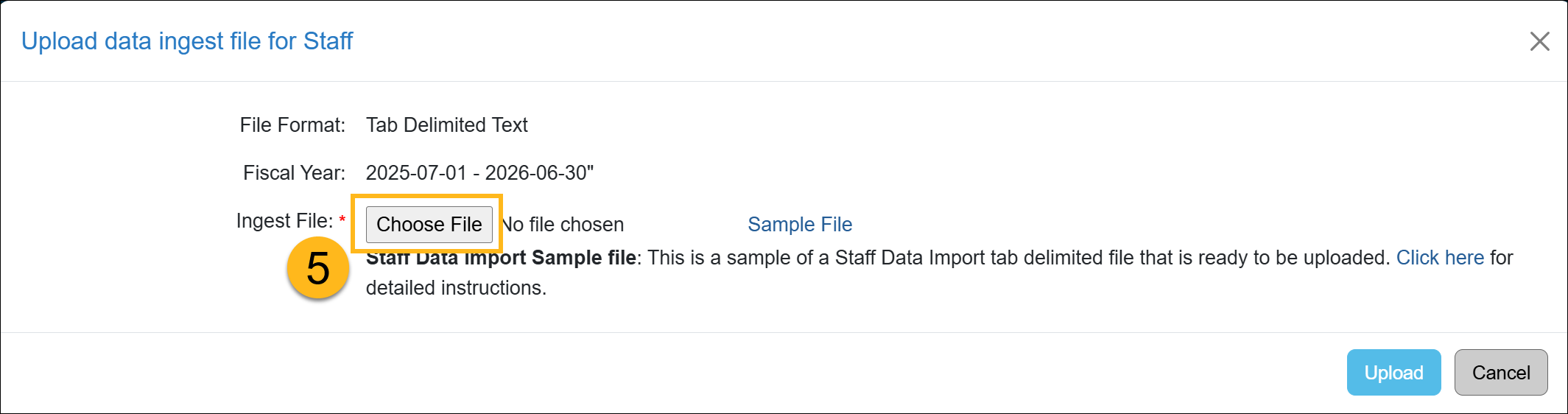
- Select the Choose File button and locate your data file. Then select Upload.
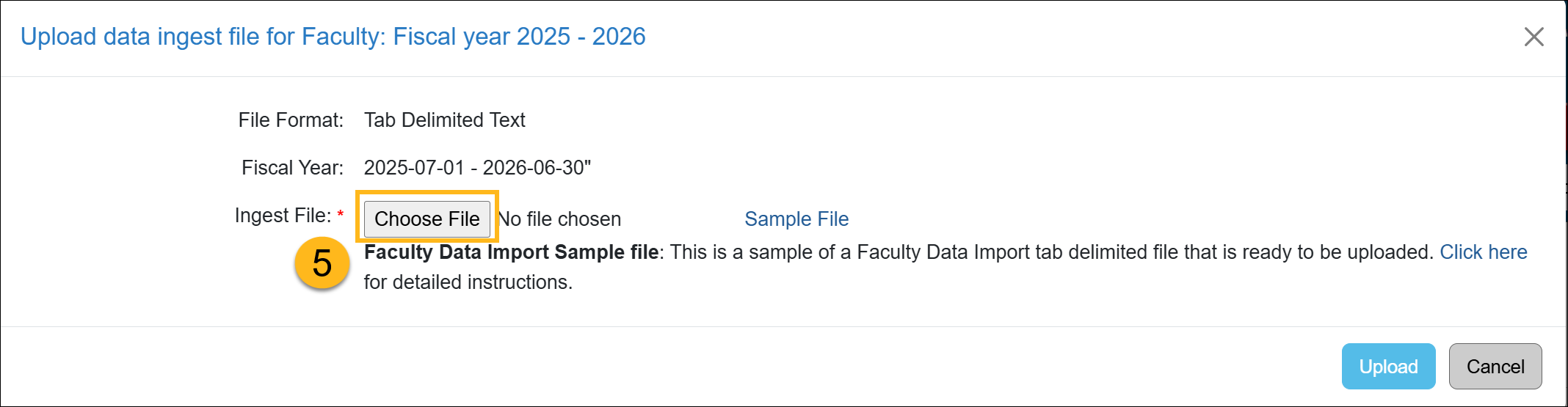
- The file status will change to File Uploaded. Click the Return button to go back to the Data Import section. It may take a few minutes to process the file.
- The system will process your file, and one of the following statuses will appear.
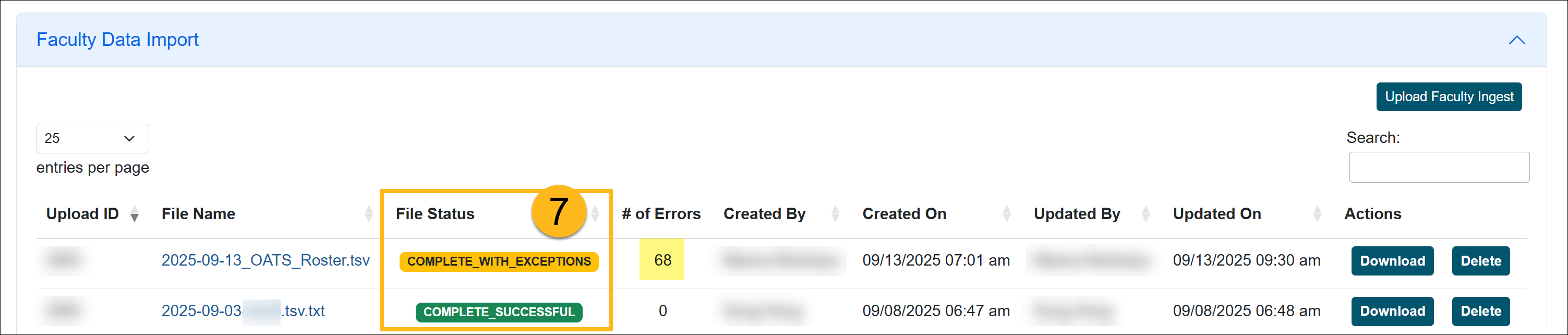
- Valid and processed / Complete Successful: The file was successfully uploaded, and there are no errors. The changes will be reflected in UC OATS.
- Complete with Exceptions: The system was unable to process some of the records. The number of errors will be listed.
- Invalid: There is an issue with the file.
- The file is not in Tab-delimited format
- There is no data in the file
- File columns have been removed
Complete with Exceptions Error
When the faculty data upload has a Complete with Exceptions status, it means some of the records were successfully uploaded, but other records had errors. This section will show you how to locate the issues and resolve them.
Fix Exception Errors
To resolve the data import errors:
- Select the File Name to view the records.
- Click on the Error Log button to view the issues.
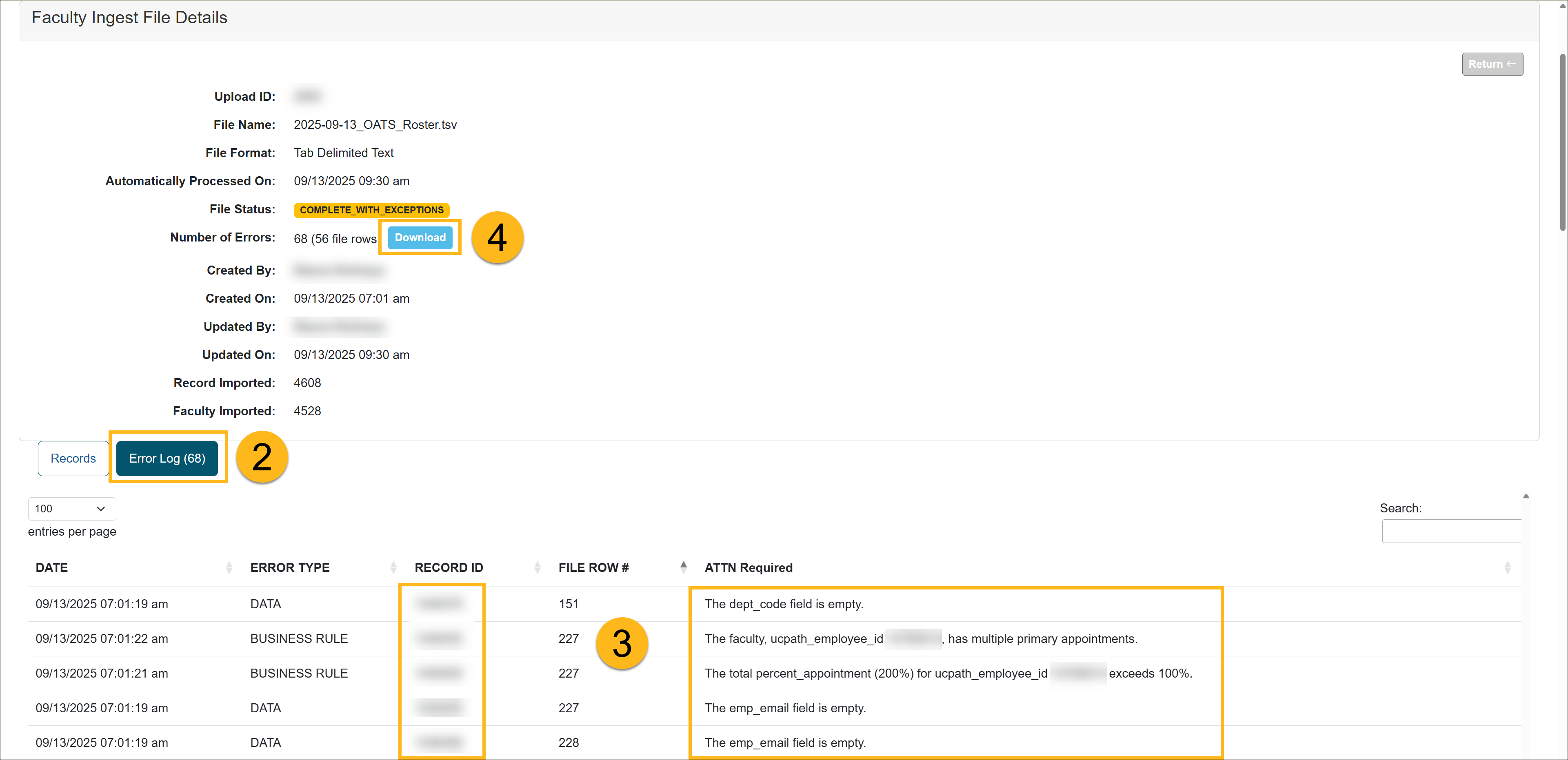
- The records will be listed along with the issues that need your attention.
- Click the Download button next to the Number of Errors. Use that file to make the adjustments.
- Once the errors are fixed, upload the file again. Continue this process until the status is Complete Successful.
Related Articles
Application Administrator
Data Import Overview
Faculty Data Import
Faculty Separation Data Import
Staff Data Import
Last Modified:2026-03-16 15:06:33.00041-07