Home > Training > Application Administrator > Workspace Overview
Workspace Overview
This guide will help you navigate your administrator workspace and understand its key features. Use the sections below to learn about each section of UC OATS.
Responsibilities of Application Administrator
Application Administrators (App Admins) play a critical role in supporting the operation and governance of UC OATS at the campus level. They manage system access, maintain accurate faculty and staff data, and configure the system to align with campus workflows. App Admins oversee user roles and permissions, monitor system activity, manage campus-specific settings, and provide administrative support. By ensuring data integrity and system functionality, they help UC OATS operate effectively for compliance, reporting, and oversight.
Departments
This section provides an overview of the Departments area within the App Admin workspace. App Admins use this section to manage the campus organizational structure in UC OATS, including department, faculty, and staff information.
Department details
Navigate Departments
The Department section is where you view your campus structure and add or manage faculty and staff data. There are two ways to navigate the campus structure:

- Departmental Hierarchy Tree Structure: This button shows you the entire campus structure and hierarchy. You can also see how many faculty (F), reviewers (R), and approvers (A) are assigned to a department. If the number of faculty or staff in a department is 0, it will be highlighted in red. App Admins should pay special attention to departments that have faculty but 0 Approvers or Reviewers.

- Title: Click the title link to view your campus hierarchy. The structure begins at the top level (L1) and drills down levels as you click on the title links: campus > school level > department > division. For example, after selecting the Title link, you will see the schools. If you click on the schools, you will see the departments, and then the divisions.

Department Details
Once you select a department/unit, you can add or manage faculty, staff, thresholds, and view summer terms. Request in Queue shows any requests that are in the department's queue. System messages show any system changes to the department.

People
The People section allows App Admins to view all users within their UC OATS instance, including faculty and individuals assigned administrative roles such as reviewers, approvers, and auditors.
People details
Locate People
Use the filters in the People section to locate users. You can search by role, units, and policy.
For example, if you want to view all Health Science faculty on your campus, you can filter by Faculty Role and Policy.
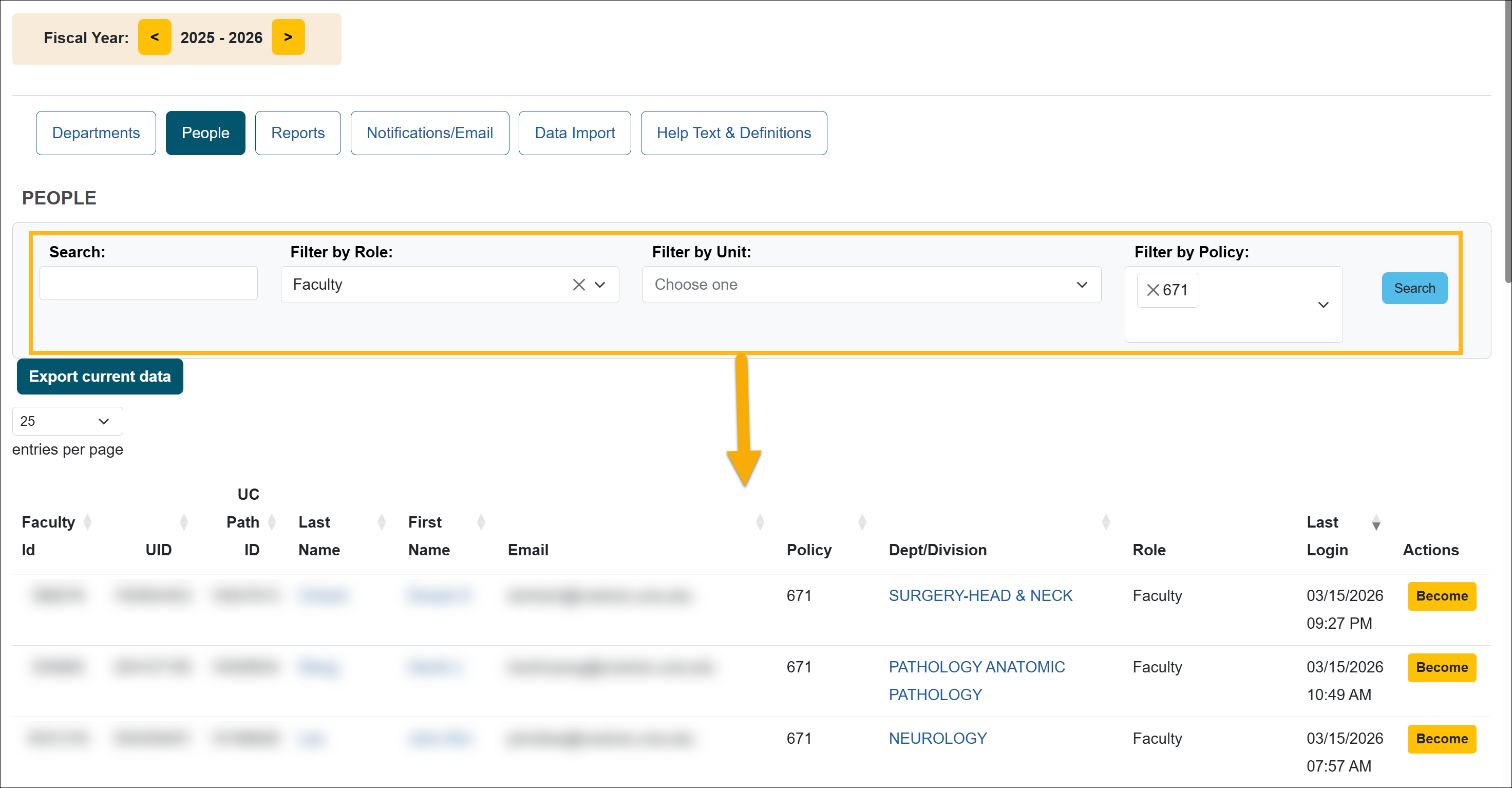
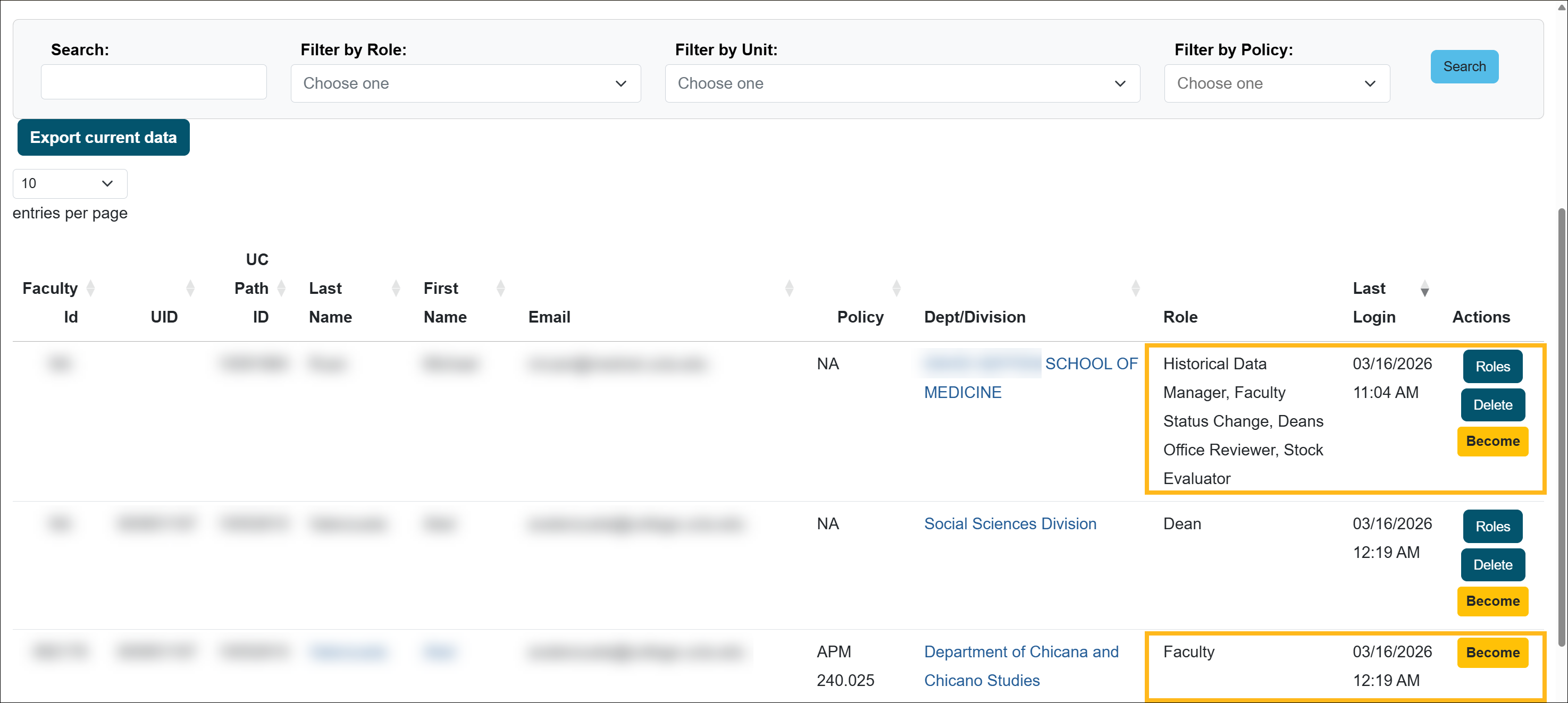
The results list displays different actions based on the user type.
- Staff
- Roles: Manage assigned roles
- Delete: Remove the staff member
- Become: Access UC OATS as that user
- Faculty
- Become: Access UC OATS as the faculty member
Reports
There are several reports available to you.
Reports details
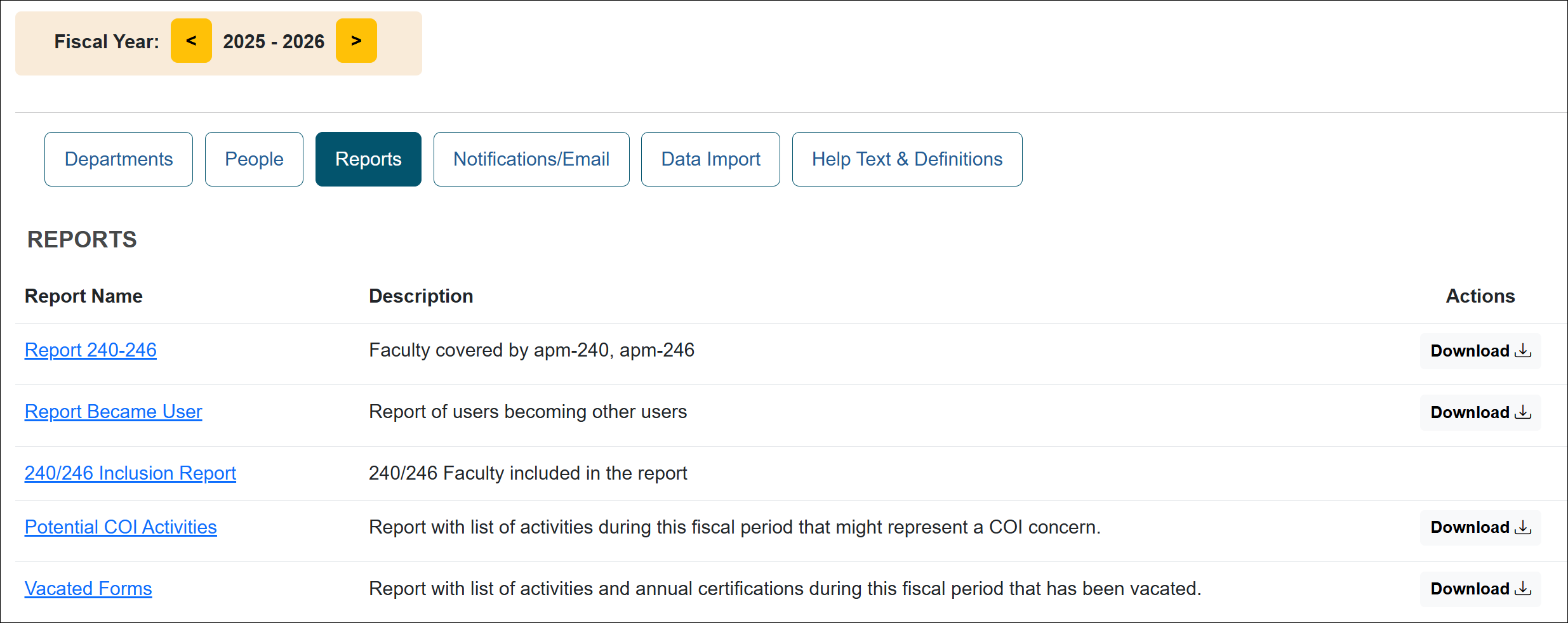
There are several reports available to you.
- Report 240-246: This report shows faculty covered by the APM-240/246 policy. This report is sent annually to UCOP.
- Report Became User: Report of users who have used the Become feature.
- 240/246 Inclusion Report: This report shows you who is included in the 240/246 report that is sent to UCOP.
- Potential COI Activities: Report with a list of activities during the fiscal period that might represent a COI concern.
- Vacated Forms: Report with a list of activities and annual certifications during this fiscal period that have been vacated.
Notifications/Email
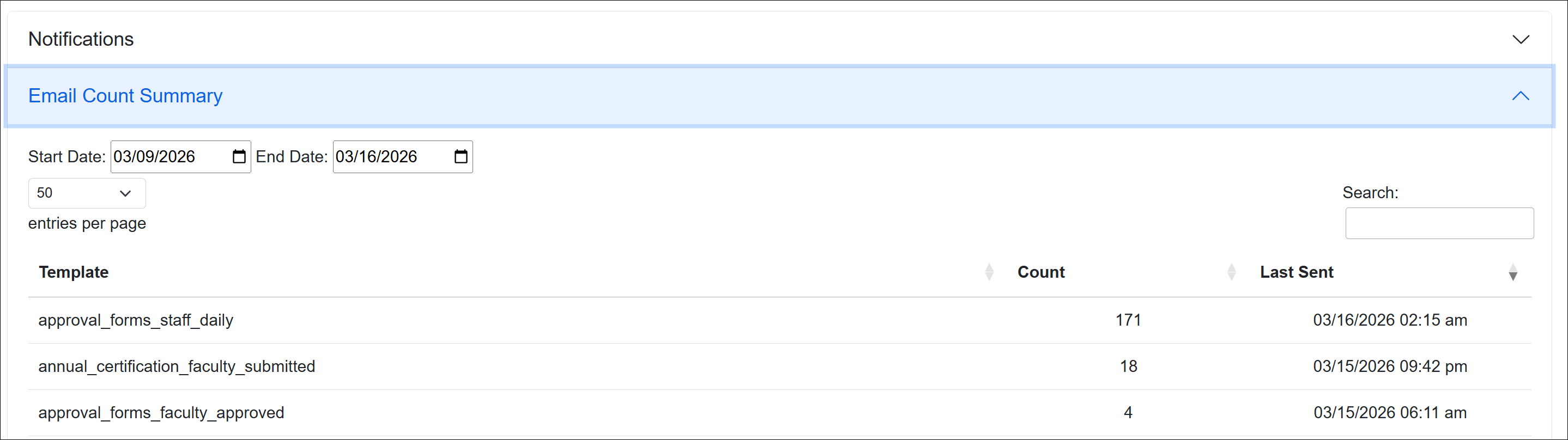
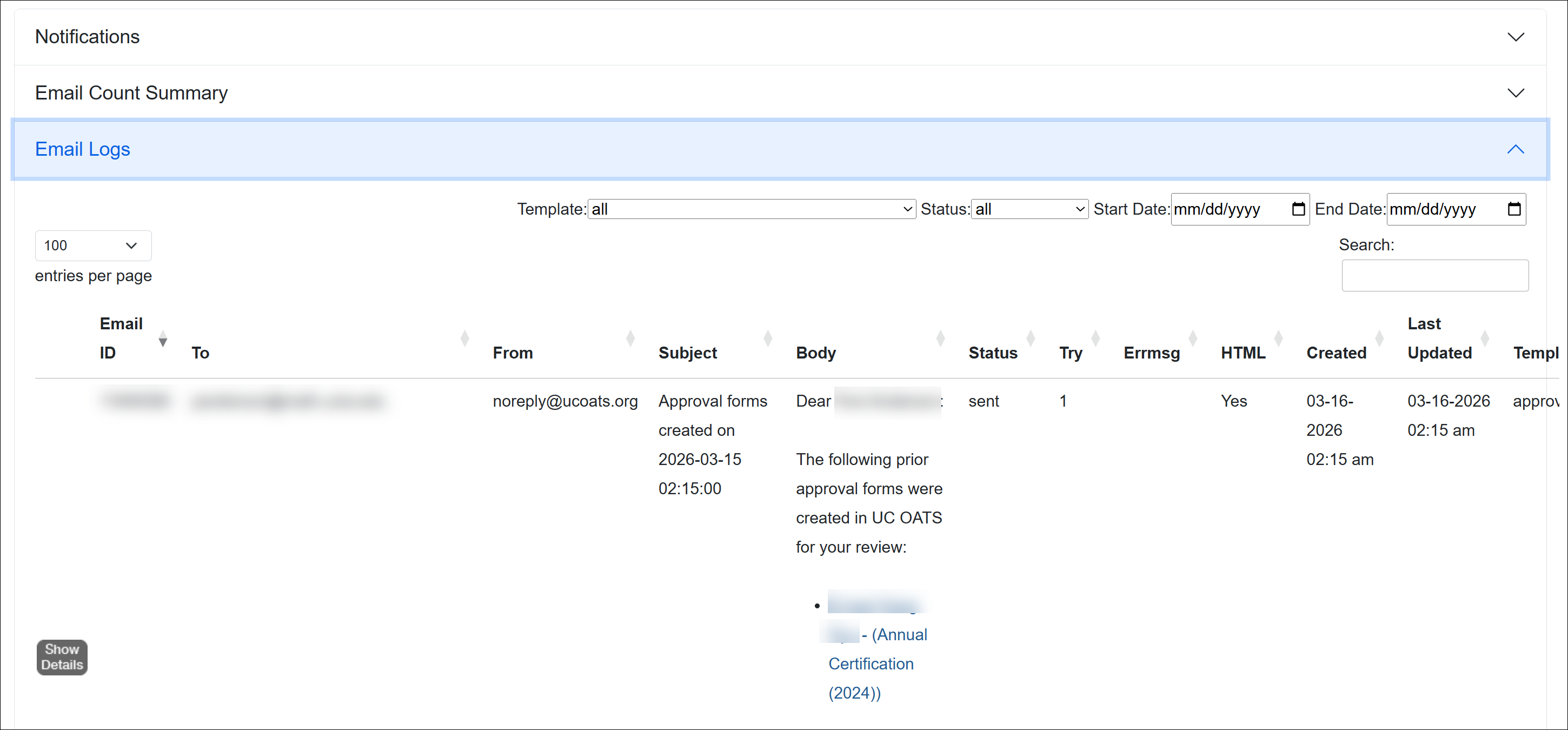
This section shows the email notifications that are sent when triggers are met or when they are scheduled. It also shows emails that have been sent out and how many of each email were sent out.
Notification/Email details
The following provides a brief description of each section.
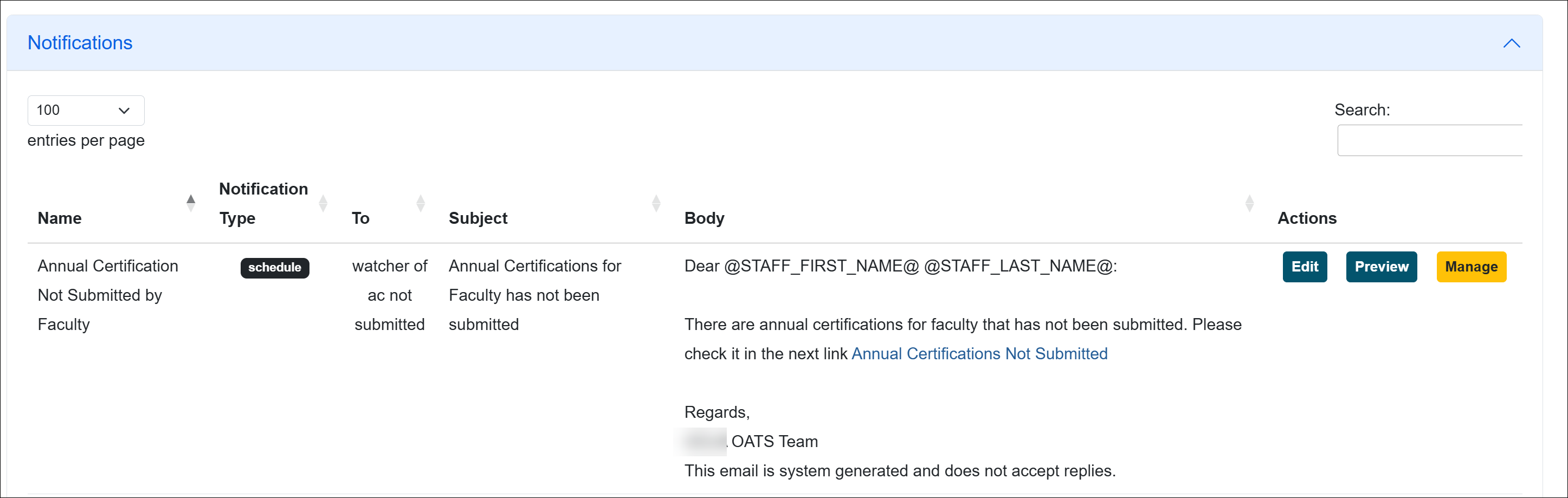
- Notifications: Shows the system emails that are sent when conditions are met or when scheduled. As an App Admin, you can edit the content within the notification and schedule certain notifications.
- Email Count Summary: Shows how many of each email have been sent out within the selected time period.
- Email Logs: Shows all system emails that have been sent out.
Data Import
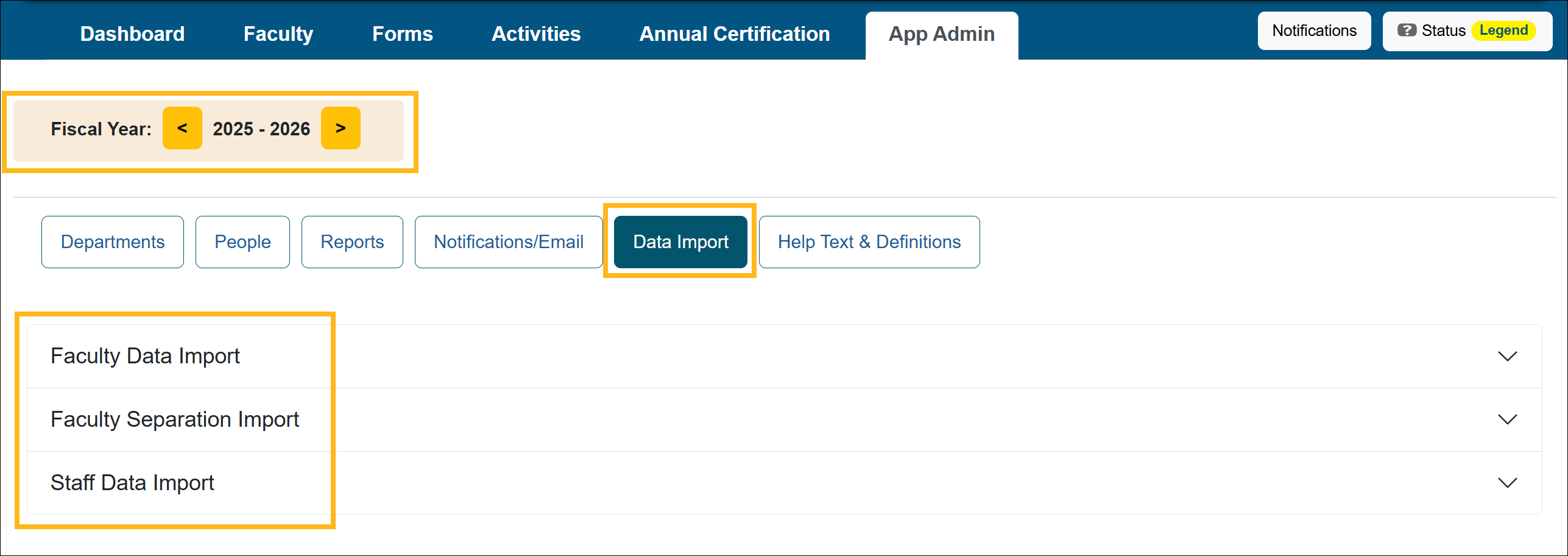
The Data Import section is where you can import faculty and staff data. This can be more efficient than updating records individually.
Data import details
The Data Import section includes:
- Faculty Data Import: Use to update your faculty data in the system.
- Faculty Separation Import: Use to separate faculty in the system.
- Staff Data Import: Use to import staff into the system.
Help Text & Definition
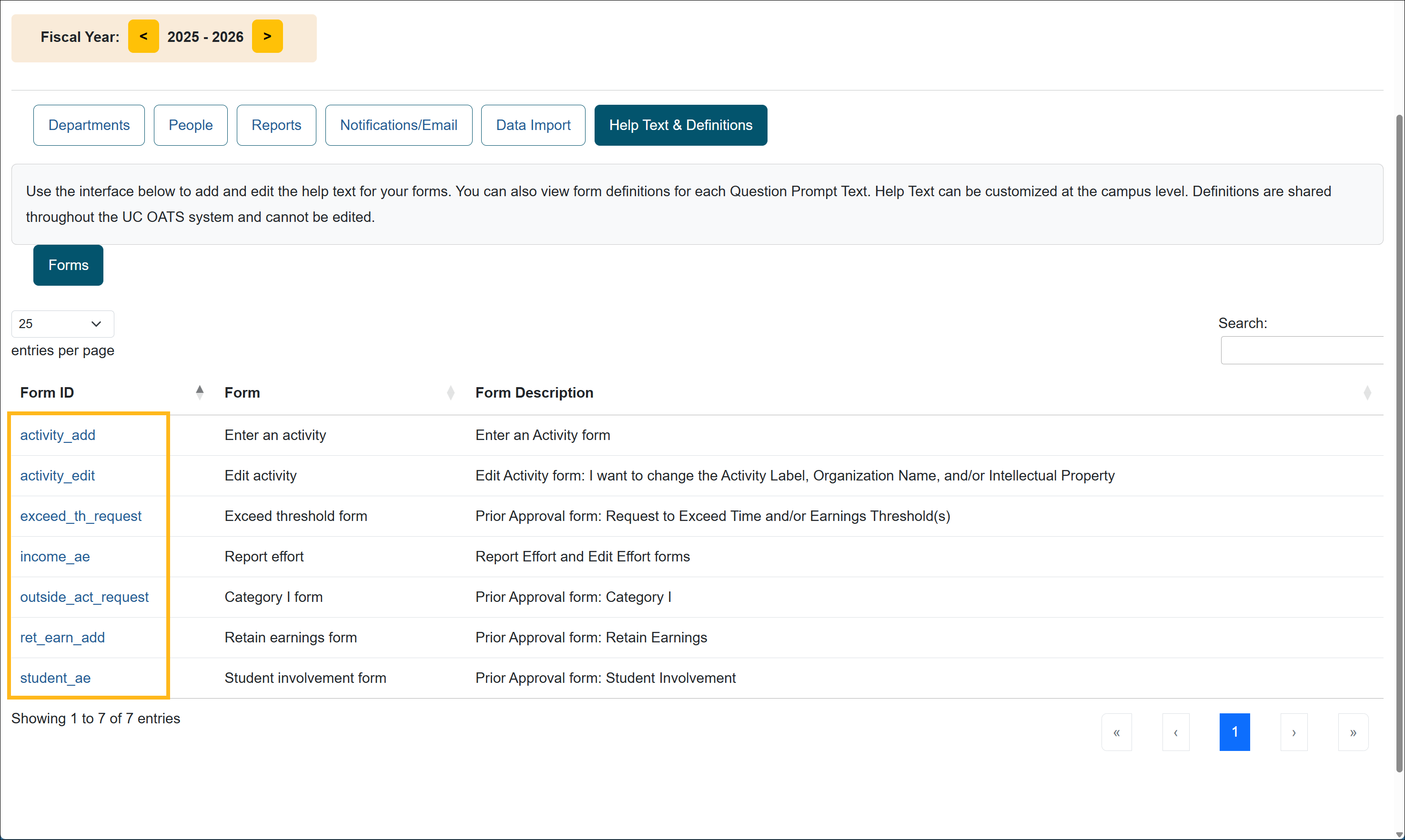
This section allows you to update the Campus-specific help text that appears on the forms in UC OATS.
Help Text & Definition details
You can manage the help text that appears on each of the forms in UC OATS. This allows you to add campus-specific information. Select a Form ID to see available options.
Related Articles
Application Administrator
Log in to UC OATS
UC OATS Structure
Workspace Overview
UC OATS Servers
End of Fiscal Year Checklists
Last Modified:2026-03-11 15:56:07.151485-07